

This article is no longer updated.
Please go to our new Intercom knowledge base to ensure you're seeing the most recent version.
The link above takes you directly to the equivalent article on Intercom.
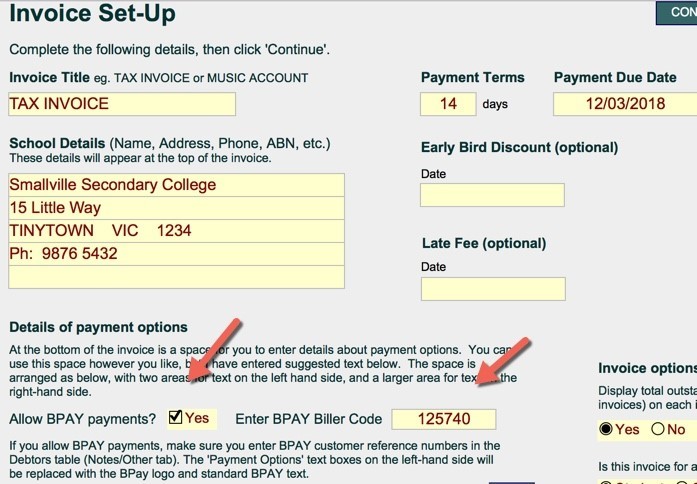
The Invoice Set Up screen includes an ‘Allow BPay Payments’ option and provides a place for a Biller Code.
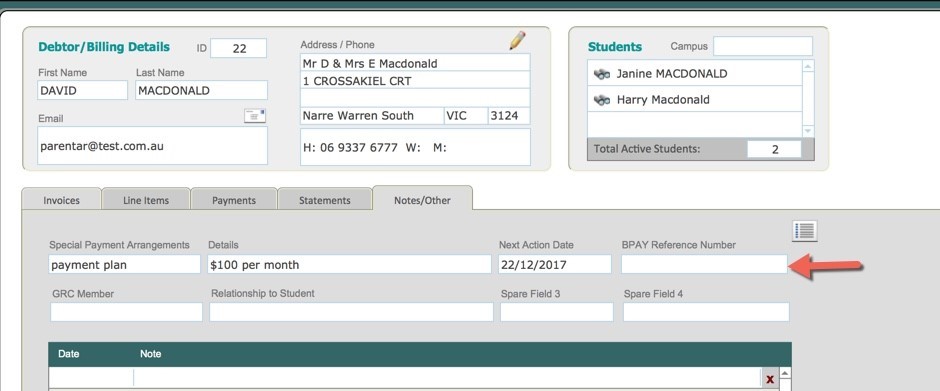
The debtor BPAY reference numbers must be entered on the Notes / Other tab of the Debtors file for each debtor.
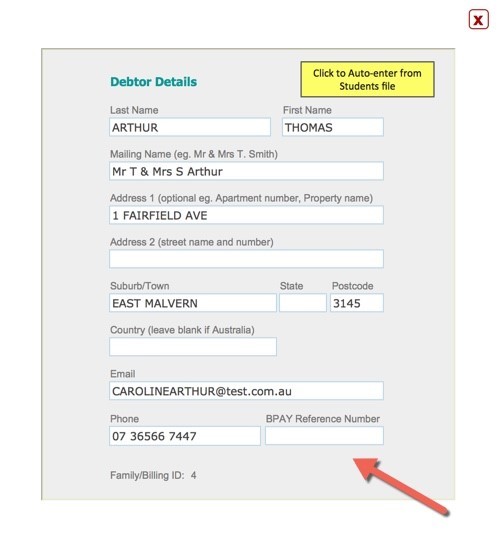
Alternatively, the Debtor Details screen used for setting up new debtors also provide this field.
If the BPAY Invoice option is selected, the BPAY logo and fields will replace the editable text fields on the left-hand side of the invoice. Other payment options should still be entered on the right- hand side.
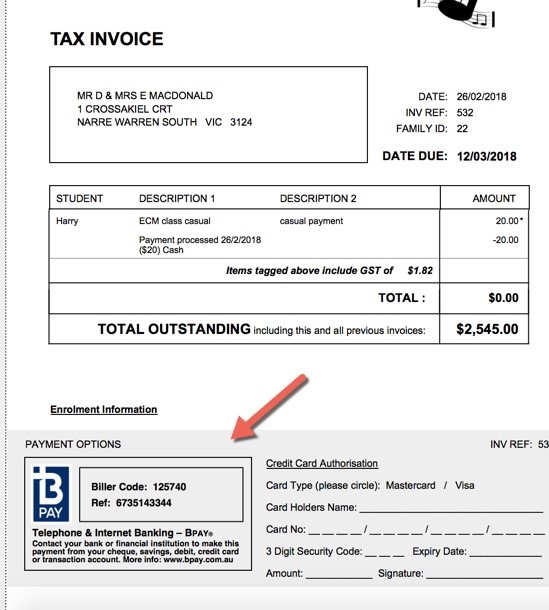
The logo and text have been added to the invoice according to BPAY standards. The BPAY reference number appears in the BPAY box.
BPAY Numbers
Music Monitor does not generate the BPay numbers. You will need to generate them yourself and enter them into the Debtor record.
At least two different formulas exist for how BPay numbers must be generated in order to be valid. Check with the bank that will be processing the payments to confirm what your BPay numbers will need to conform to.