This article is no longer updated.
Please go to our new Intercom knowledge base to ensure you're seeing the most recent version.
The link above takes you directly to the equivalent article on Intercom.
Common Tasks is a menu for viewing and running sets of scripts. It is particularly significant for processes such as billing and managing attendance records.
Navigate to Common Tasks
There is a Common Tasks icon on the Home screen.
Several of the items in the Office Admin menu on the Home screen are also shortcuts to Common Tasks categories.
Many other files have a link to Common Tasks in the bottom bar.
Use Common Tasks
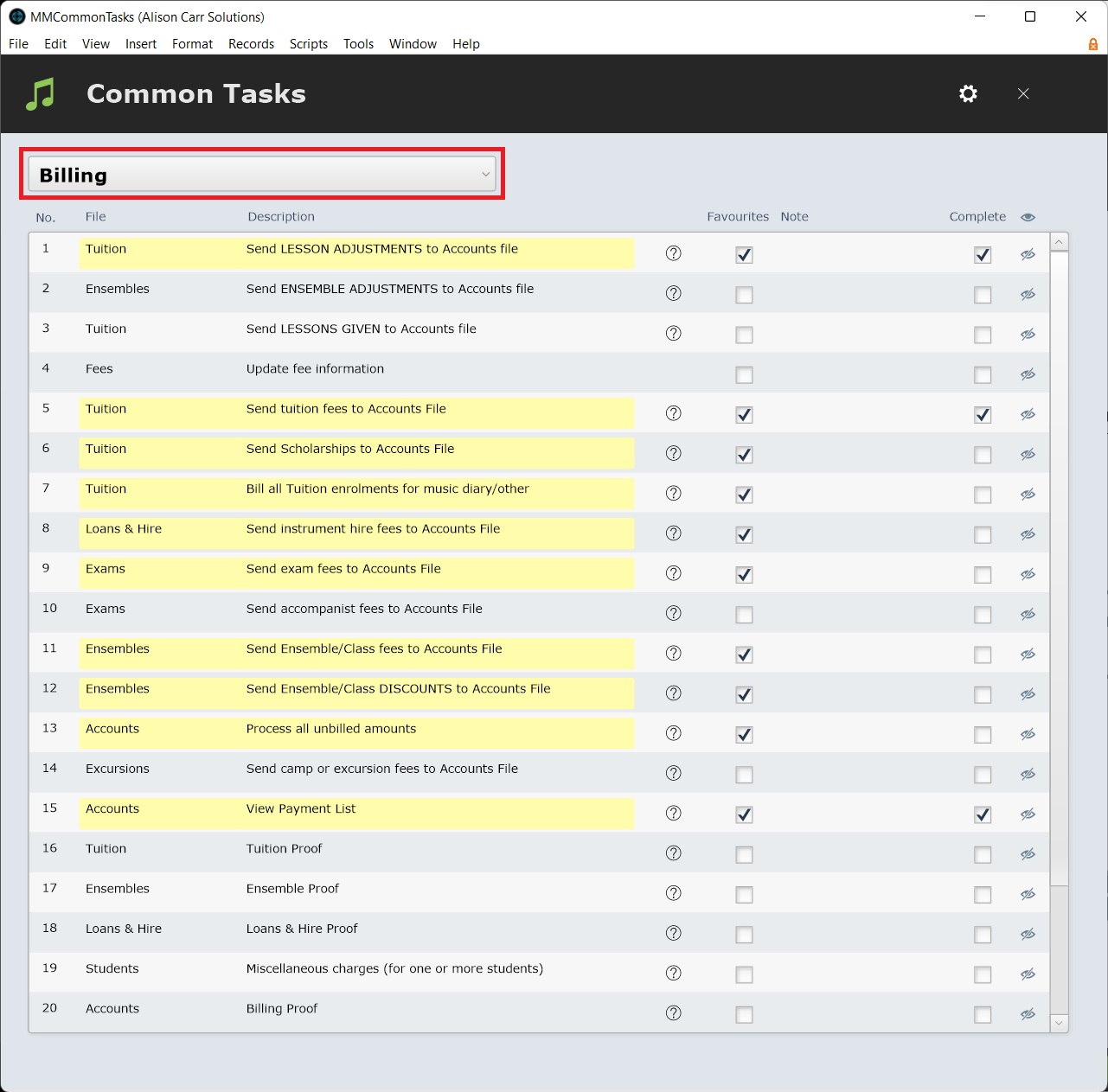
The viewed category can be changed using the category selector.
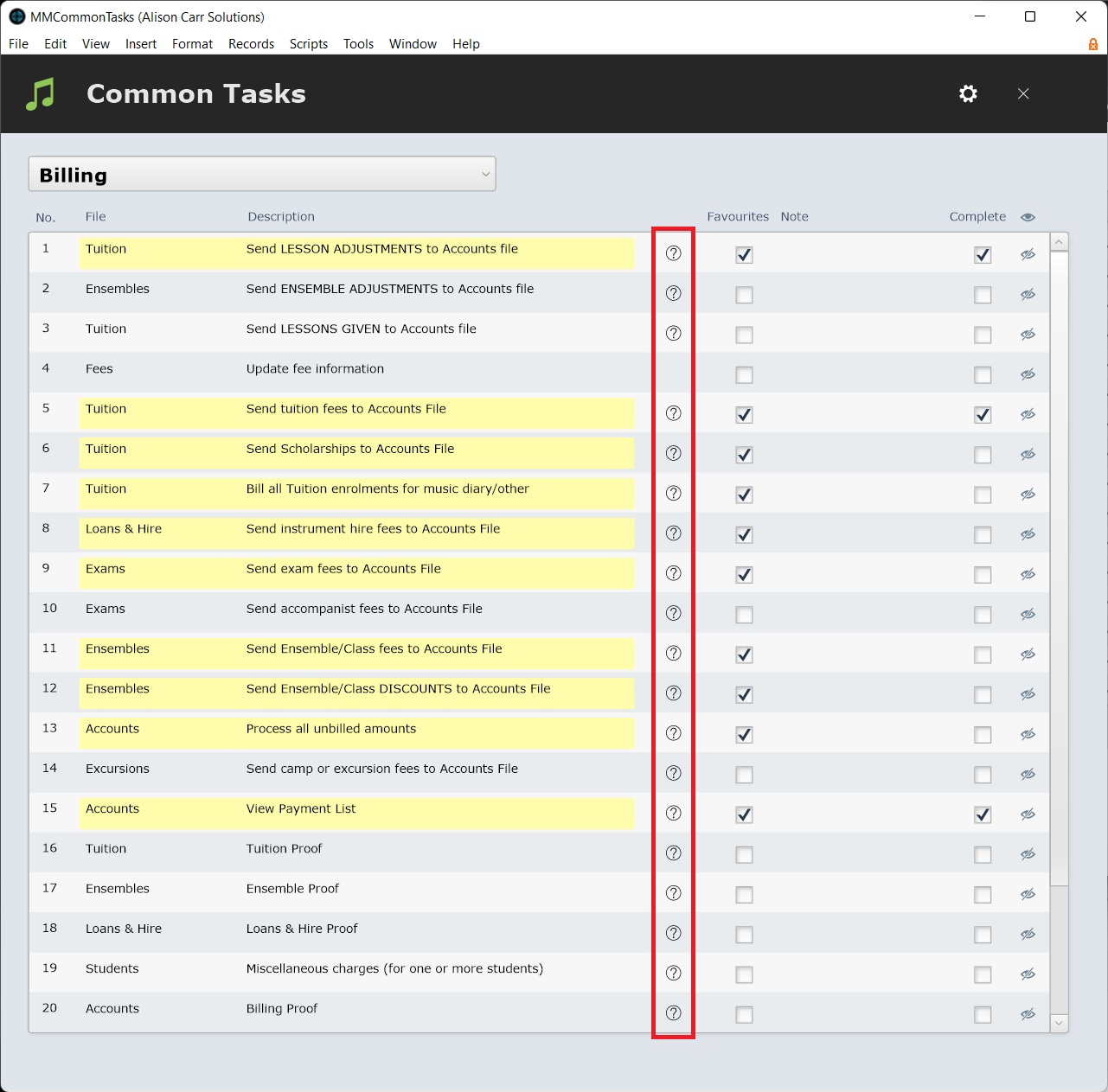
Individual scripts can then be run by selecting them in the list. Select Help (the question mark icon) to see information on the script's function.
Number and sorting
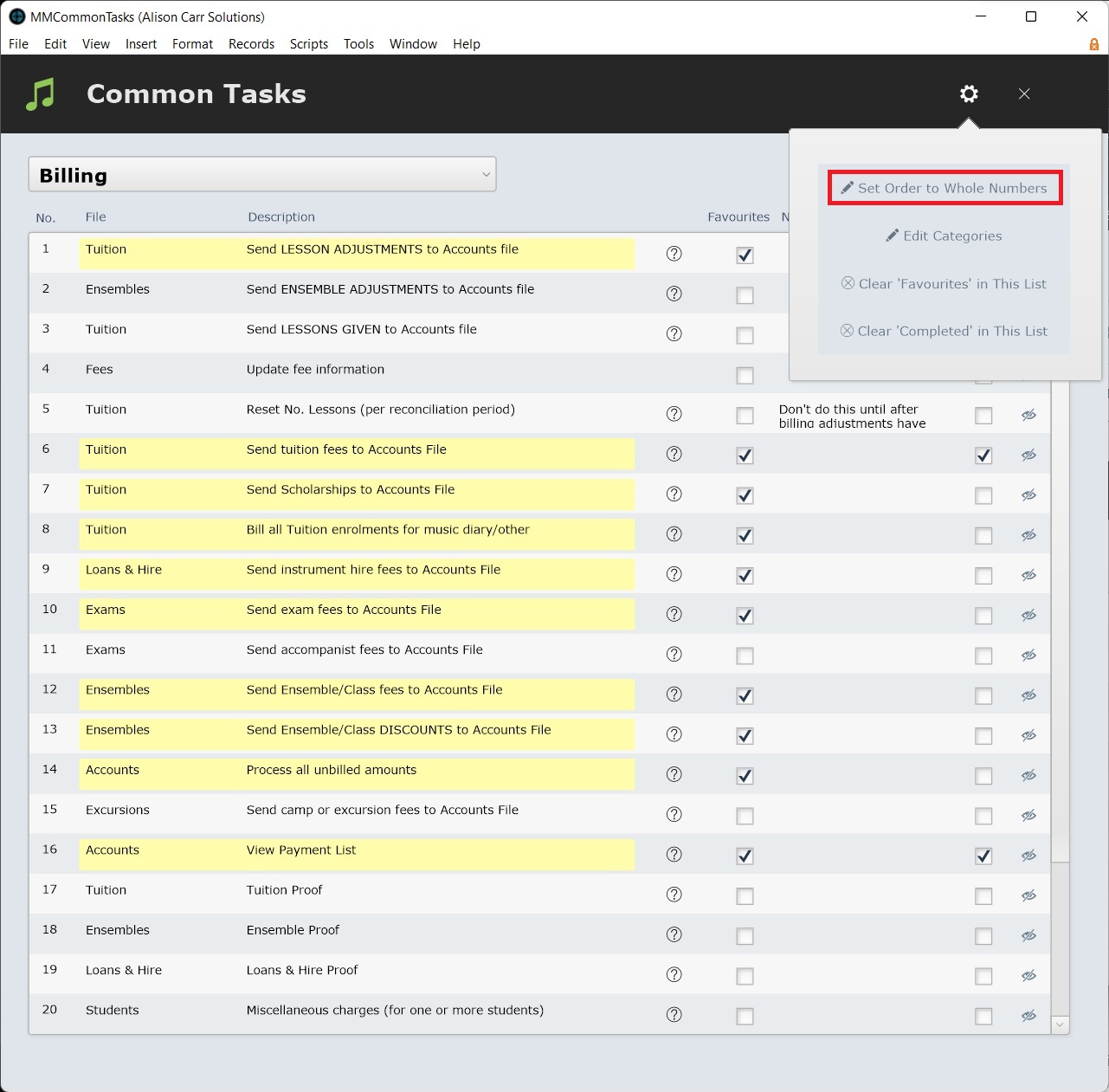
The numbers on the left side of the scripts control sort order. This field can be 'clicked into' and edited to change the order scripts are sorted in. Decimal points can be used.
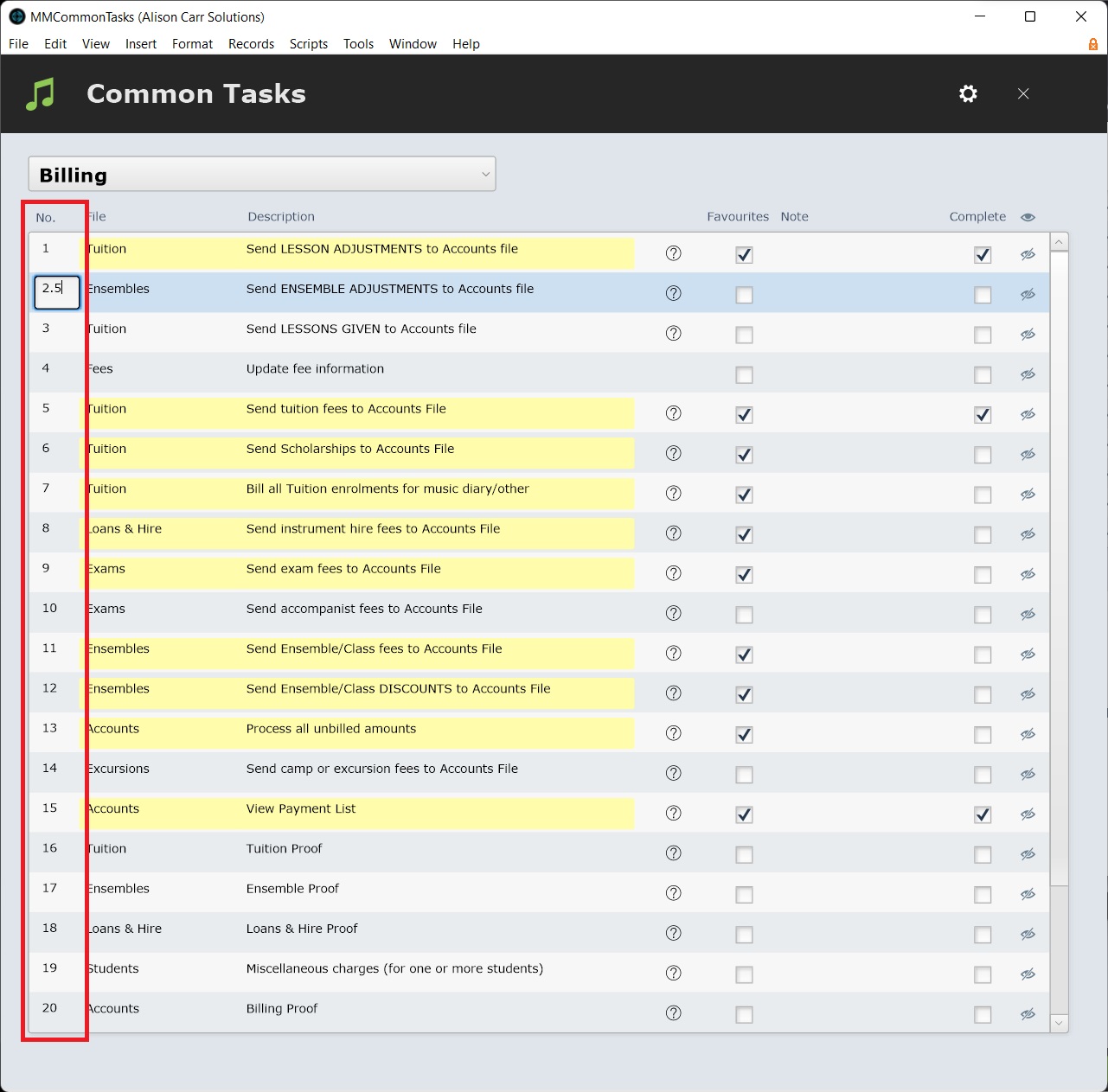
Once scripts are sorted in the desired order, Set Order to Whole Numbers under Settings can be used to set all numbers to consecutive whole numbers while maintaining their current order.
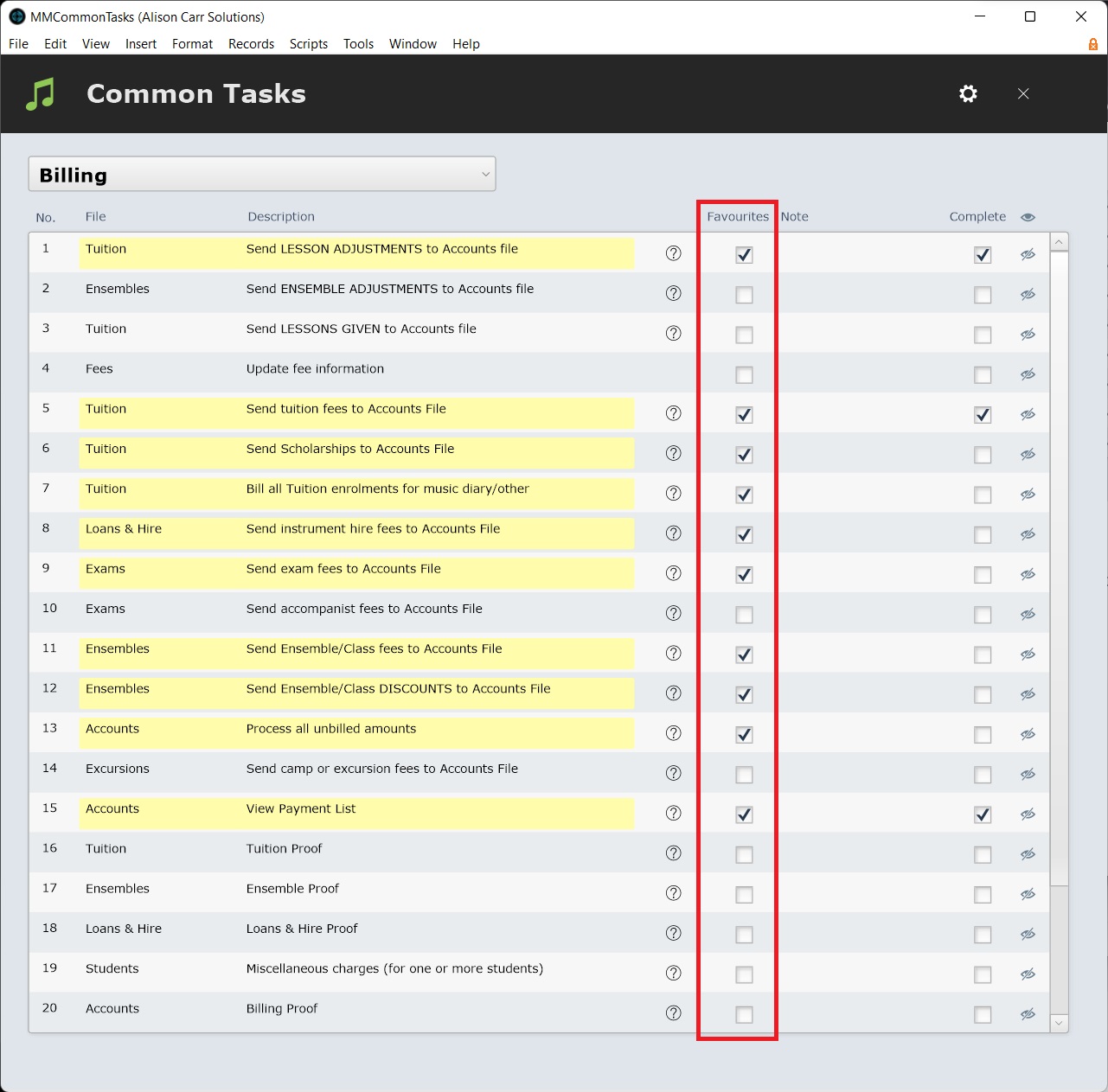
The favourites checkbox
The Favourites checkboxes can be used to add a yellow highlight to scripts. This is intended to provide a way to visually mark frequently used scripts.
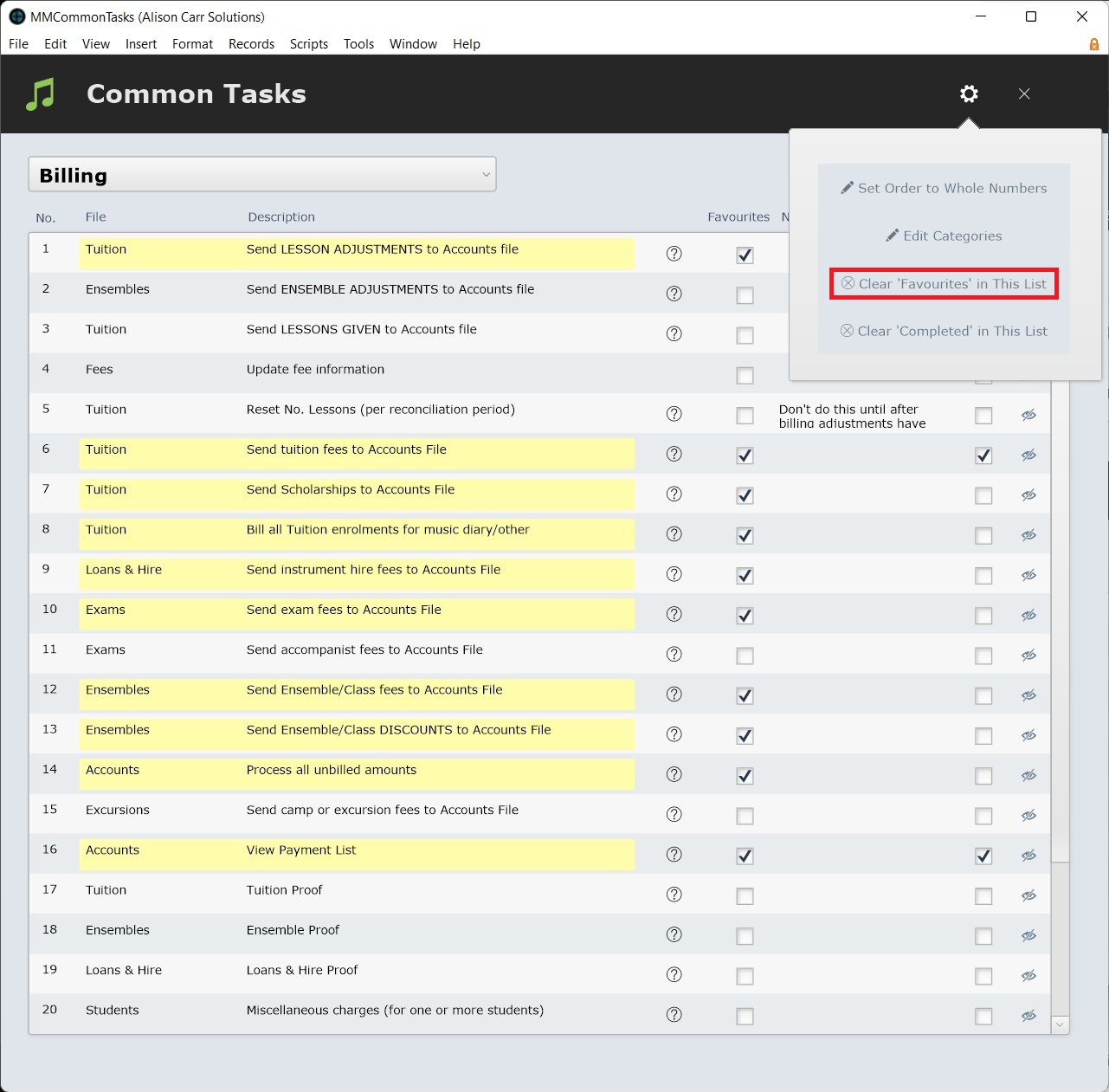
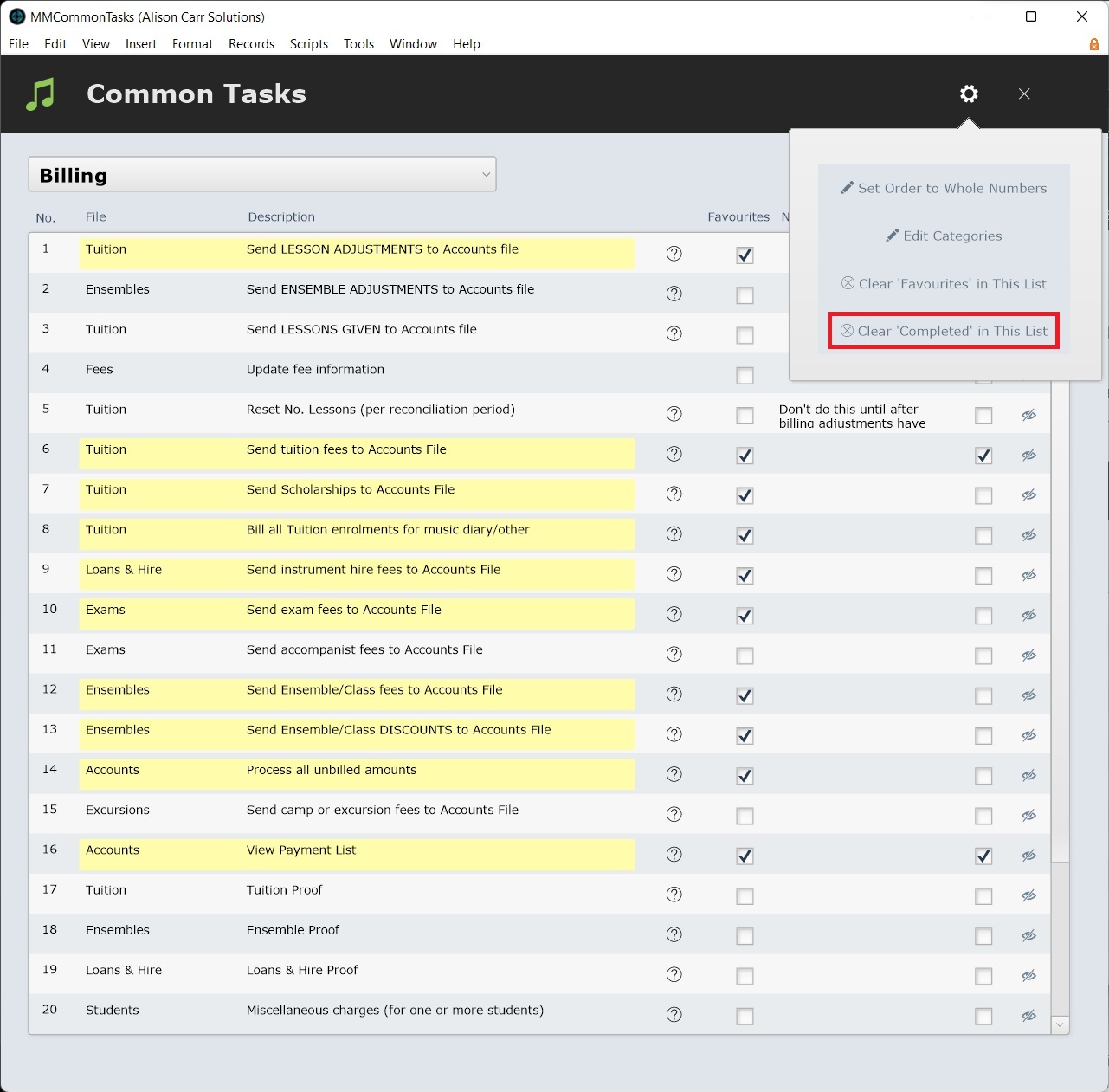
The Favourites checkboxes can be cleared using Clear 'Favourites' in This List under Settings.
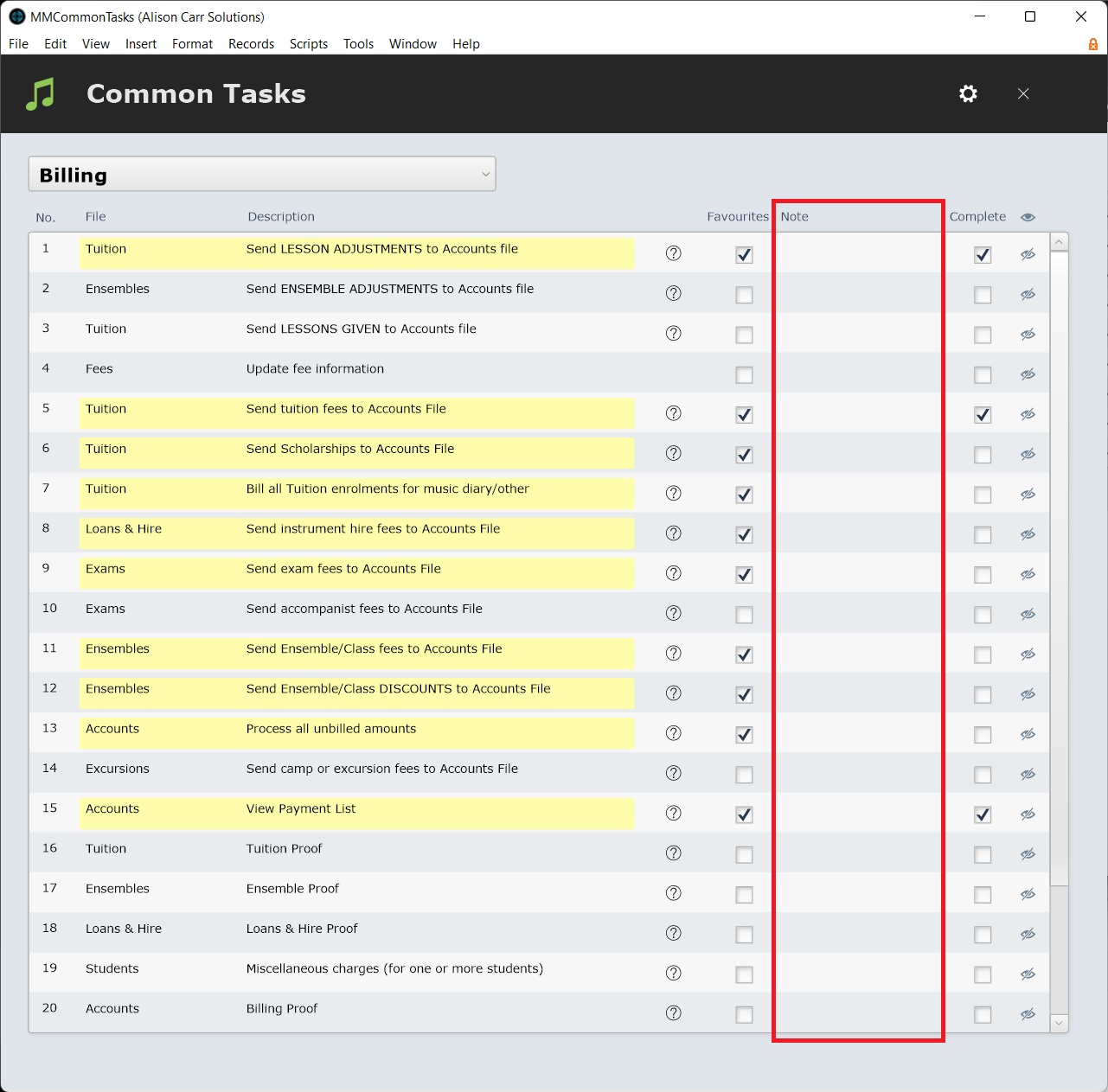
The Notes Field
The Notes field can be used to free type institution-specific notes on procedures. This should be used to prepare for temporary or permanent staffing changes.
The Complete Checkbox
The Complete checkboxes can be used to track progress through processes such as billing or end of year procedures.
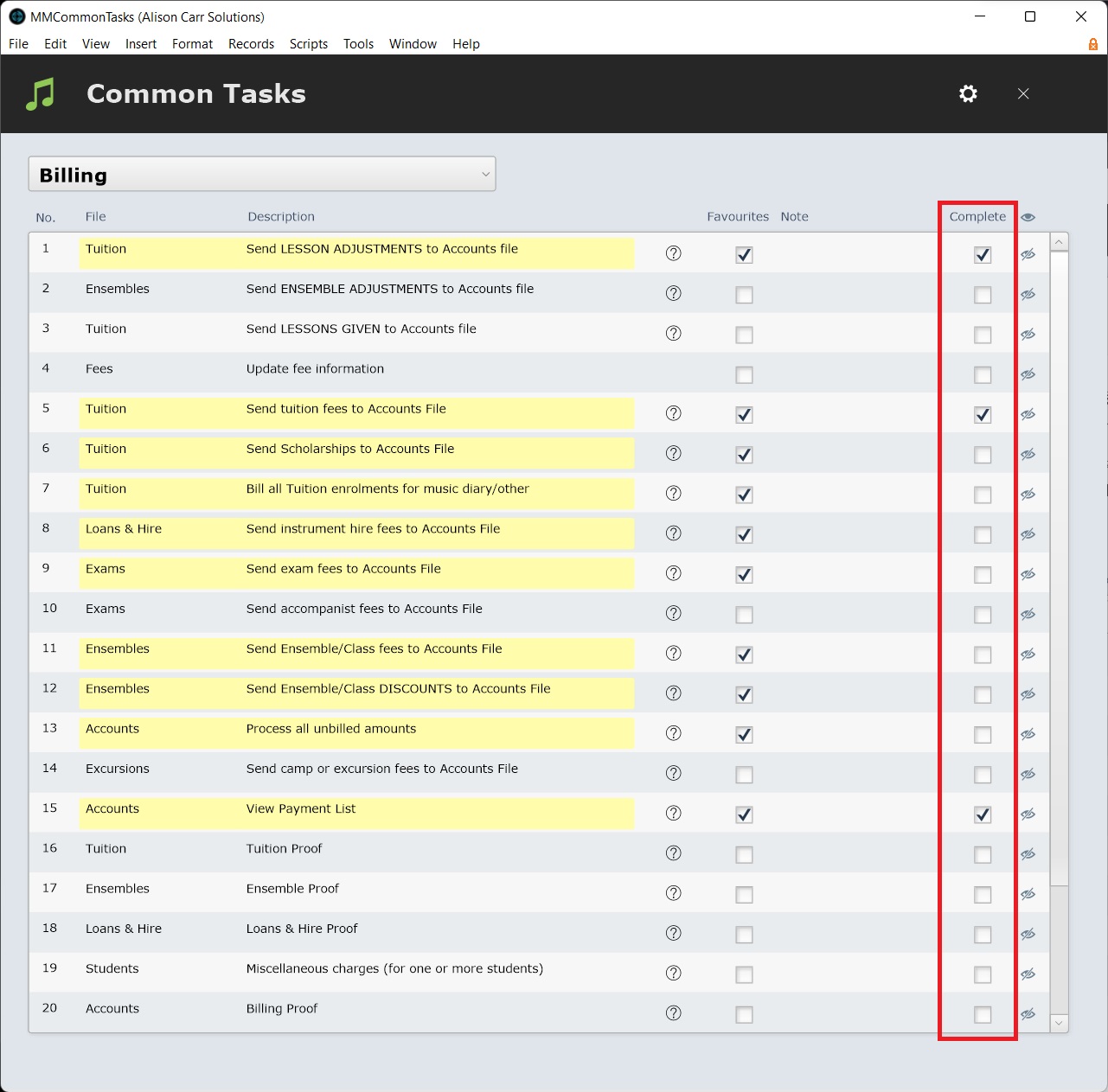
The Complete checkboxes can be cleared using Clear 'Completed' in This List under Settings.
Hide and Show All
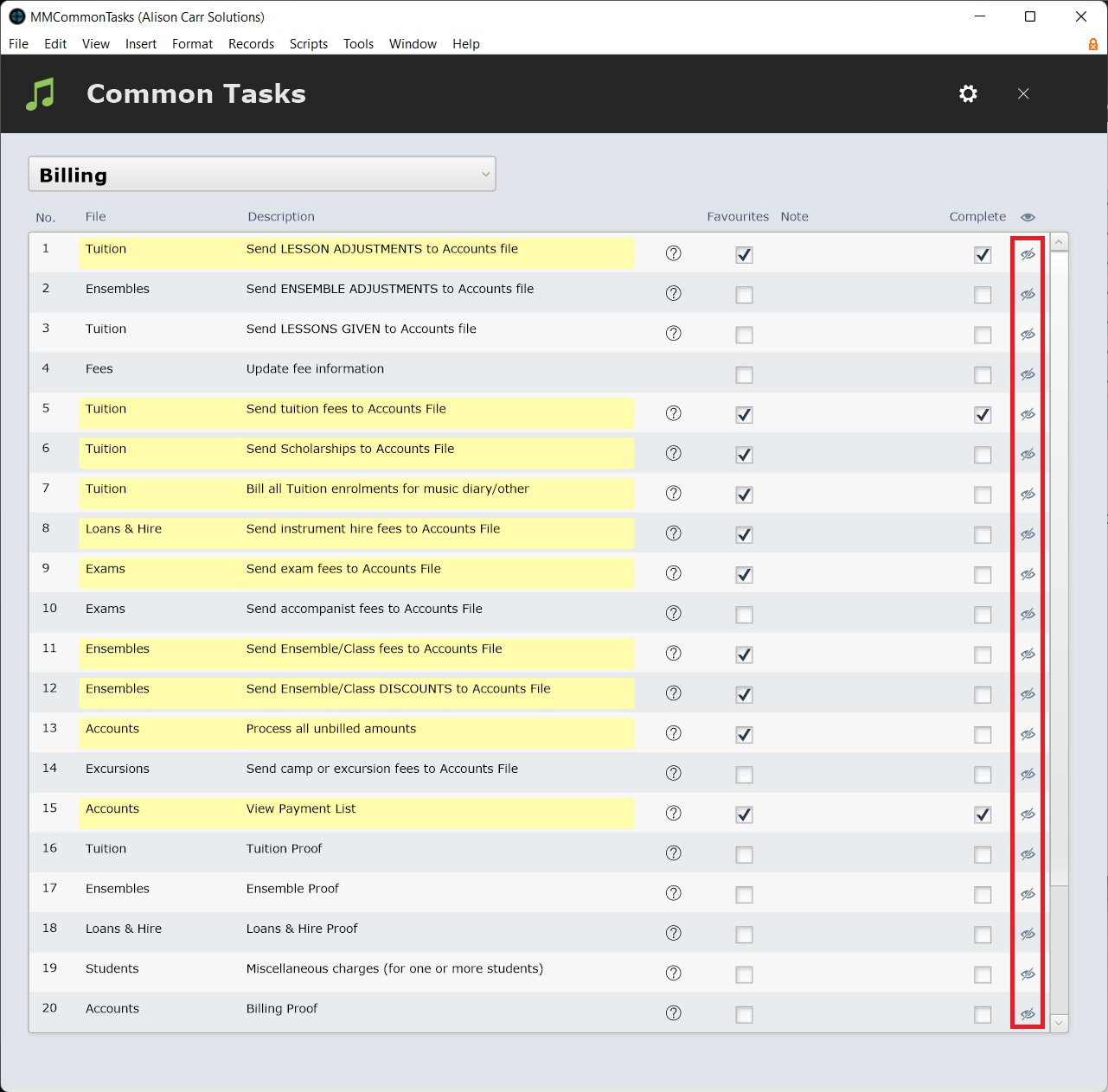
To semi-permanently hide a script select Omit (the crossed eye icon). This will hide the script for all users indefinitely.
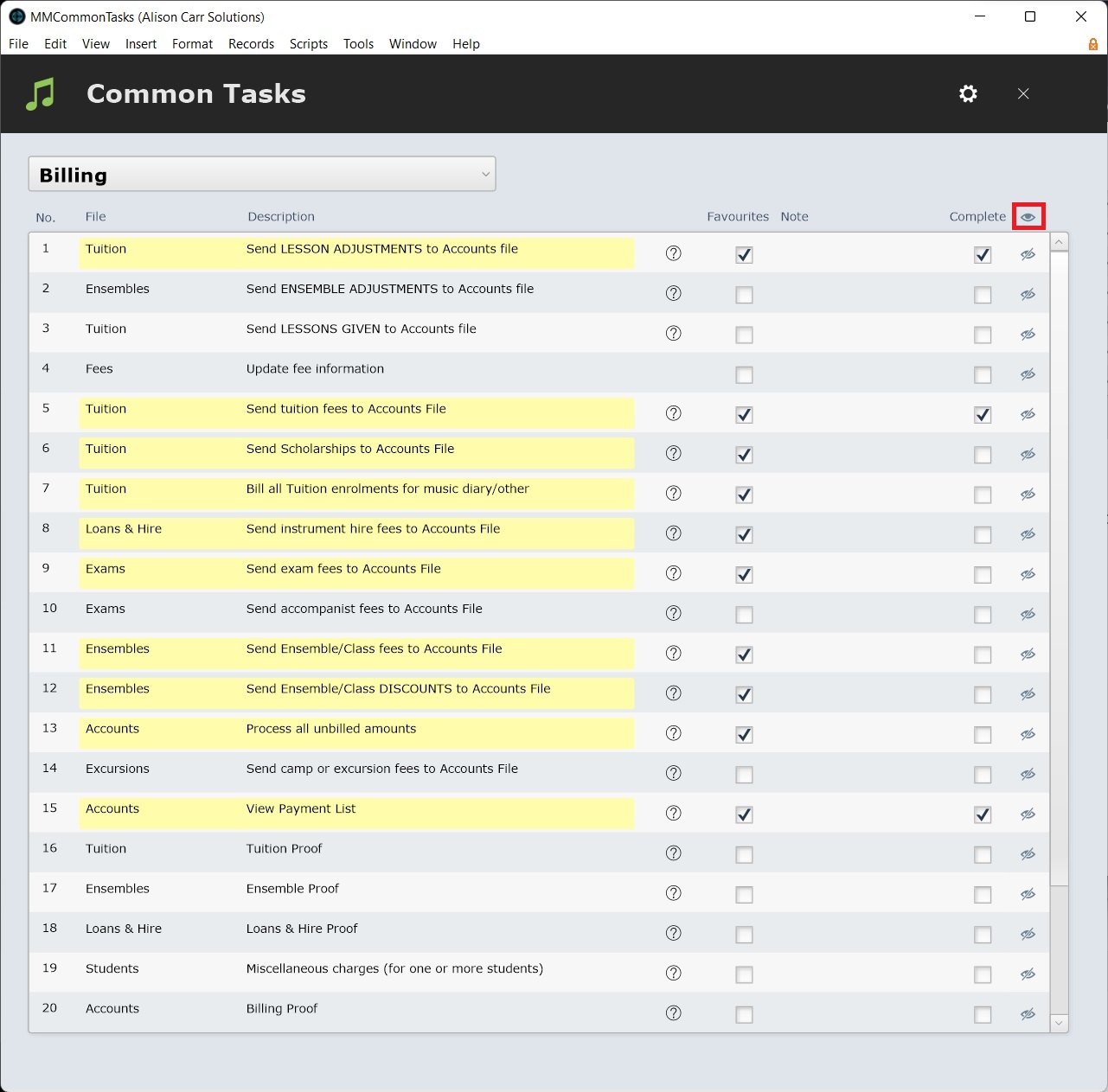
To restore omitted scripts to the category, select Show All (the eye icon). This will restore the script for all users indefinitely.
Modify Categories
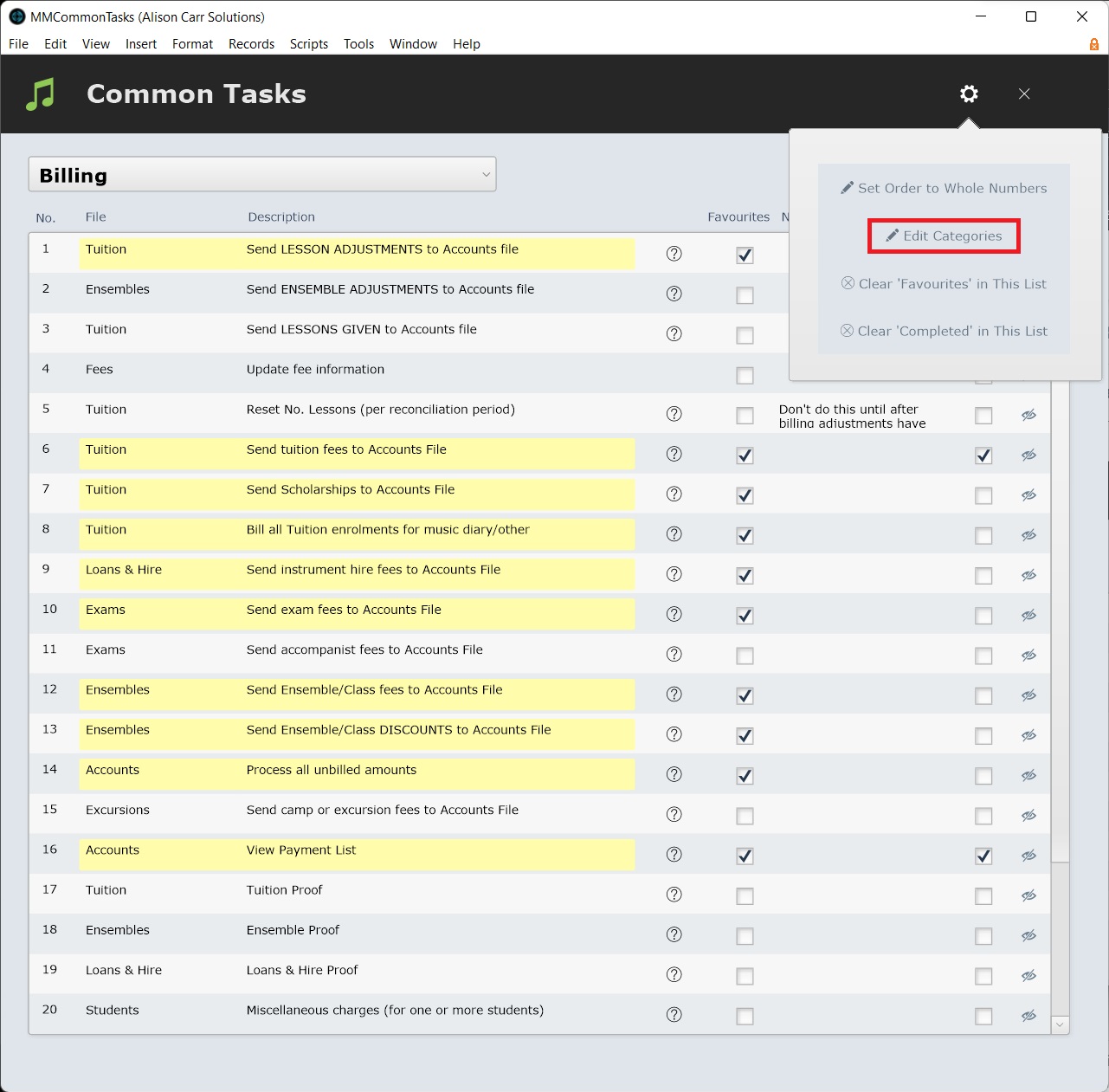
You can edit existing categories and add new ones by selecting Edit Categories under Settings. More information on editing categories see Customising Common Tasks.