

This article is no longer updated.
Please go to our new Intercom knowledge base to ensure you're seeing the most recent version.
The link above takes you directly to the equivalent article on Intercom.
This task has become much easier in Music Monitor Version 9.
The Debtor Report can be used to find a debtor’s balance for a particular date. The script can be initiated from a couple of places:
Home > Accounts > Reports : Debtor Report
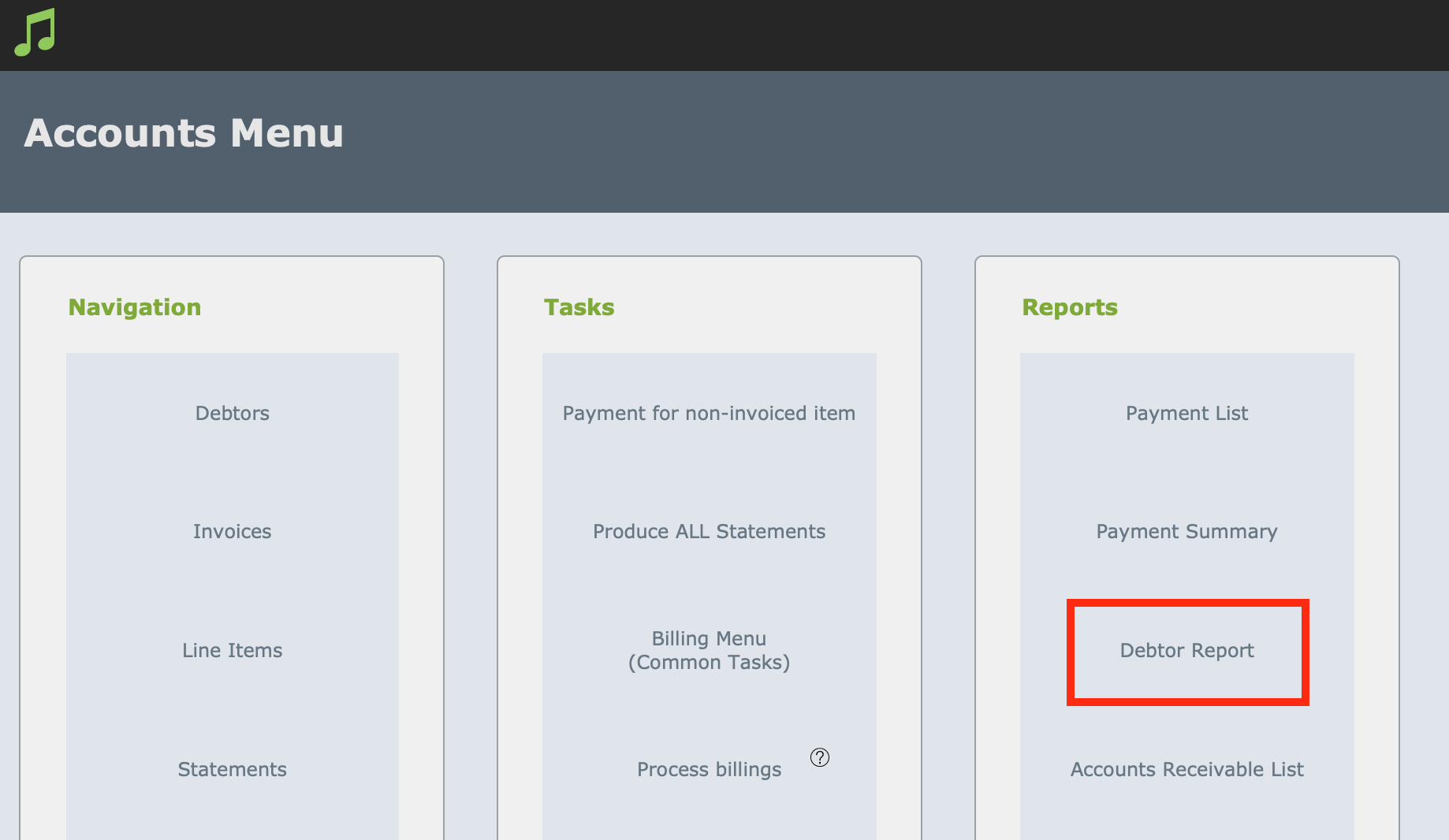
Or Common Tasks > Financial Reports > Debtor Report
The first window that comes up now invites you to enter the date at which you want to find the balance.
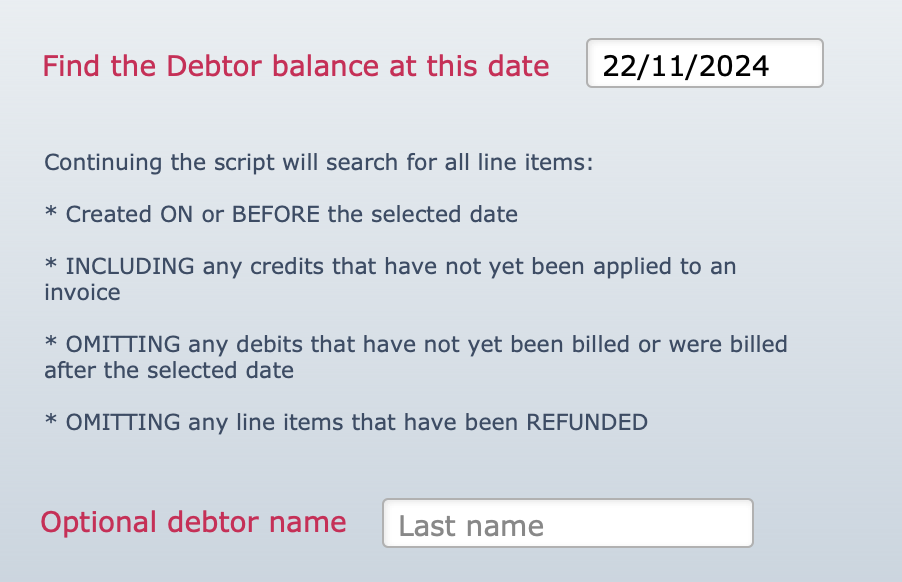
You can optionally enter a debtor name to find the balance for that one debtor, or leave it blank to find all balances at that date.