

This article is no longer updated.
Please go to our new Intercom knowledge base to ensure you're seeing the most recent version.
The link above takes you directly to the equivalent article on Intercom.
Payments received for services or items that don’t require an invoice to be produced can be entered as a ‘Non-Invoiced Payment’. This includes payments for ticket sales, donations and miscellaneous purchases. It can also be used for payments received from an individual who is not, and need not be, entered as a debtor.
Payments set up in this way have a value in Amount but no value in Amount Applied. They will not be counted toward the debtor’s account balance and will not show up in financial reporting. The payments will show on the ‘Payment List’ report, but not in the ‘Payment Summary’. In the Journal Summary the payments will show as a $0 amount.
Existing Debtor
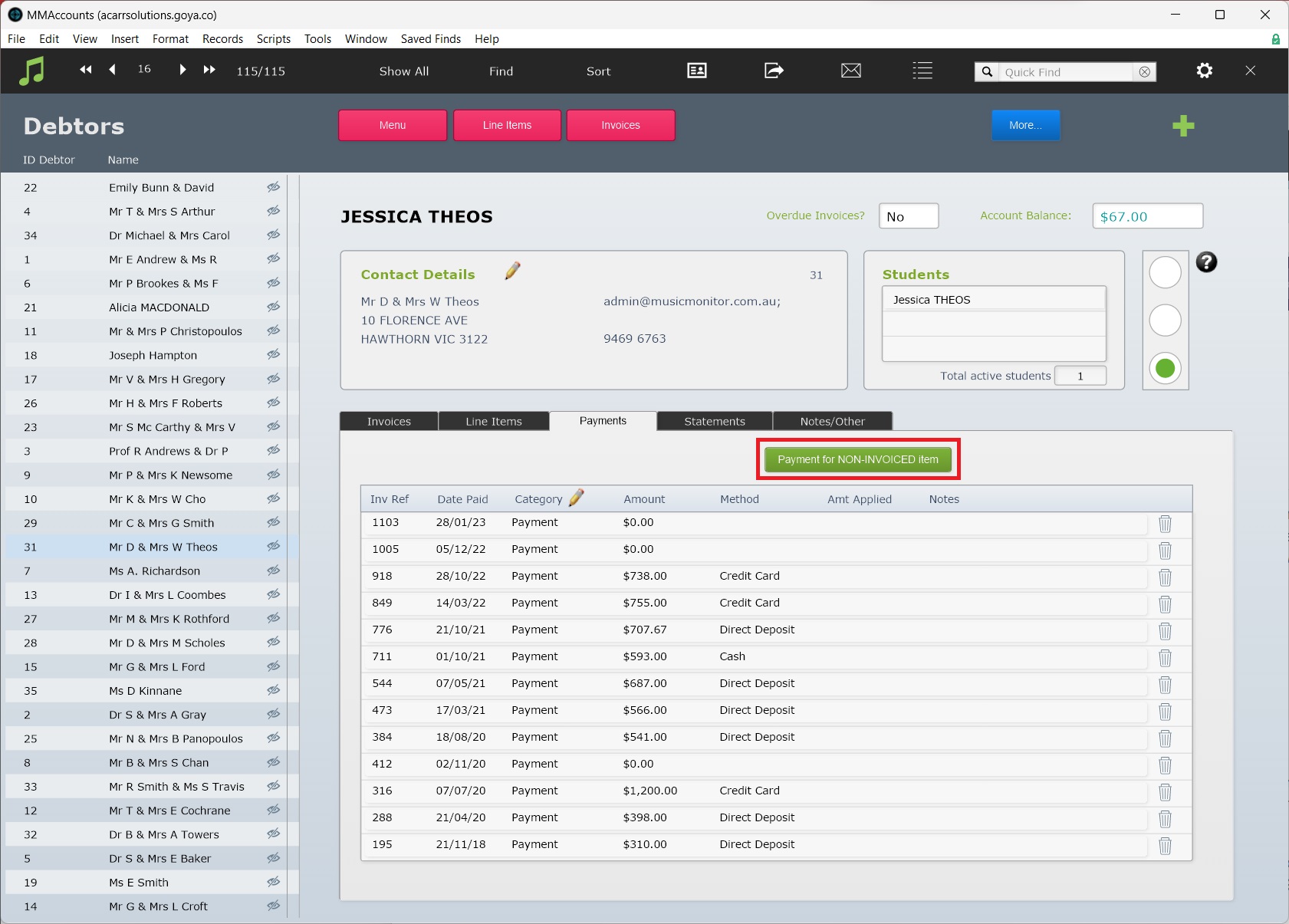
Go to the Debtors record, then select the Payments tab, then Payment for NON-INVOICED item.
Follow the prompts to add the payment.
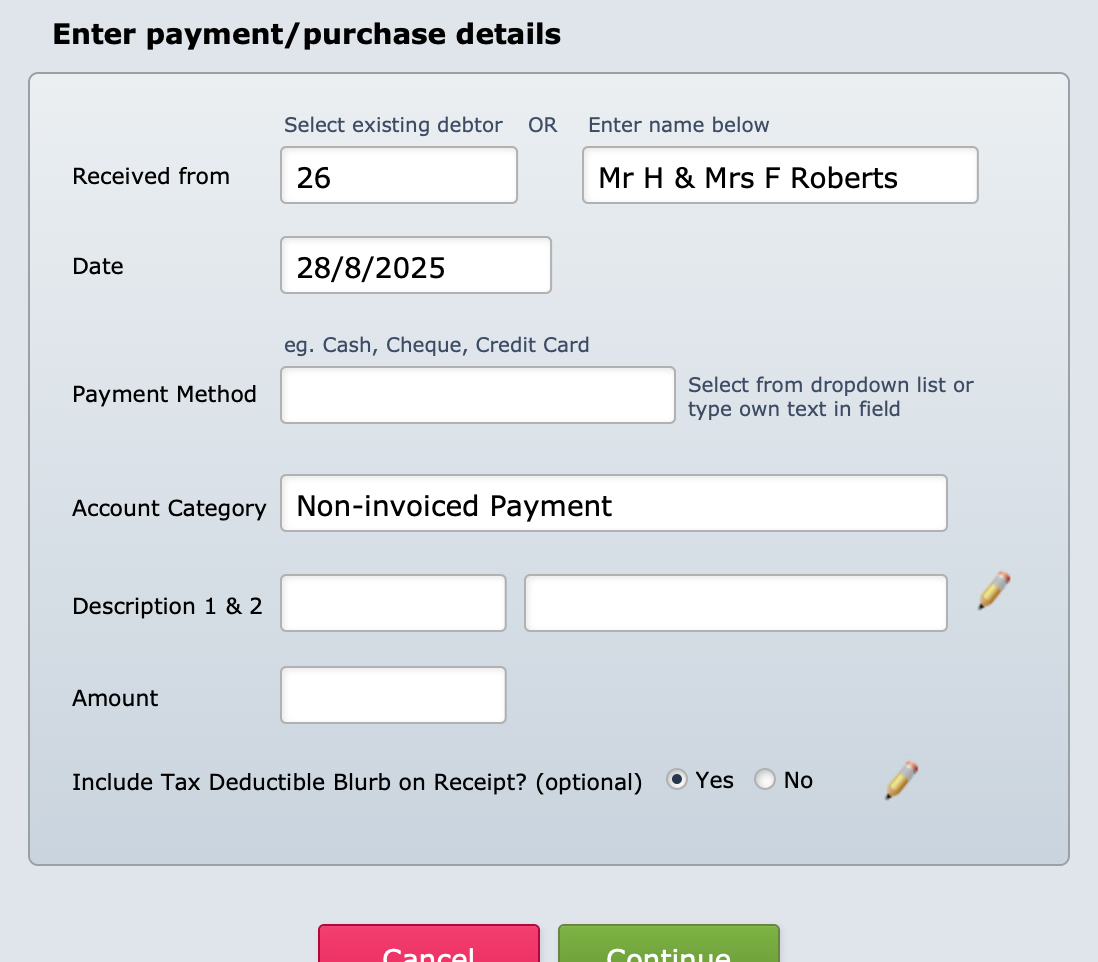
Notes:
Description 1 is where, in other line items, you might have entered "Administration Charges", or Music Monitor would enter the enrolment information.
Description 2 is where, in other line items, you would see further detail or the fee type.
Account Category can only be ‘Non-Invoiced Payment’ or ‘Non-Invoiced Payment (GST)’.
No Debtor Record
To add a Non-Invoiced Payment for someone who is not, and need not be, entered as a debtor, go to Accounts > Menu > Tasks::Payment for Non-Invoiced Item.
The window in which you enter the payment detail is the same as above, but it will not have debtor information entered in the top fields. You can type in a name if relevant.