This article is no longer updated.
Please go to our new Intercom knowledge base to ensure you're seeing the most recent version.
The link above takes you directly to the equivalent article on Intercom.
Background
Music Monitor can generate invoices and billing statements, and also export data ready for import into your external finance system. If your institution uses the information in Music Monitor to inform its billing, you will usually be best served by using the Accounts module to compile the information.
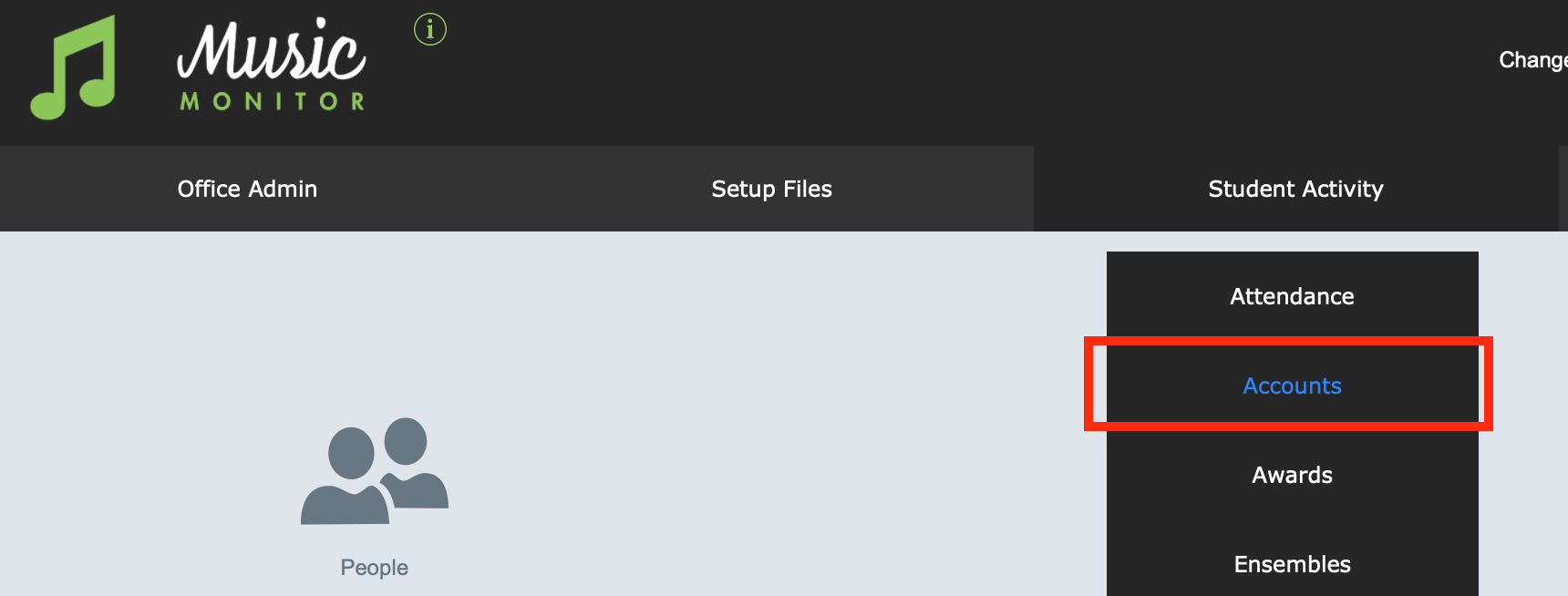
You can navigate to the Accounts file from the Home Screen > Student Activity > Accounts.
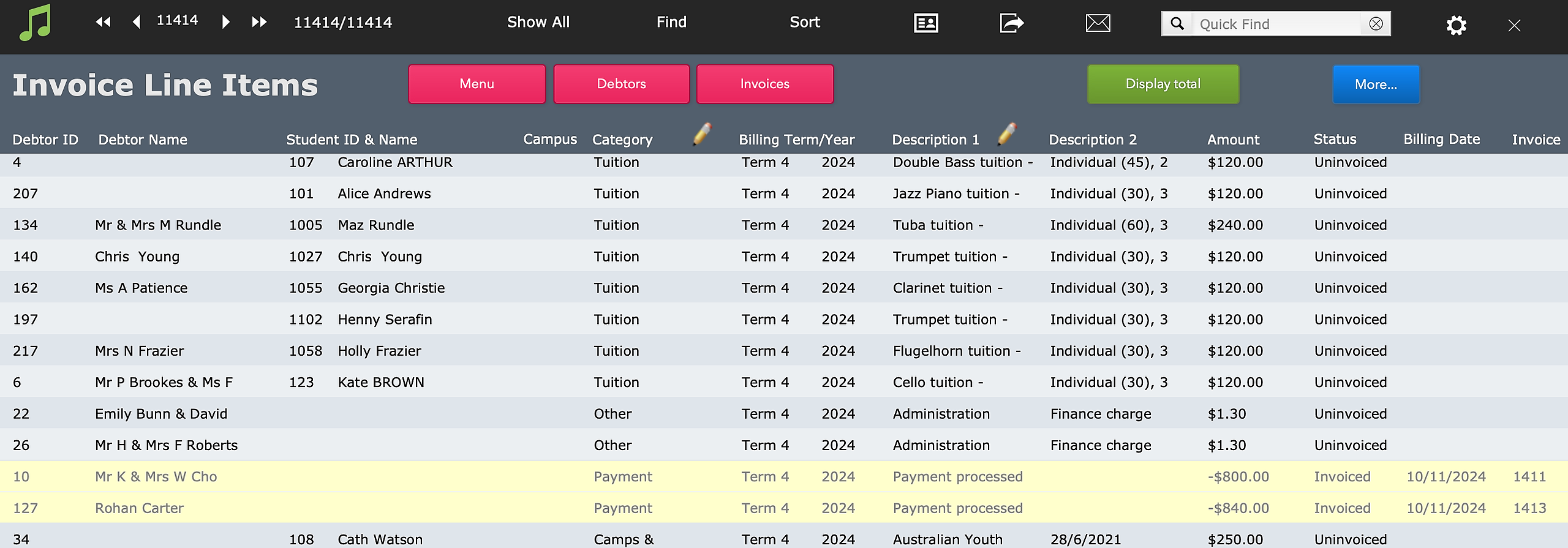
The Accounts file is a sheet of all finance records, or Line Items.
Debtors
One of the contacts connected to each student is the Debtor, who is the person to receive any bills in relation to the student's activities.
If you draw your student data from a separate student database, as most schools do, you won't need to worry about the details of the debtor as they will be maintained in that other database.
But if, like the conservatoriums, you use Music Monitor as your main student database, your student records will be linked to debtor details.
See more at:
Setup
The Accounts module is a core part of Music Monitor and does not need to be separately set up or enabled. There are just a few options in your general settings that you will set to match your organisation.
On the Home Screen, select the gear icon and General Settings.
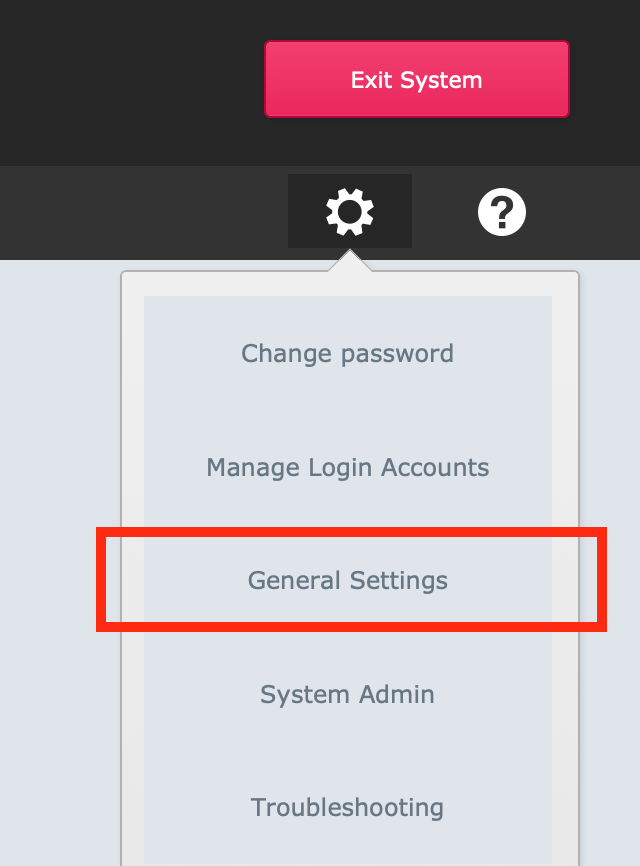
The settings are found under Student Accounts.
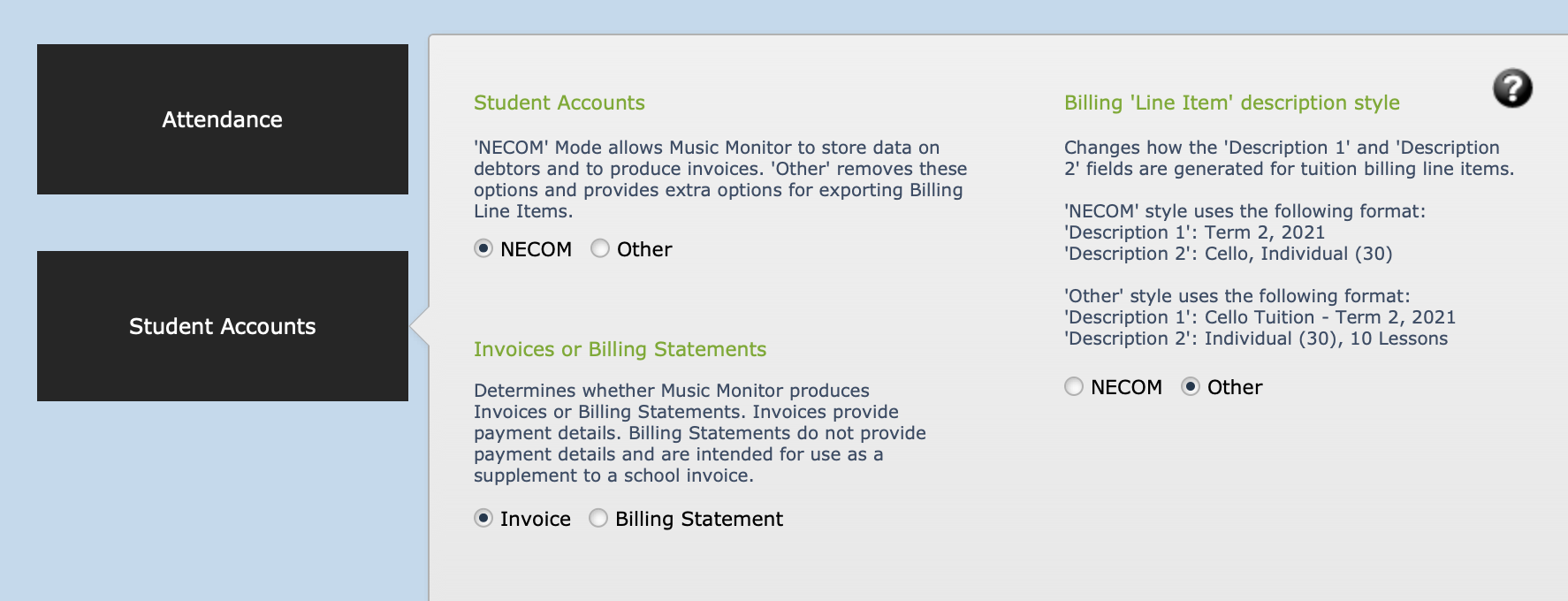
When setting up your installation, we will guide you to the best options in these settings.
If you are generating invoices, you also have readily editable options for these. See Invoice Setup.
Creation of Line Items
Most accounts line items are generated by scripts within Music Monitor that take information from enrolment records or other student activities (such as instrument hire or excursions) and enter it onto an accounts record.
There are scripts to generate one line item at a time
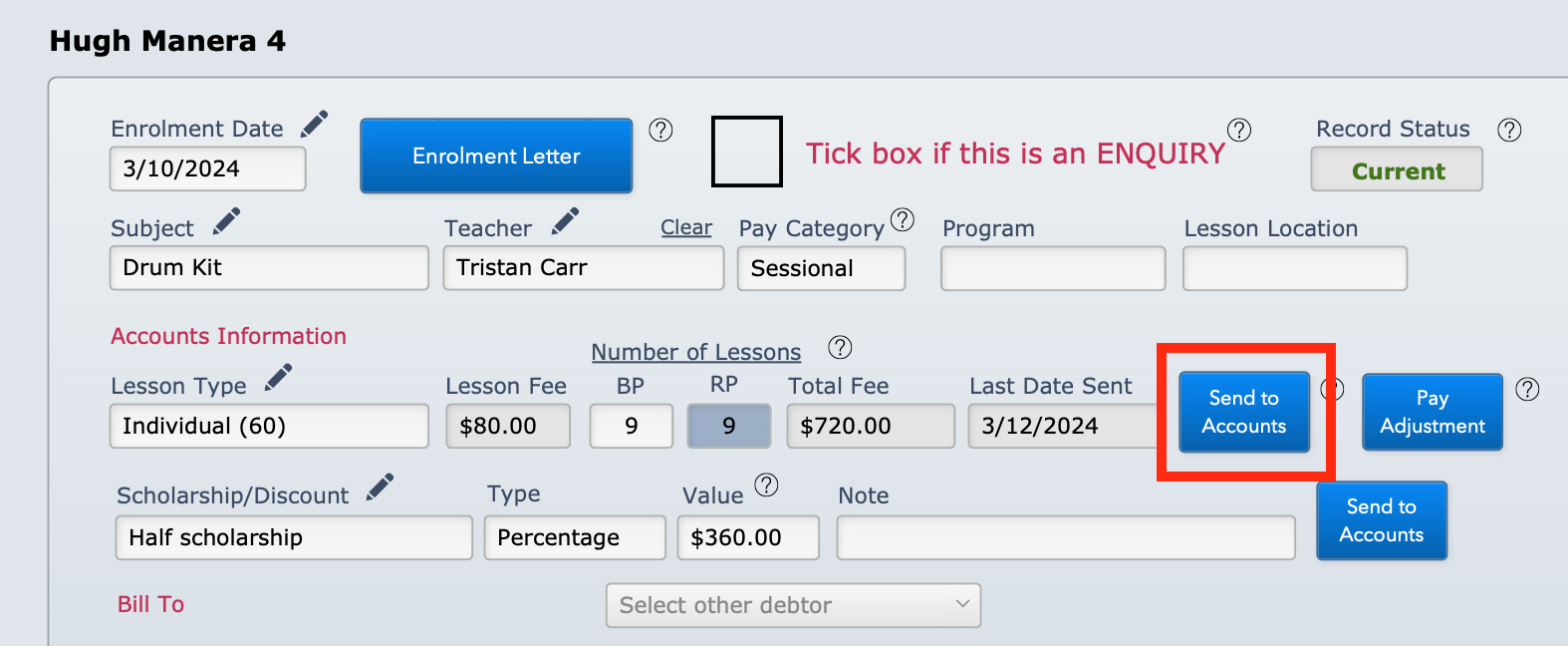
as well as scripts to generate bulk batches of account lines.
See related articles:
Manage Tuition Enrolments - includes sending one enrolment to accounts.
Manage Ensemble Enrolments - includes sending one enrolment to accounts.
Send Tuition Fees to Accounts File - for bulk batches.
Send Ensemble/Class Fees to Accounts File - for bulk batches.
It is also possible to create a new line item directly in the Accounts file, but this is rarely needed.
Billing Process
Newly created line items can be edited if necessary, or deleted.
Music Monitor then provides a mechanism to finalise line items, by allocating them to an invoice, generating a billing statement, or exporting them for your finance system. Once finalised, the line items are then marked as Invoiced and are no longer editable.
See Process All Unbilled Amounts.
Reporting on Accounts
Music Monitor has many pre-set reports and proofs that you can use to view and segment accounting records. You can also use FileMaker's powerful searching functions to bring up any custom listing of records that you choose.
See, for example:
Navigation
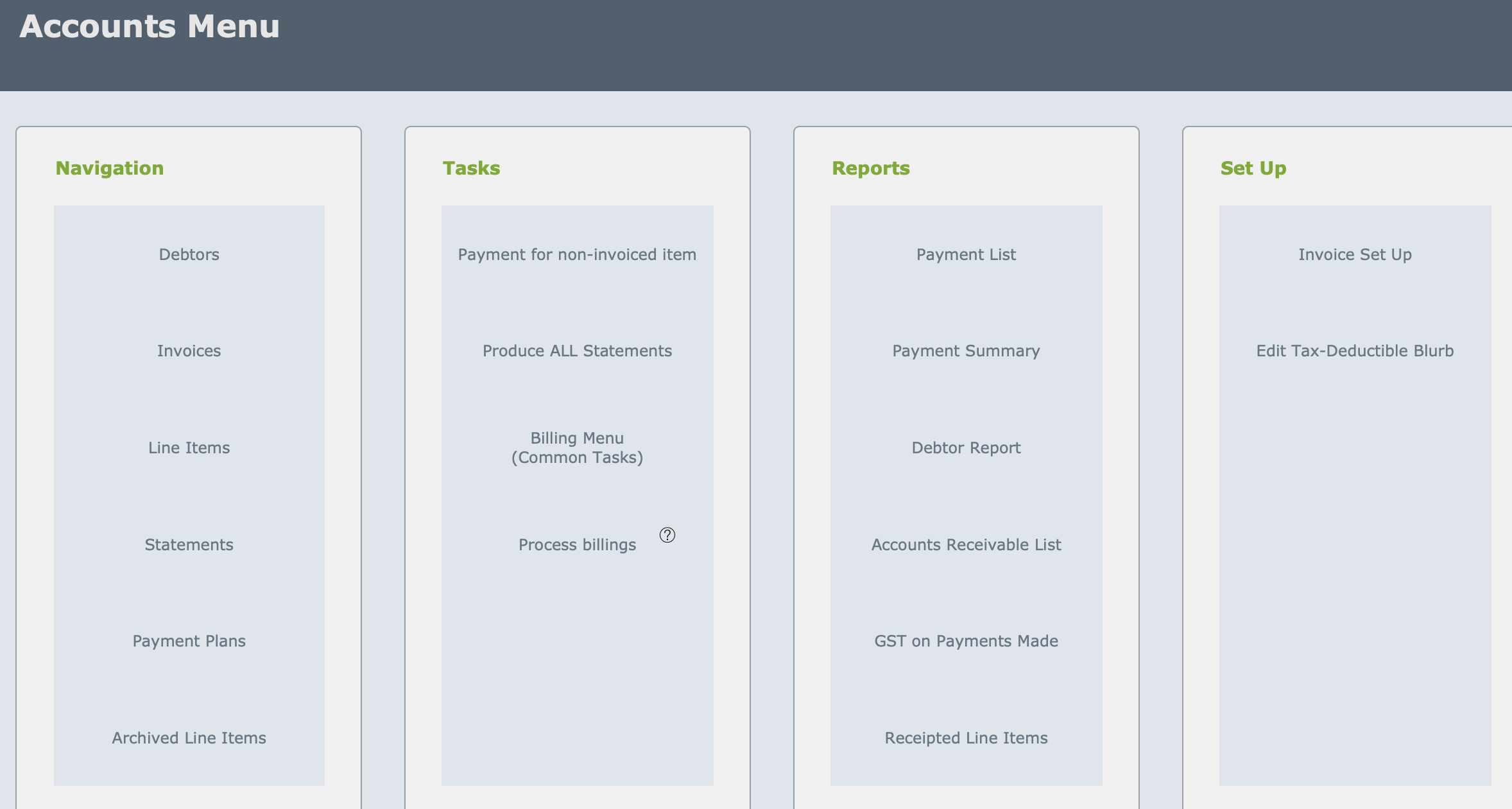
As well as the link to the main Accounts file shown above, there is an Accounts menu linked from the Home Screen.
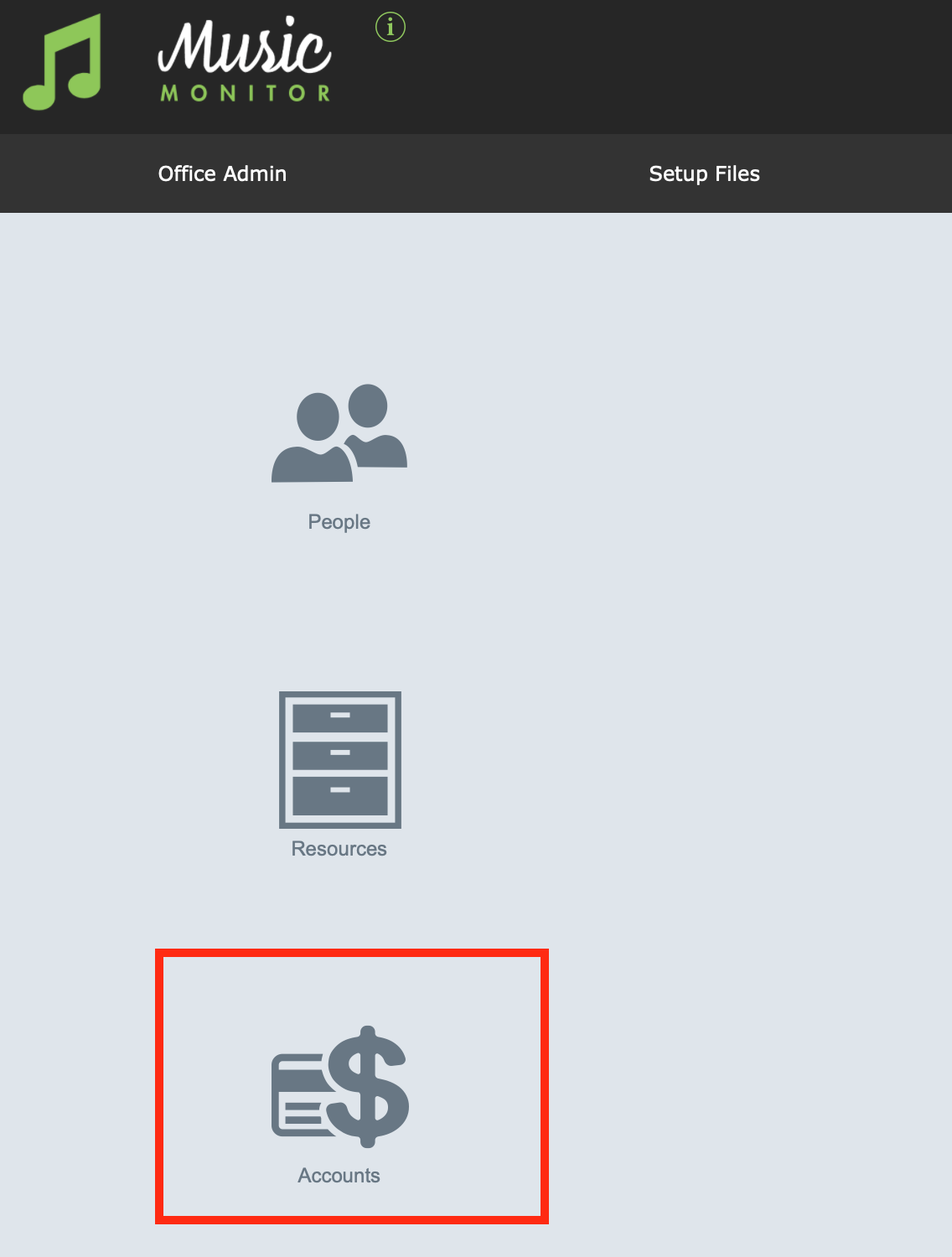
It brings you to a menu showing all the commonly-sought places and functions relating to accounts.