

This article is no longer updated.
Please go to our new Intercom knowledge base to ensure you're seeing the most recent version.
The link above takes you directly to the equivalent article on Intercom.
Whether you intend to export data from Music Monitor to another program for billing, or produce and send invoices directly from Music Monitor, the billing functions in Music Monitor will still support your processes. This article gives an overview of the functions available, and links to the detailed articles on each function.
The Logic of the Billing Procedure
Billing information is stored in the Student Accounts file, and draws information from other files to create its records. In the example of billing for tuition enrolments, it takes:
The fee per lesson from the Fees file.
The number of lessons enrolled from the Tuition Enrolments file.
The student ID and name from the Students file.
The debtor ID, name and contact information from the Debtors file.
So the process of billing is to compile the information from all current enrolments (and other student activities) and assign the current fee in a record in the Student Accounts file.
From there, Music Monitor has a process to "finalise" the accounts records, which locks them to prevent later editing, and also either produces invoices or exports the data for another program to use in producing invoices.
Setup
Your billing setup is fundamental to the way your organisation works and your use of Music Monitor, so we will work closely with you to choose these settings when getting you started. You can change them at any time, though!
The main determining factors are:
If you have a separate student database (like most schools do), you will only import student information into Music Monitor. Debtor information will remain in the school database. If instead (like the conservatoriums) you have Music Monitor as your primary student database, you will enter debtor information in here as well.
If you do not have debtor information in Music Monitor, you will clearly export the billing data for an external billing program. If you have debtor information in Music Monitor, you have the option to produce invoices from Music Monitor and record payments in it, or still to export to another program.
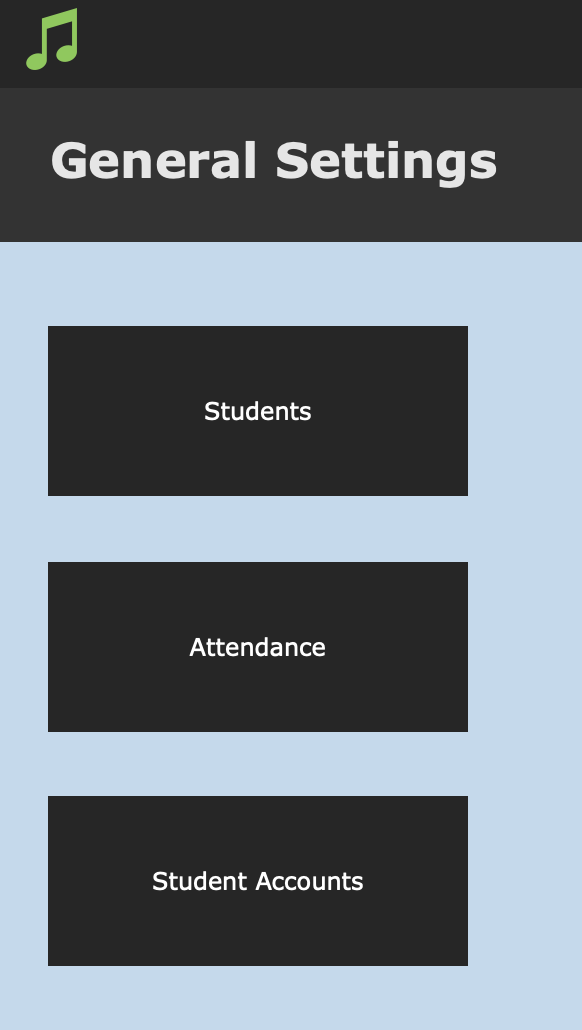
These basic settings are found at Home > Settings (gear icon) > General Settings, under Students and Student Accounts.
You can see more detail on this setup in the article Accounts Overview.
Billing Process
The process of billing is essentially three steps:
Send Fees to Accounts
As outlined above, this creates records in the Student Accounts file, bringing together current fees and current enrolment/activity information.
You can do this for one single activity, and there are scripts to do this in bulk for all activity in each billing period.
These remain as records in this file, not yet billed to the student. This list of unbilled records is sometimes called your "billing bucket".Process Unbilled Amounts
This takes all the records you have created in any number of different batches (or individual cases) and marks them as billed. They are now ready for export or invoicing, and cannot be edited.
NOTE: An admin account can still edit these records, but this should be restricted to cases when an error has occurred that needs to be corrected, as it will have downstream consequences e.g. for auditing.Export or Produce Invoices
This is usually done immediately, as the completion of the step above. The records now processed for billing are exported in your chosen format for your finance system, or you produce invoices within Music Monitor to send to your customers.
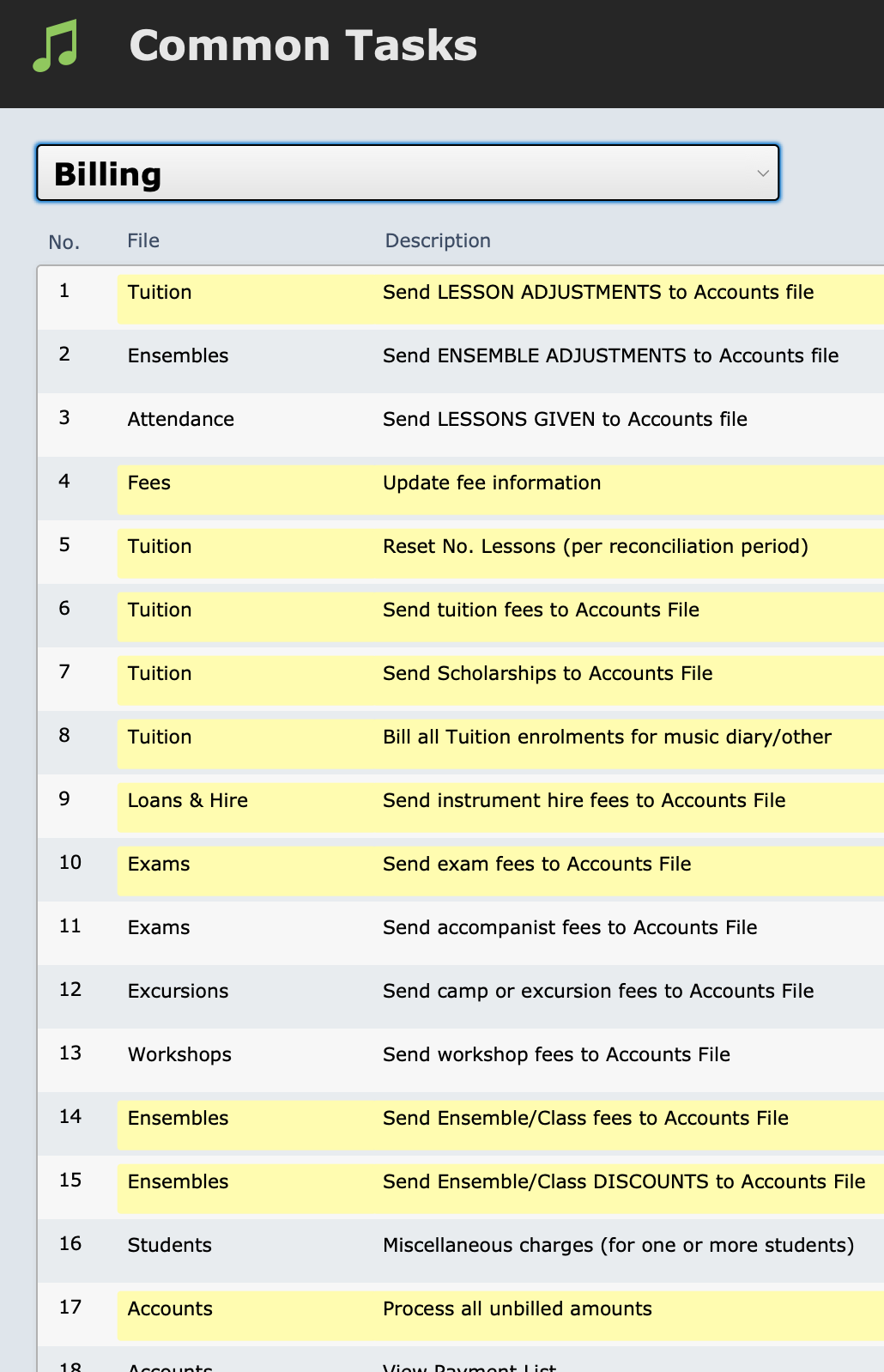
Scripts for these steps are found at Common Tasks > Billing.
You'll notice this category also include a number of other scripts, such as updating fee information and resetting the number of lessons. Before billing for a new year, when fees may have changed, it's important to finalise the previous year by adjusting for any lessons that need to be credited back to the student (see Missed or Cancelled Lessons) and then enter the correct fees for the upcoming year.
See Suggested End of Year Procedures for more on these preparation steps.
When it comes to sending fees to accounts, there are many different scripts, for sending the different kinds of fees and discounts to the Student Accounts file. Some of the most commonly used ones are:
Then it is time to Process All Unbilled Amounts.
In that process, you will either export the data, or Produce and Send Customer Invoices.