

This article is no longer updated.
Please go to our new Intercom knowledge base to ensure you're seeing the most recent version.
The link above takes you directly to the equivalent article on Intercom.
Overview
If you bill in advance for ensemble enrolments, there may be circumstances where you later need to send adjustments if you allow circumstances where absences may not be billable.
Music Monitor allows you to note rehearsals to be credited throughout the billing period and then send across the adjustments in one batch.
Allowable Absences
This script uses a field from the Ensemble Rolls, where you can note Allowable Absences for a student in an ensemble rehearsal. If the student's absence meets your criteria, simply add one to the Allowable Absences tally on the roll.
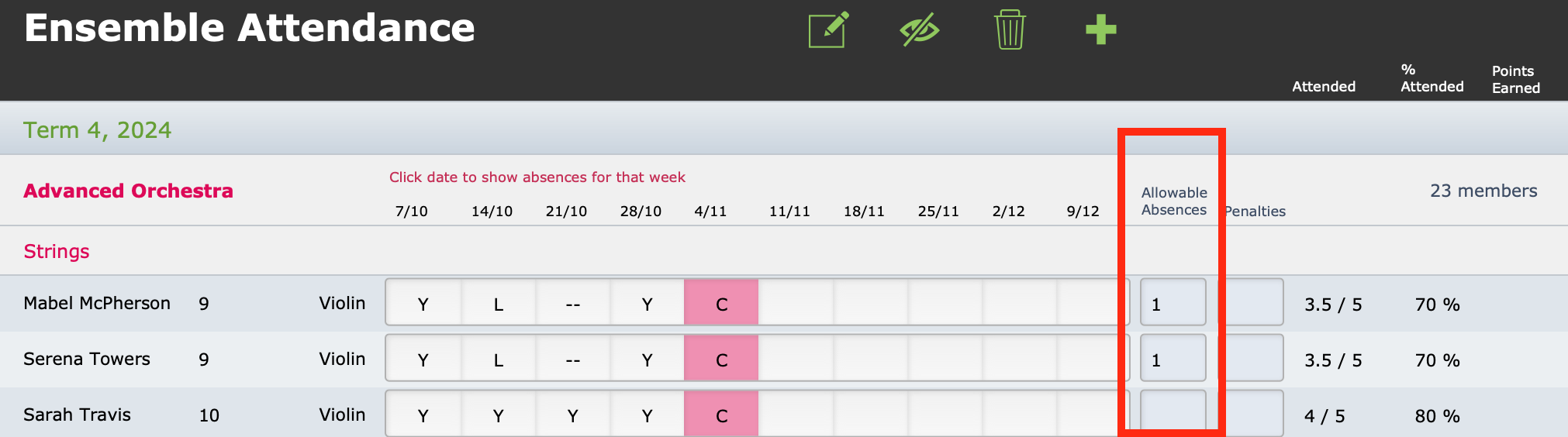
In the screen above, you can see that although these two students had an absence on 21/10, it has been deemed allowable and they have 1 in the Allowable Absences field.
Note that the cancellation on 4/11 does not automatically result in a credit. When a whole ensemble rehearsal is cancelled, a credit line can be sent immediately for the whole class (see Billing Ensembles), or else you need to add one to everyone's Allowable Absences tally.
Send Ensemble Adjustments
At the end of your billing period, when it is time to reconcile, you can use this script to find all Allowable Absences and create a credit line for them.
Go to Common Tasks > Billing > Send ENSEMBLE ADJUSTMENTS to Accounts file.
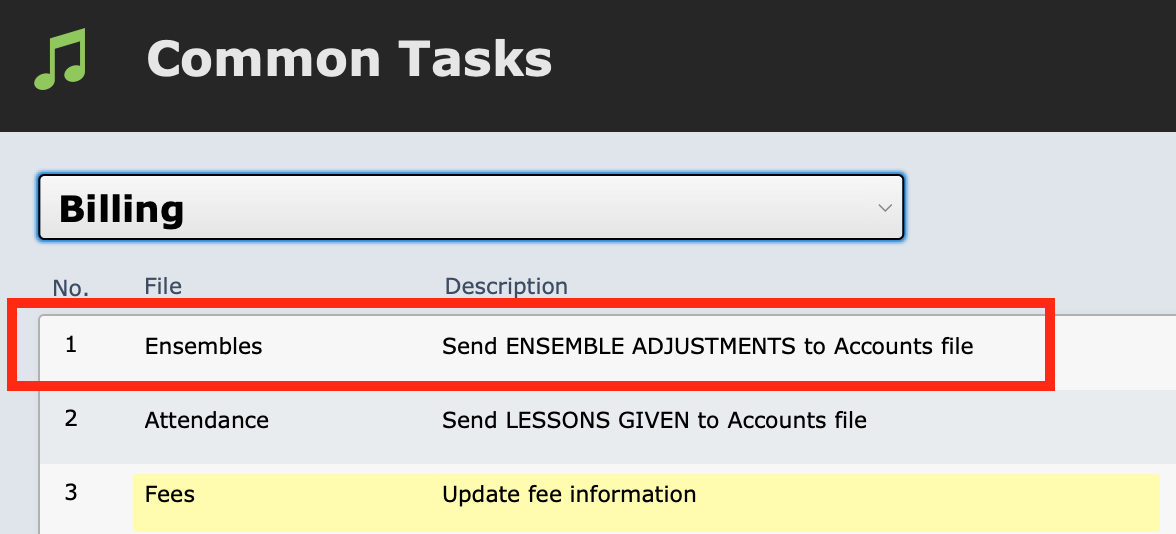
You will be asked to select the billing period you're looking for. You also have the opportunity to restrict your search to a particular ensemble if desired.
The script will find ensemble enrolments that have a number in Allowable Absences for the relevant period and pause for you to check the list. If it is correct, select Continue.
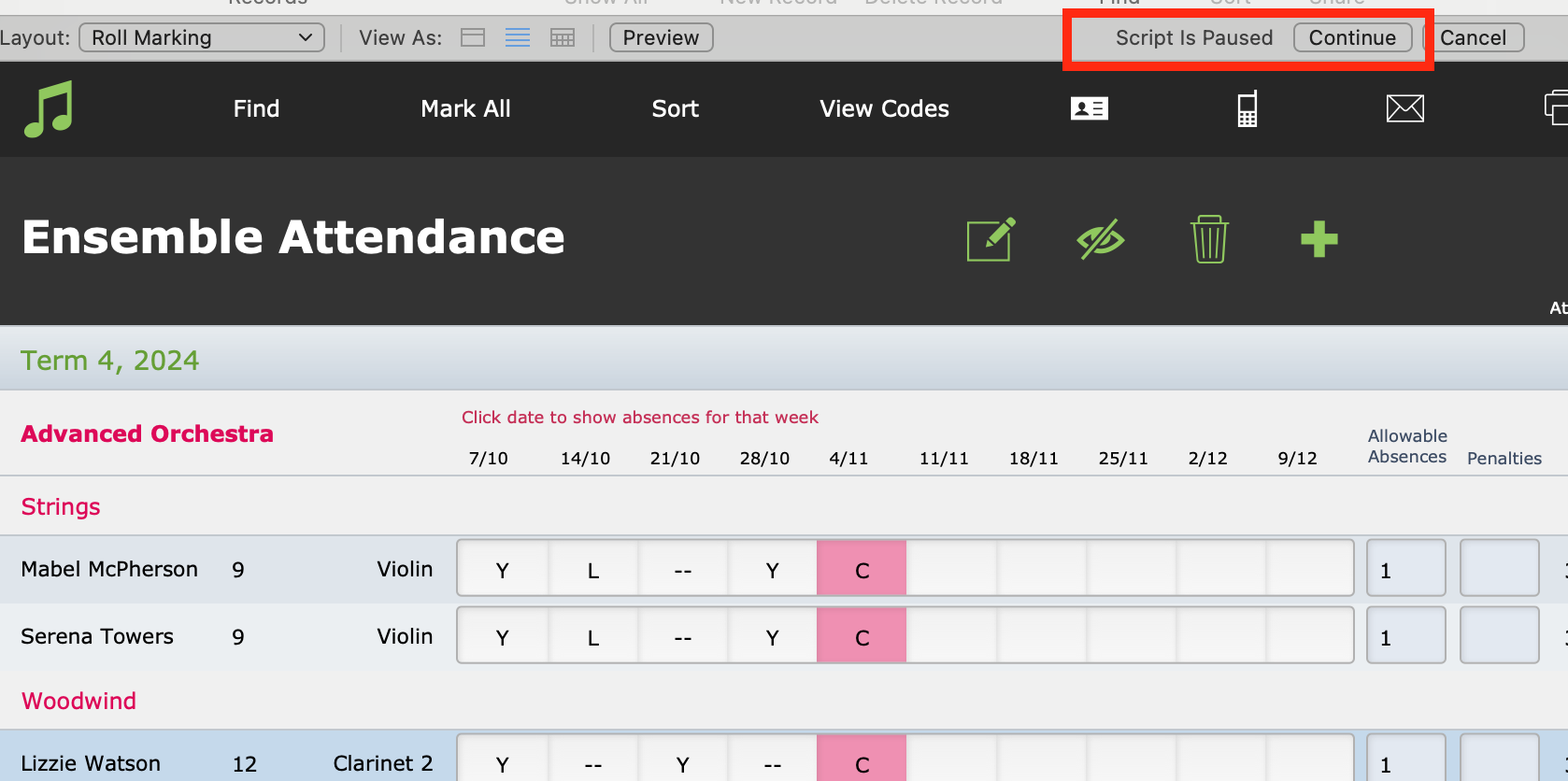
It will pause again on a list showing the account lines it proposes to create.

If this is correct, select Send to Accounts, and the lines will be created on the student accounts.