This article is no longer updated.
Please go to our new Intercom knowledge base to ensure you're seeing the most recent version.
The link above takes you directly to the equivalent article on Intercom.
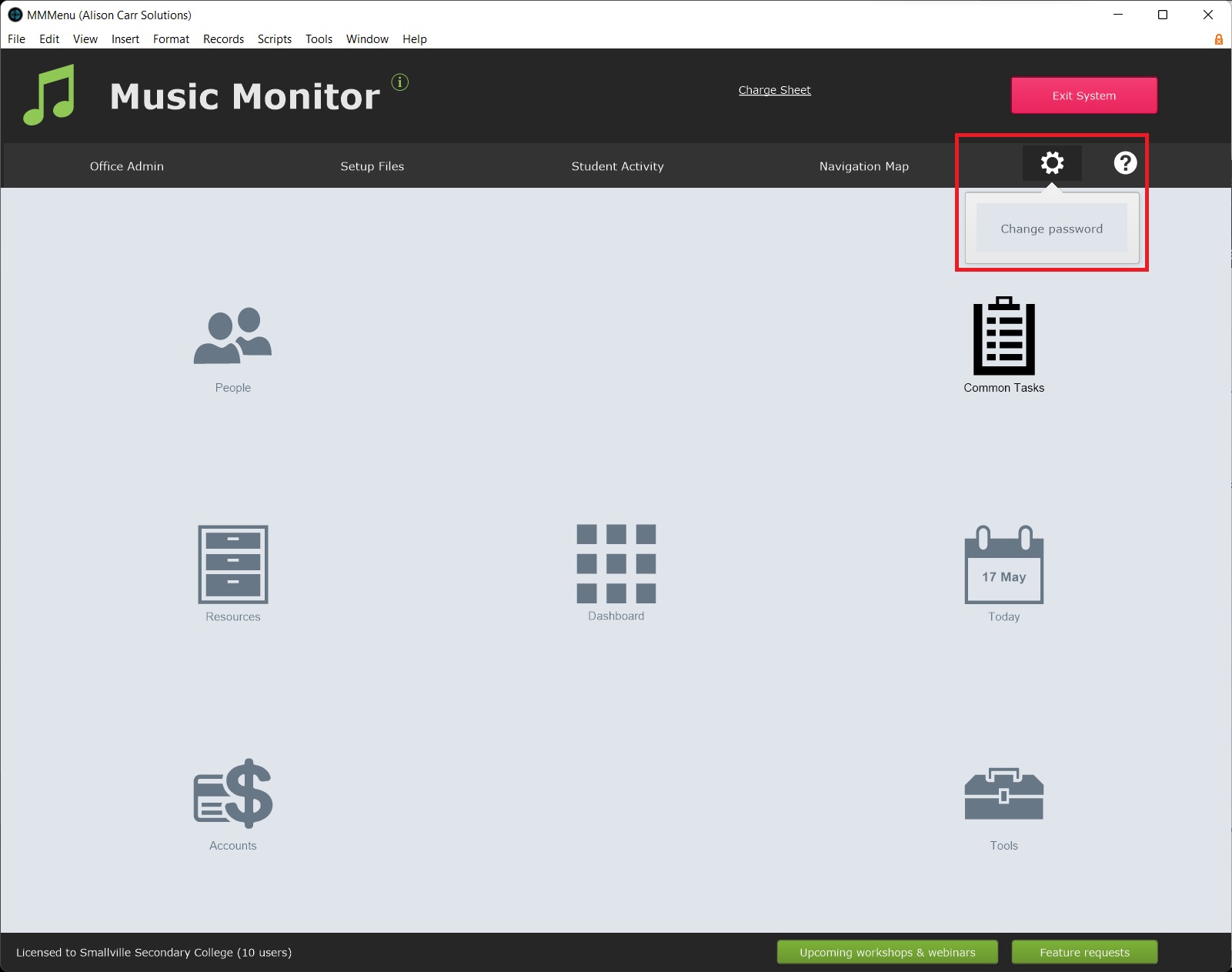
All users can change their own password using Change Password under the Settings icon on the Home Menu.
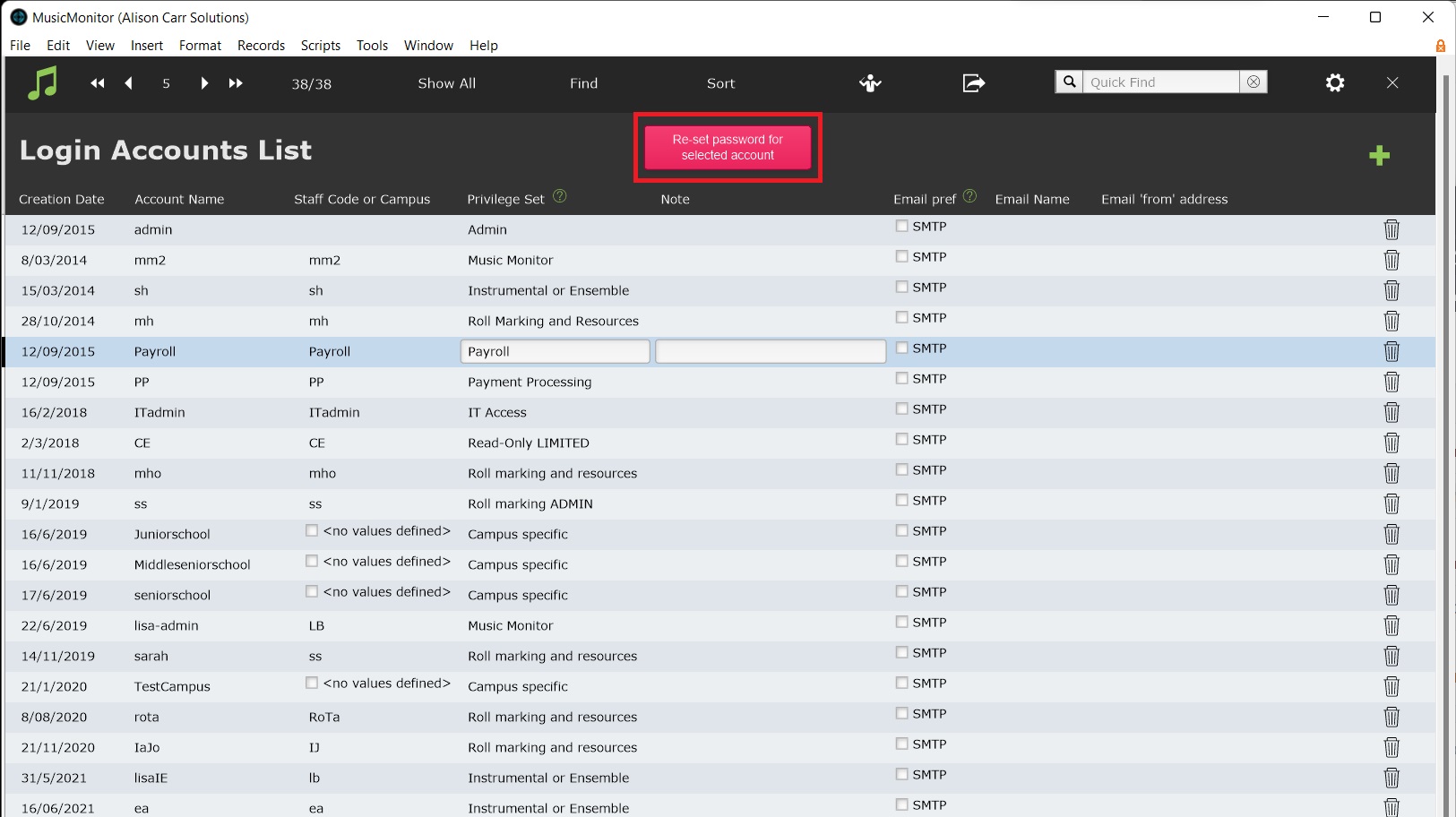
The password for any one user can be reset from Settings (the gear icon) > Manage Login Accounts.
(For version 9.111 and earlier use Tools > System Admin > Manage Login Accounts.)
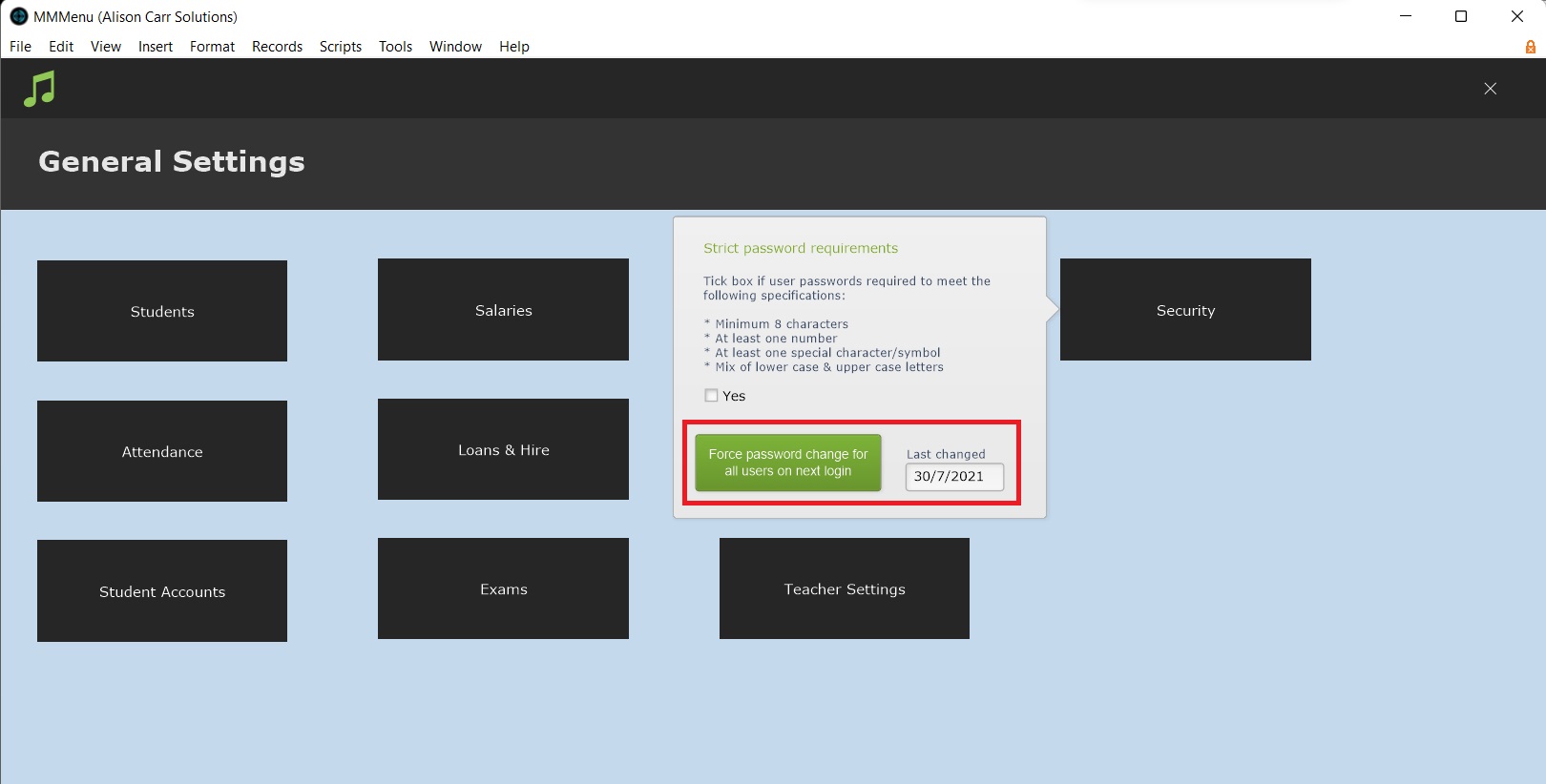
All users can be forced to change their password on next login from Settings (the gear icon) > General Settings > Security. (For version 9.111 and earlier use Tools > System Admin > Manage Login Accounts.) The next time users log in, a pop-up will force them to set a new password.