This article is no longer updated.
Please go to our new Intercom knowledge base to ensure you're seeing the most recent version.
The link above takes you directly to the equivalent article on Intercom.
Student assessment reports can be completed in Music Monitor.
You need to first set up report templates, and then when you want to use them you need to create a Reports Session and generate a set of reports from the templates. The session must be set up by the Music Administrator (or someone with a 'Music Monitor' account).
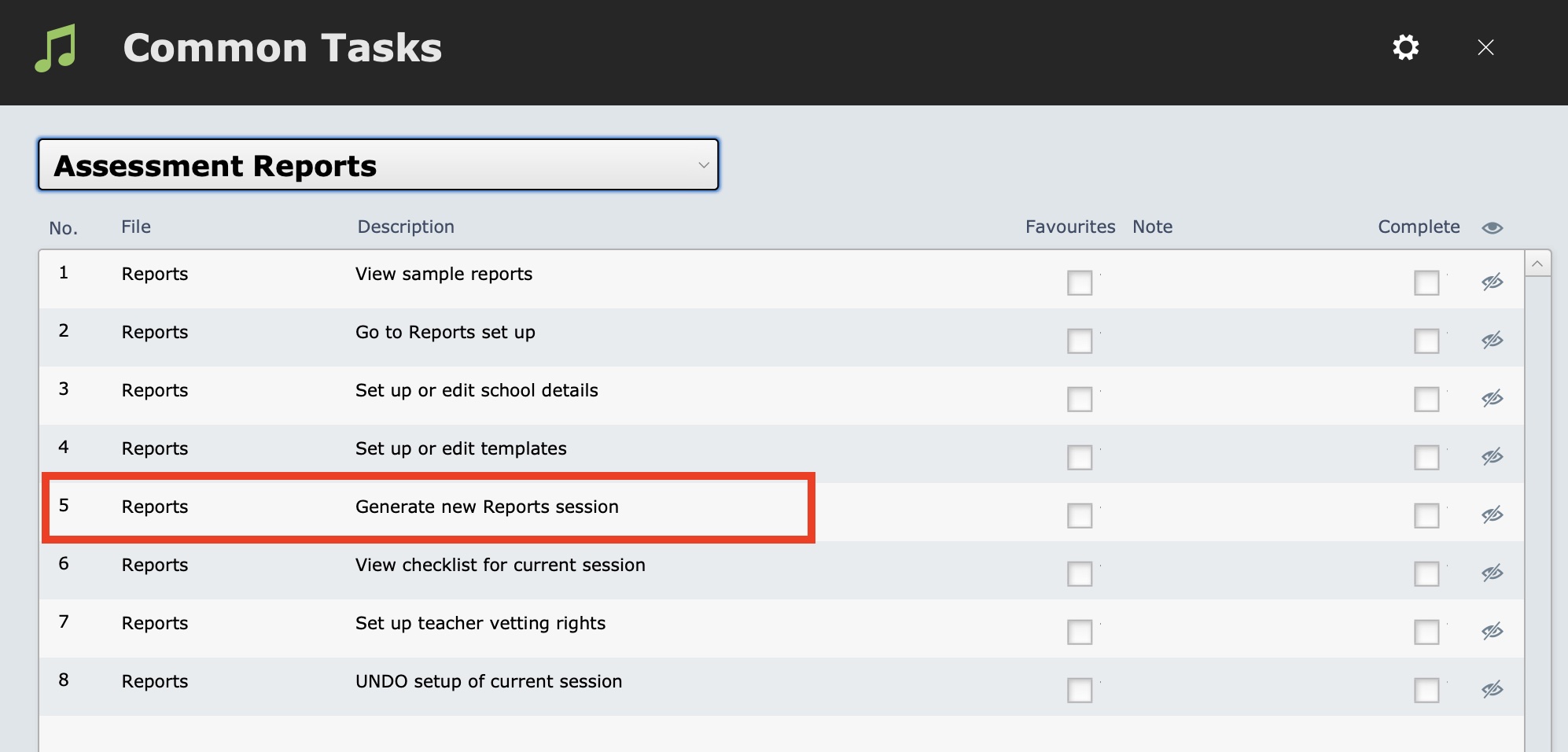
If you haven't already done so, you should also check the school details and template setup (numbers 3 & 4 in the screenshot below) before setting up the new session.
To create a new Report session (eg. Semester 2, 2024), navigate to Common Tasks > Assessment Reports > Generate new Reports session.
The script will import all current teaching staff and all current tuition enrolments.
It also gives the option to import all (or some) current ensemble enrolments. If you don't require a separate ensemble report for each student, select No to this option. If selecting Yes, on the next screen you will be given the option to edit the default search criteria (i.e. Status = 'Current'). Click Perform Find to execute the find and import the found set into Reports.
At the end of the script, you will be given the option to view the generated reports as a checklist.
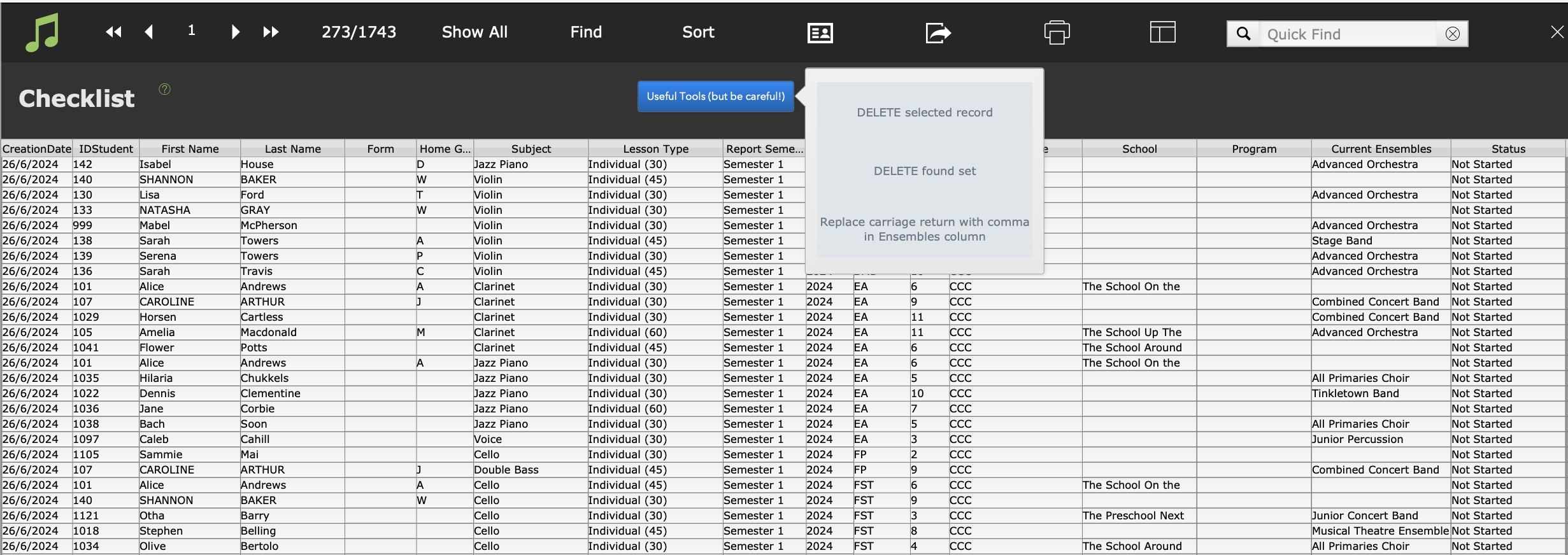
On this view, you can check for 'ERROR' entries in the Status field. An 'ERROR' status indicates that particular report was unable to find a relevant template.
If a report is not required to be completed, select Delete selected record from the blue Useful Tools (but be careful) button.
If several records have an 'ERROR' status and these records require reports, it's best to UNDO the report session, check and set up the relevant templates and set up the session again.
To UNDO the report session, go to Common Tasks > Assessment Reports > UNDO setup of current session.
Tips & tricks:
Another way to navigate to Reports is from the Home Screen > Office Admin > Student Reports. Be sure to explore the options behind the buttons on this screen.
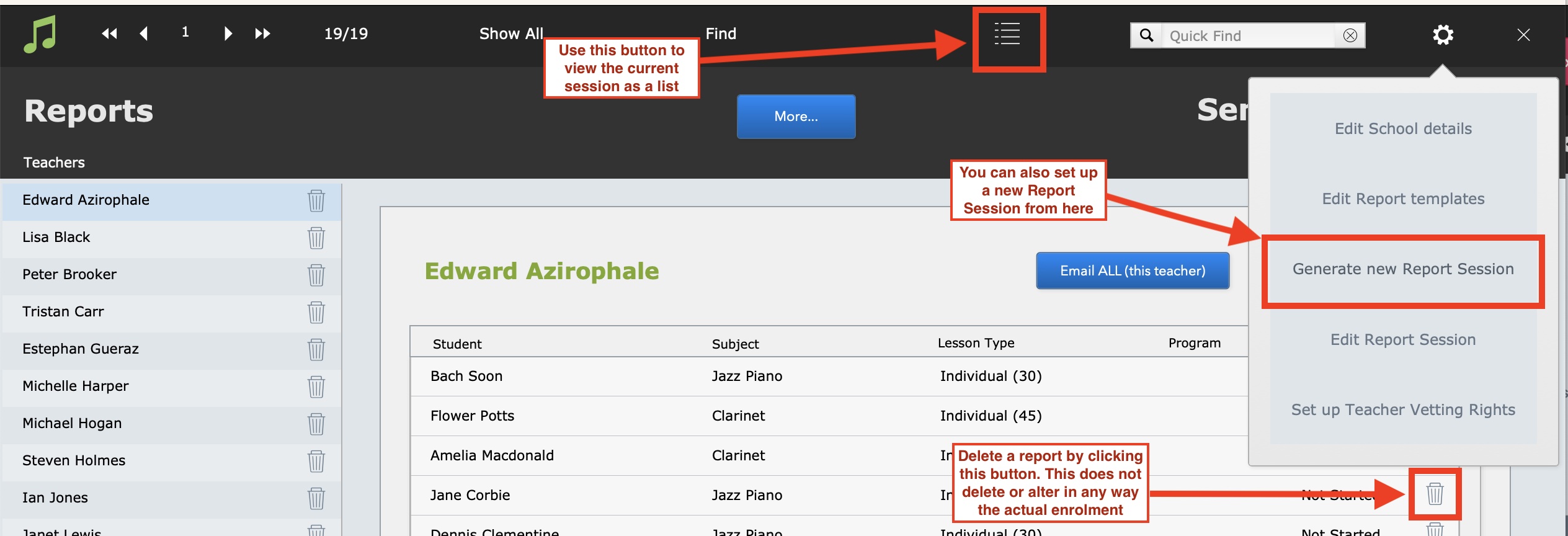
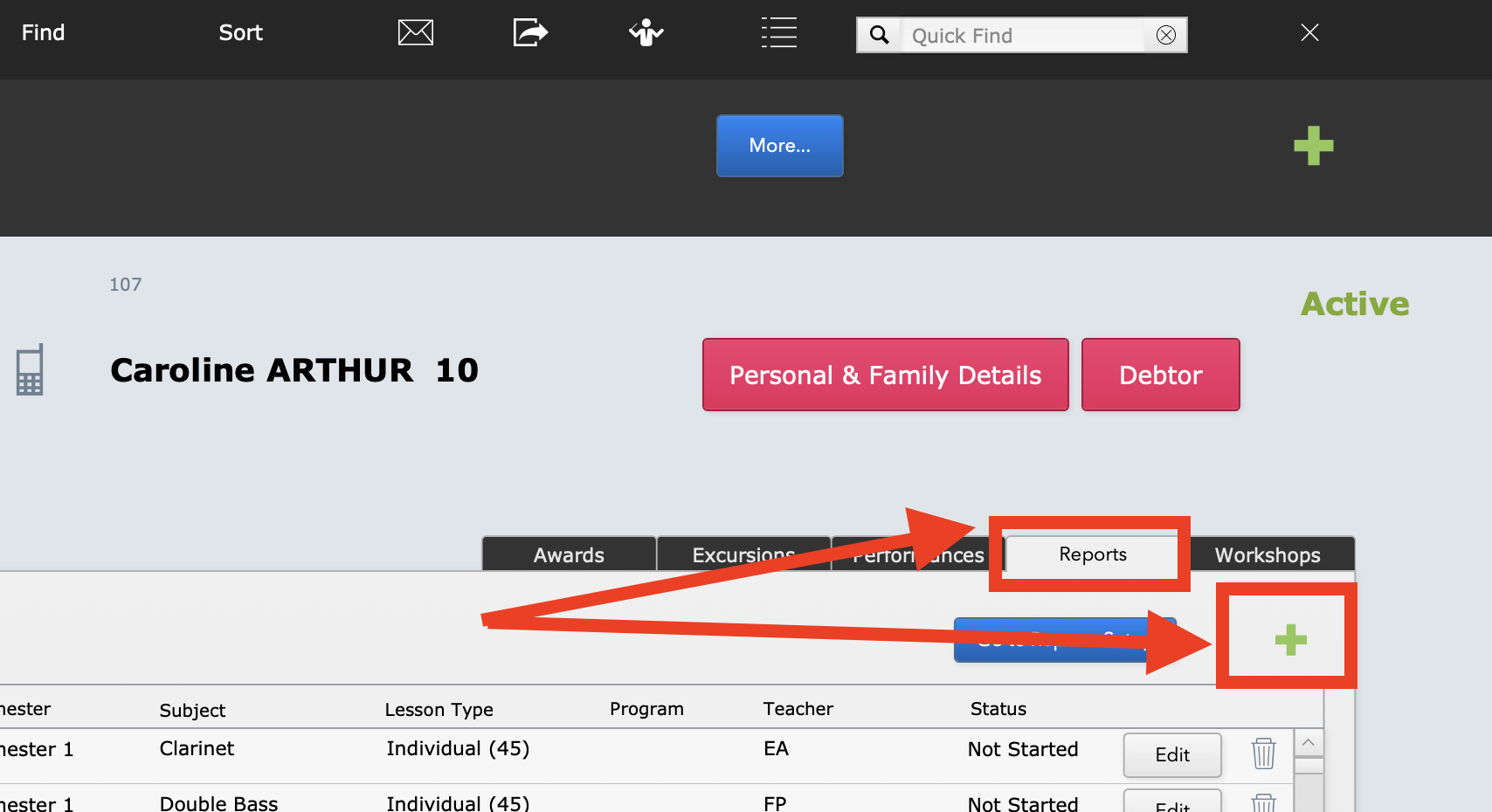
Additional tuition reports can be added after the report session has been set up by navigating to the Reports button in Students and clicking the + button.
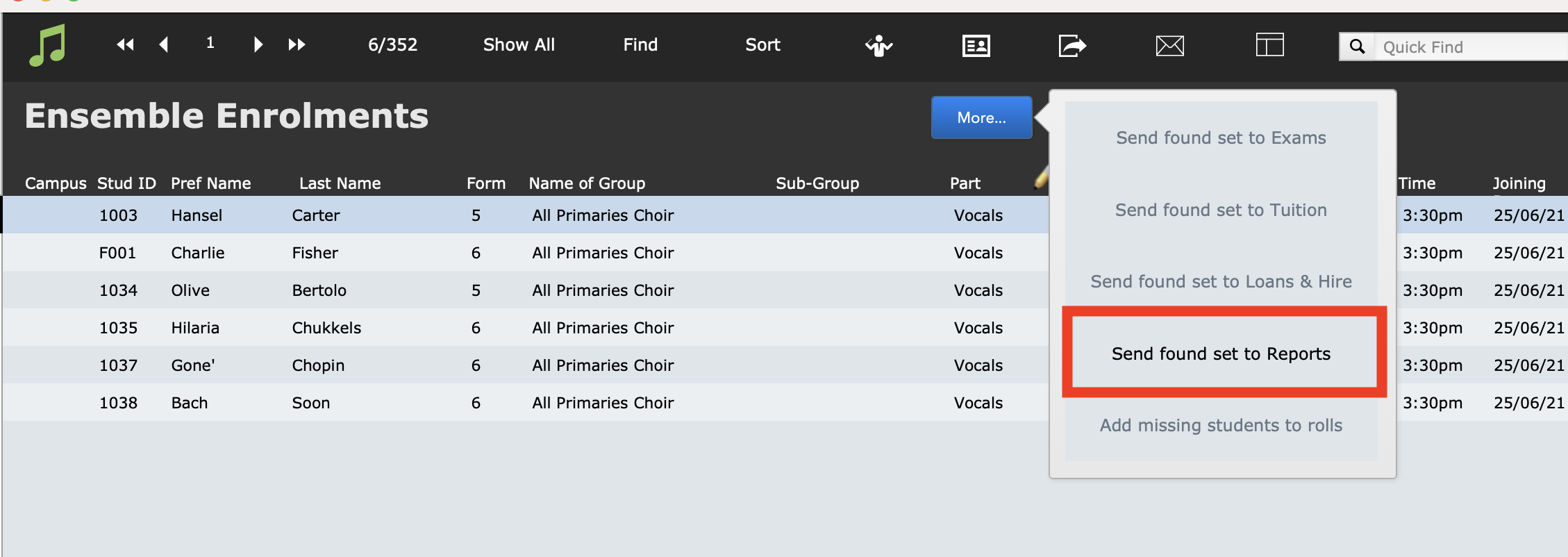
Additional ensemble reports can be added after the report session has been set up by doing a find in Ensembles (Home > Student Activity > Ensembles) and clicking More > Send found set to Reports.
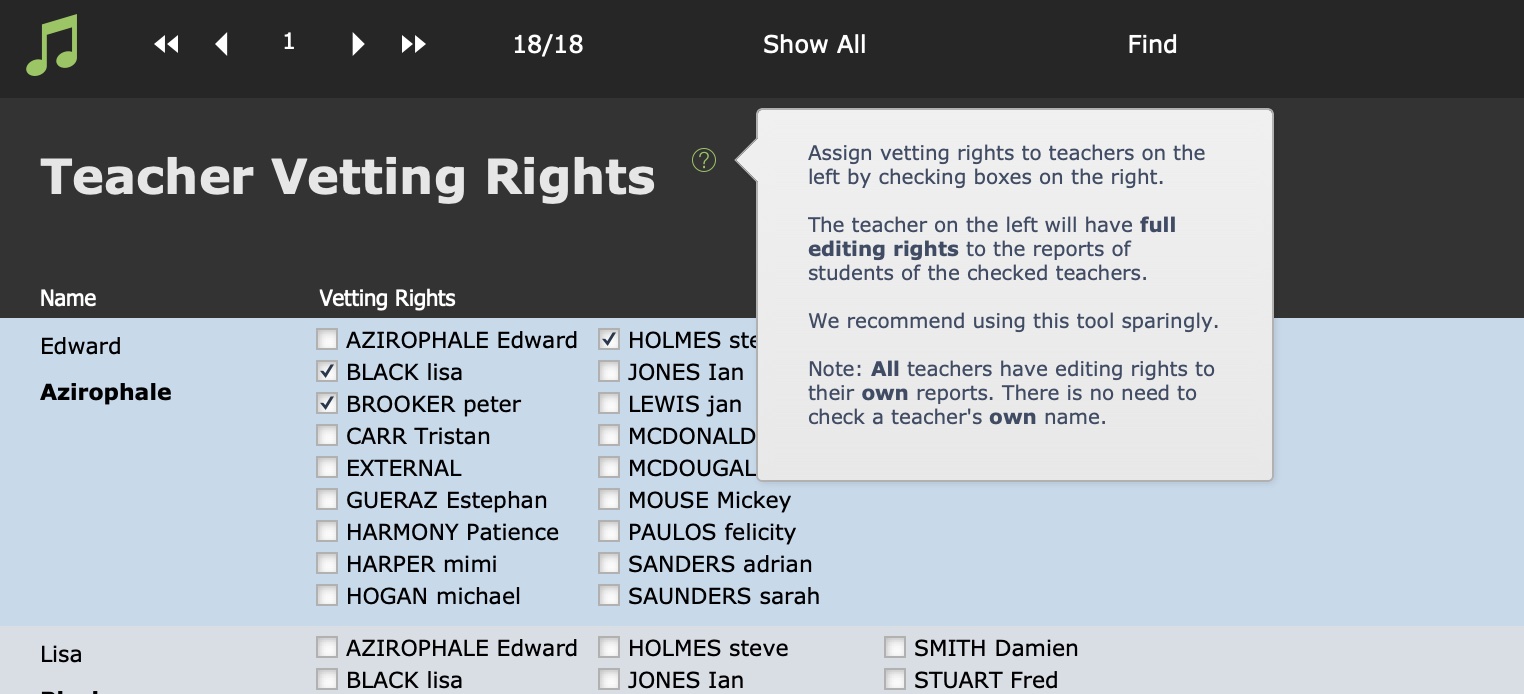
Did you know you can Set up Teacher Vetting Rights? Select this option under the Settings wheel to view a list of all your teachers. If you would like to grant some of the teachers permission to view and edit the reports of other teachers, tick the checkboxes of those teachers next to the 'vetting' teacher's name.