

This article is no longer updated.
Please go to our new Intercom knowledge base to ensure you're seeing the most recent version.
The link above takes you directly to the equivalent article on Intercom.
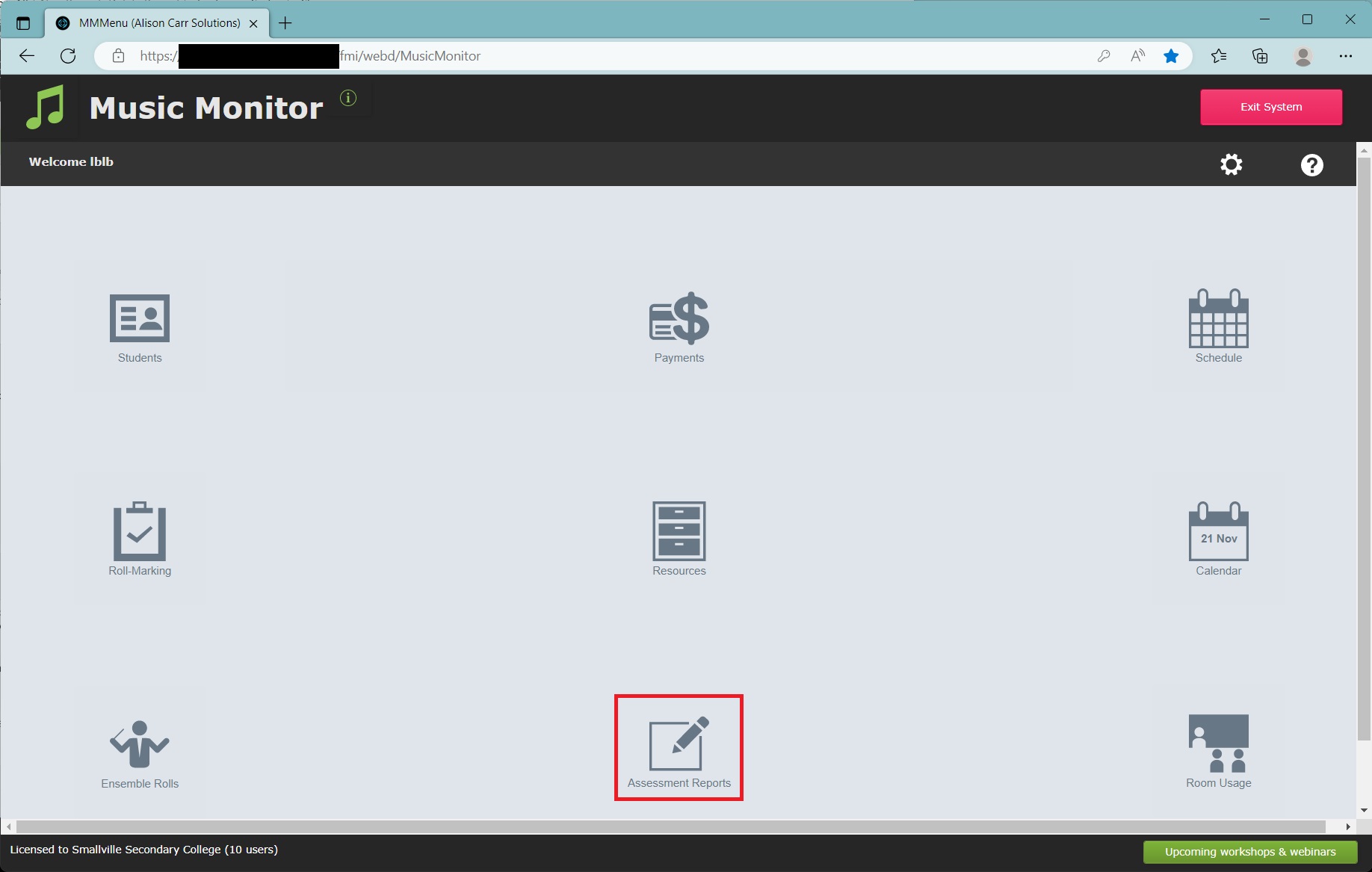
To access student assessment reports, select Assessment Reports from the Music Monitor Home Menu.
On the next screen, you will see a list of your students.
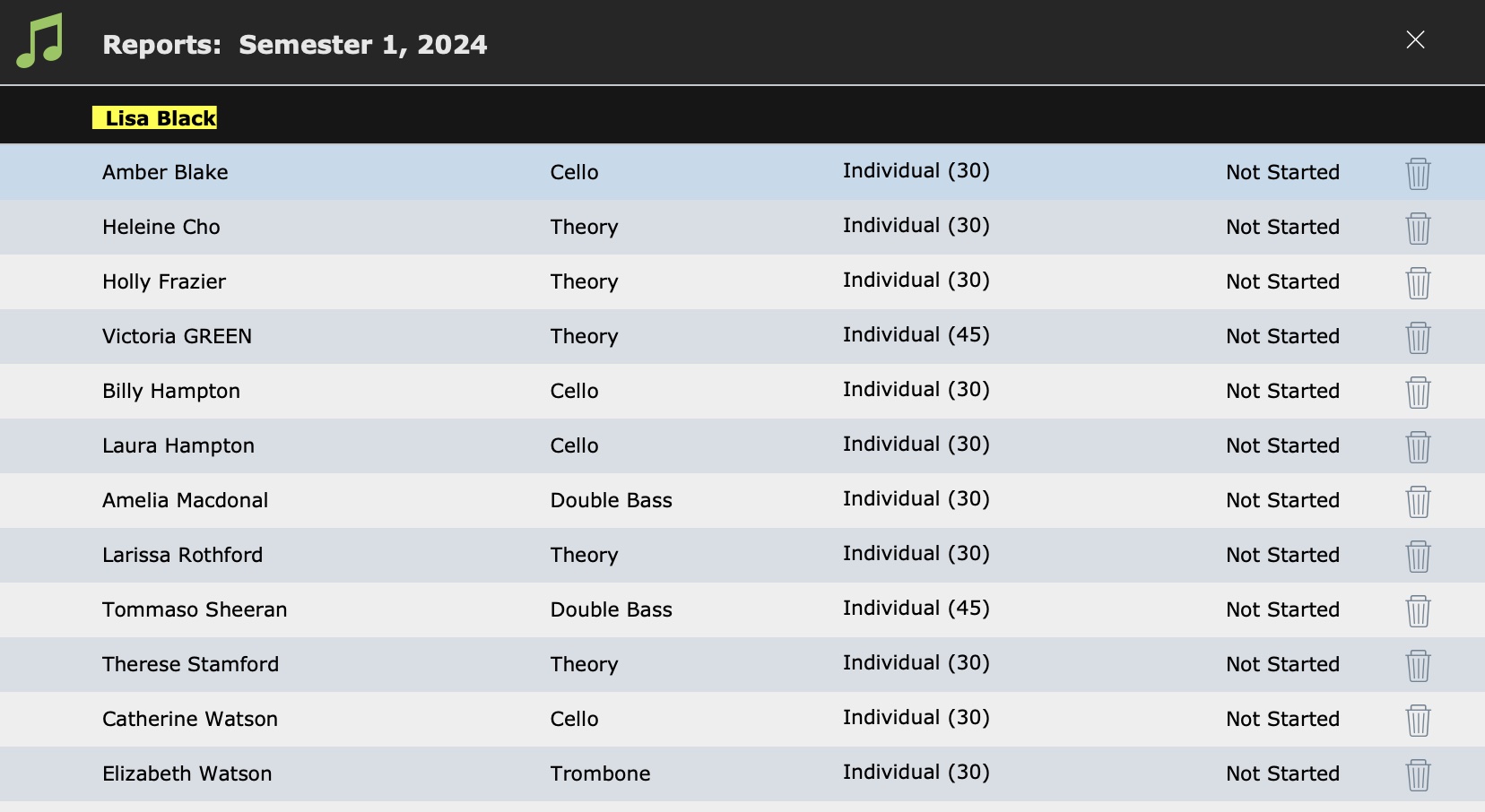
Select a student to edit their report. Students are labelled 'Complete' or 'Incomplete' depending on whether all fields in their report have been entered.
The fields for reports vary from school to school. Complete the report by selecting values or adding a comment.
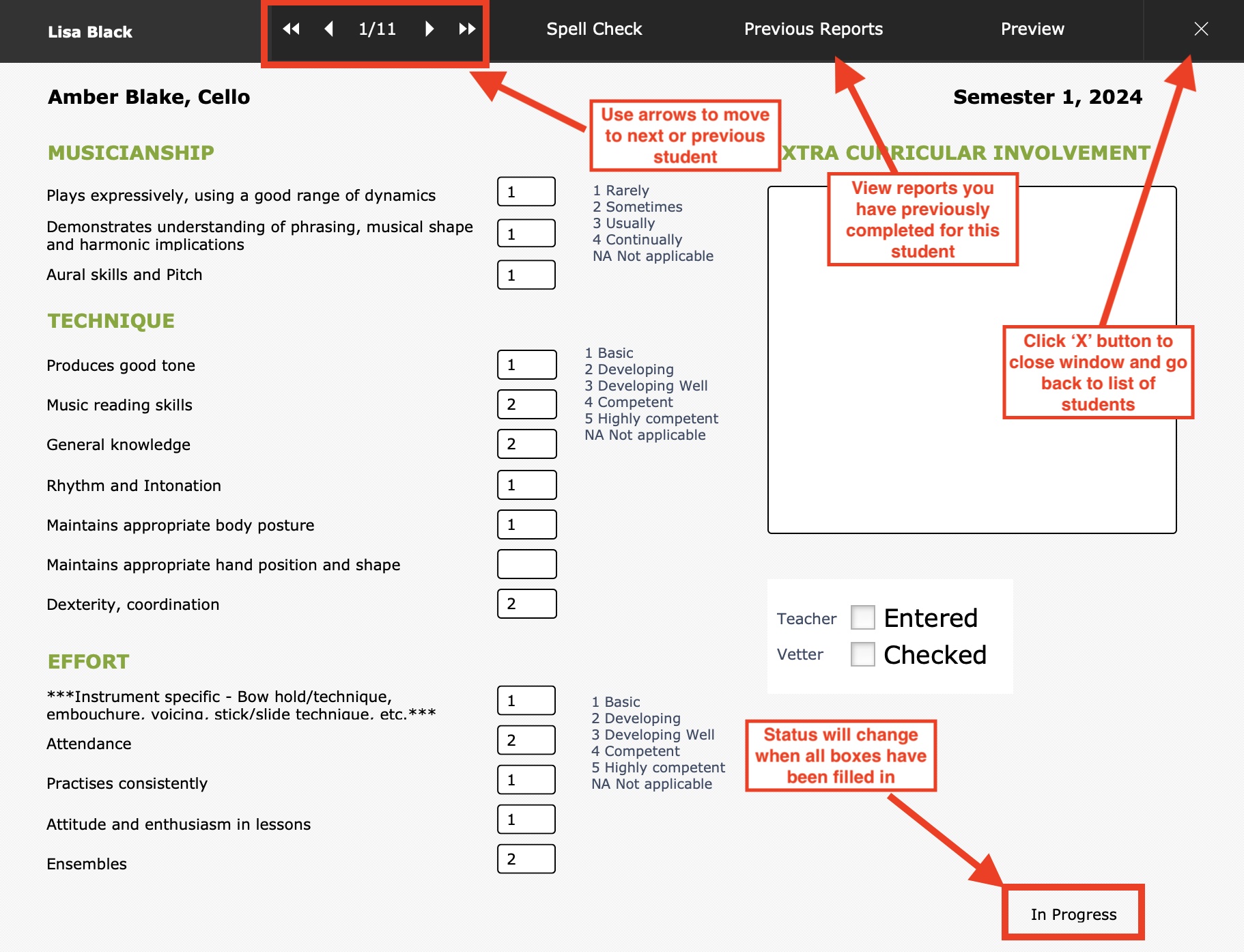
On this view, you can also open a preview of the report using the Preview button.