

This article is no longer updated.
Please go to our new Intercom knowledge base to ensure you're seeing the most recent version.
The link above takes you directly to the equivalent article on Intercom.
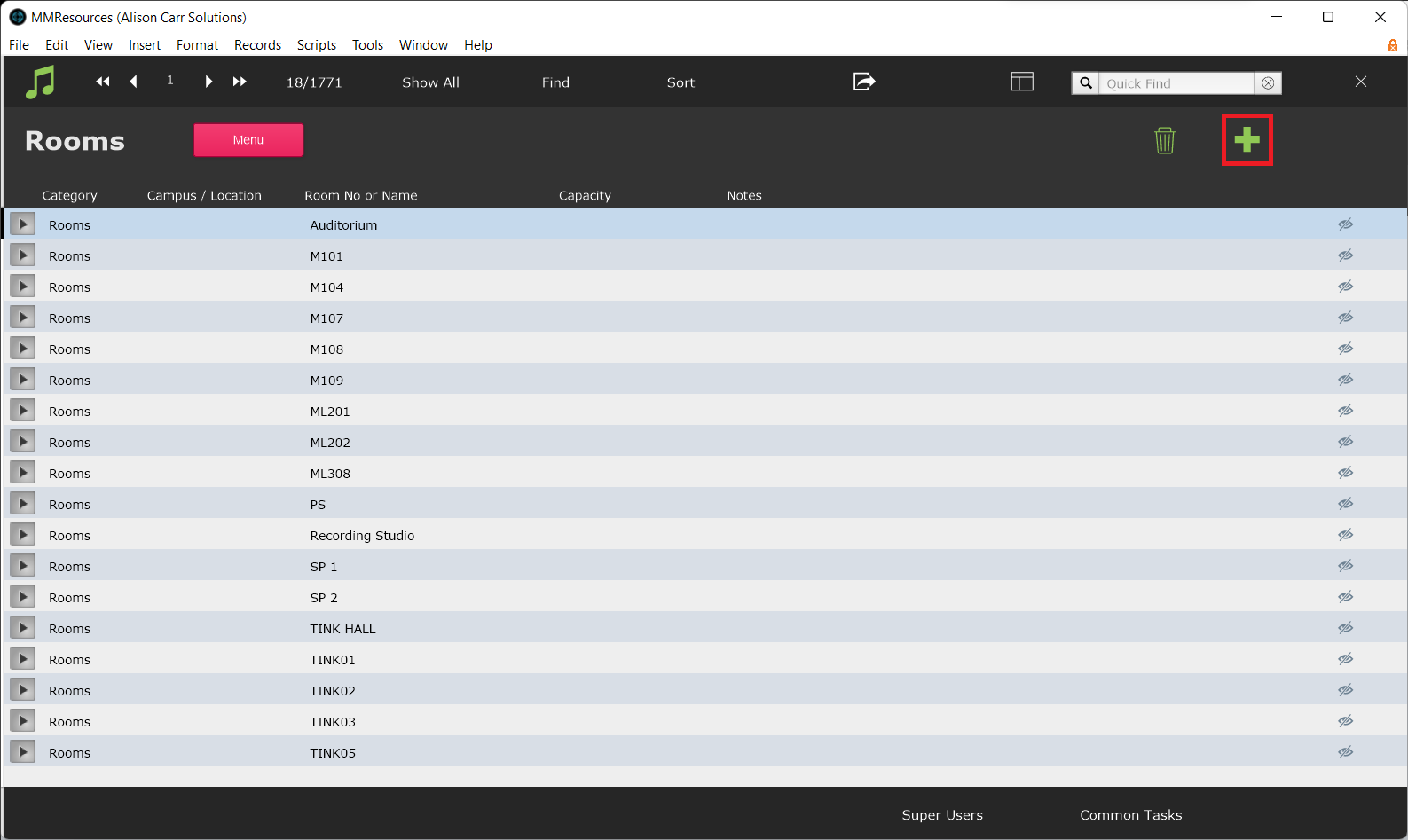
You can view your list of Rooms at Resources > Rooms.
Add a Room
Add a new room record by selecting the green + button.
Delete a Room
Delete a selected room record by selecting the trash icon.
Tabs in the Rooms Record
When you select a room, the record will open and you will see information about it. There are tabs along the top of the portal window.
Regular Bookings
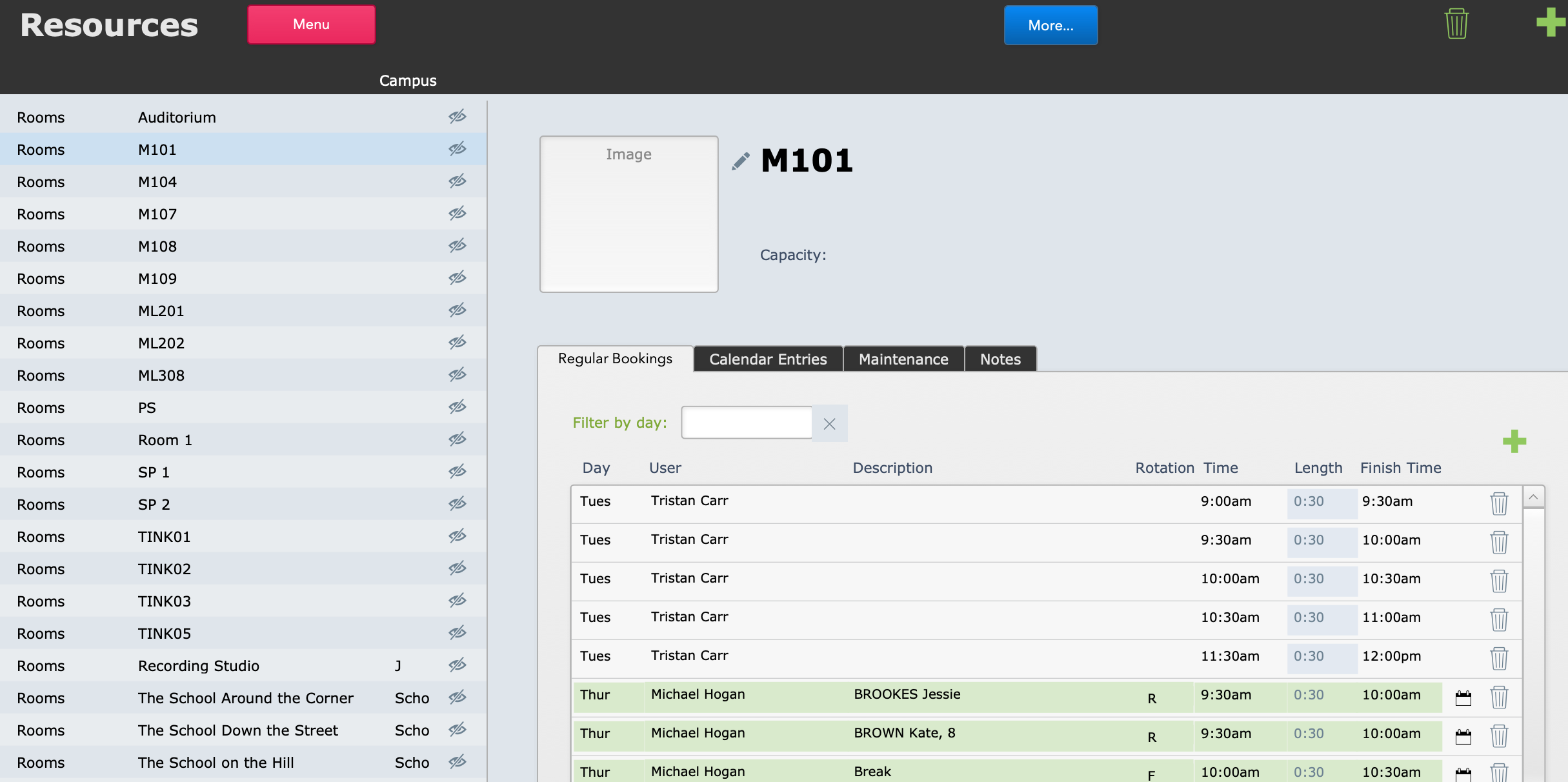
The entries in this tab are drawn from the teachers' schedules.
If you want to make a regular booking that is not an enrolment, select the green + button to add a new booking in this screen. If you later try to schedule a lesson in here, it will show as a room clash.
Calendar Entries
When you generate calendar entries for your teachers' schedules, they will appear in the Calendar Entries tab in this screen, as well as for the teachers.
You can add a one-off calendar entry from here, which will then appear in all the other places calendar entries are displayed.
Maintenance
You can record notes about room maintenance here.
The dates don't automatically flow to the calendar, so you will separately need to add a calendar entry if required.
Notes
You can add general notes here. There is also a space to note the room capacity. Both the capacity and the general notes will then appear above the portal area, in the main window of the record.