

This article is no longer updated.
Please go to our new Intercom knowledge base to ensure you're seeing the most recent version.
The link above takes you directly to the equivalent article on Intercom.
Contact Details Basics
Music Monitor stores contact details for one Primary Contact for each student. However, details for any number of Additional Contacts may also be added to a student. For schools that import data from a school database, data for additional contacts may also be included in the import.
Beware that additional contacts will be included in all emails addressed to parents. Where it is not appropriate for an additional contact to receive these emails, do not enter an email address for the additional contact.
Additional Contacts Location
To view additional contacts, go to People > Students > Personal & Family Details.
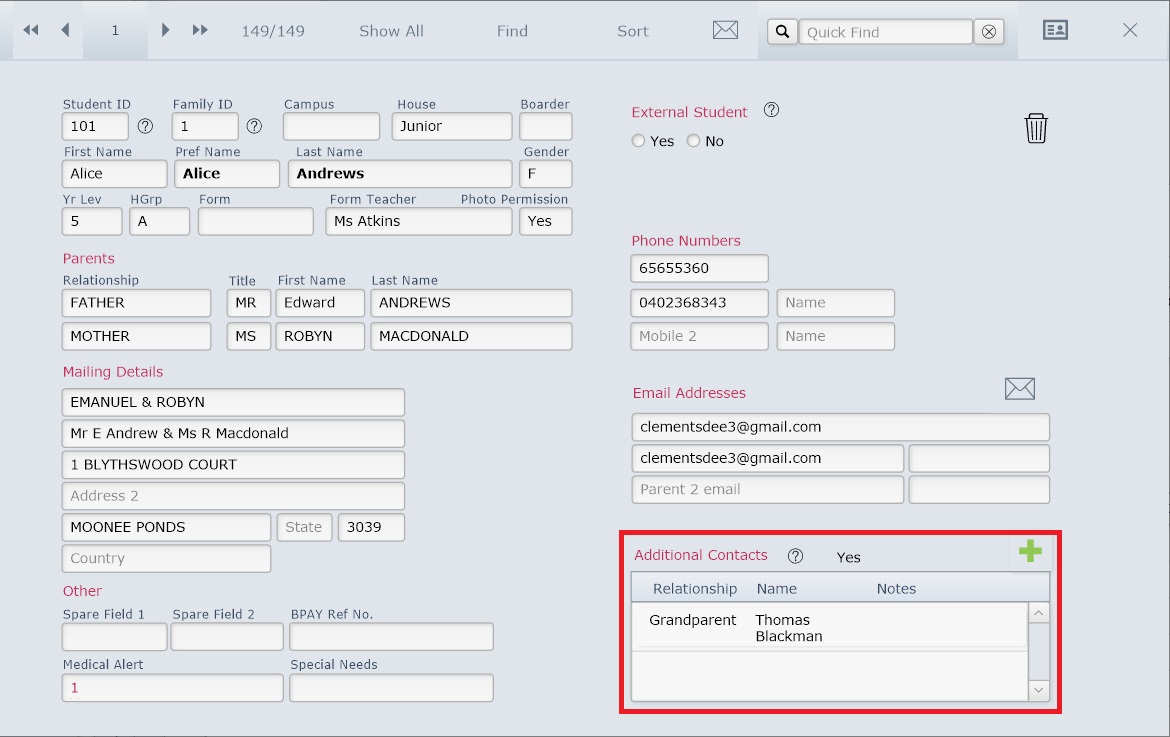
Then, if you import student details, additional contacts are visible in the portal at the bottom right.
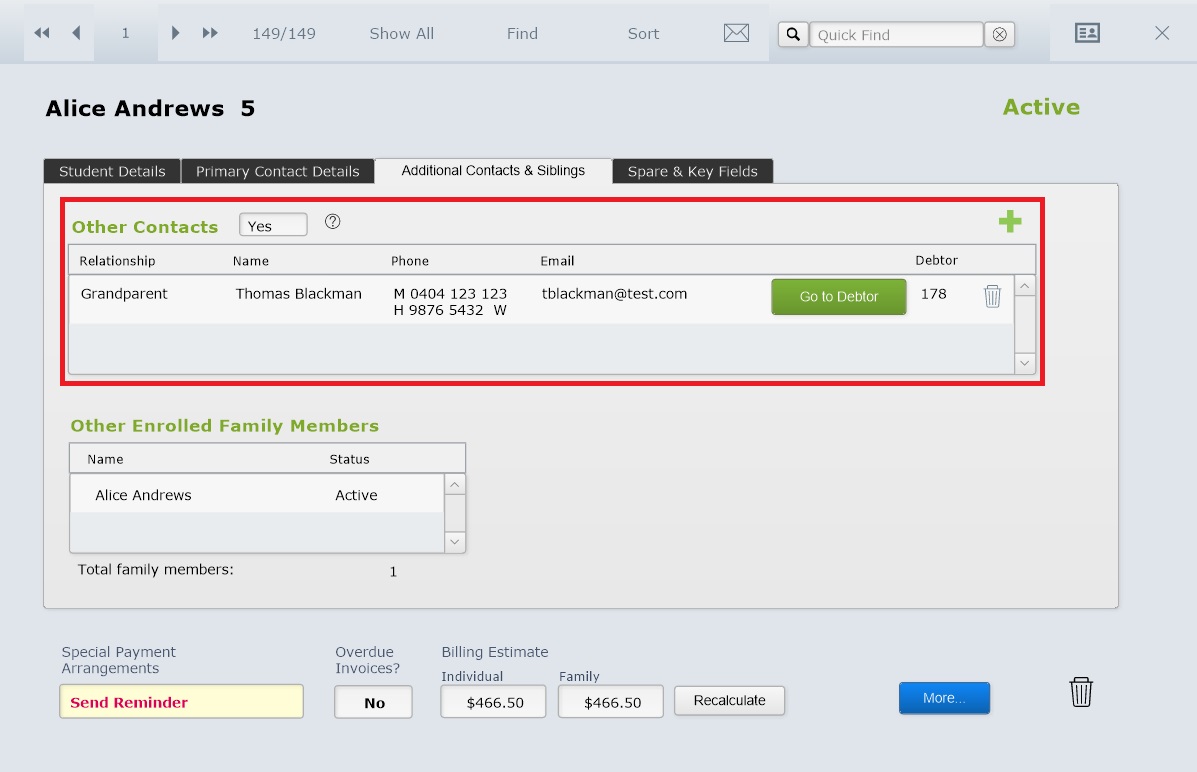
If you don't import student details, additional contacts are visible under the Additional Contacts & Siblings tab.
Link Siblings to Additional Contacts
Each additional contacts can be linked to multiple students. This way, contacts do not need to be entered multiple times for siblings or other family members.
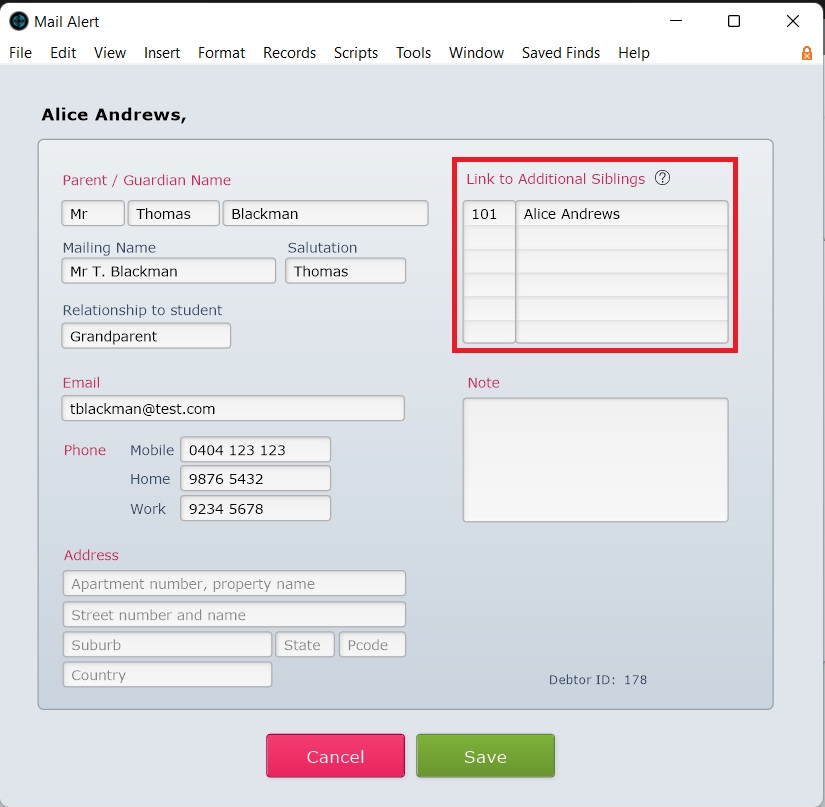
To do this, select an additional contact and add students in the Link to Additional Siblings section.
If you are adding a new student, the method to add additional contacts already listed on siblings is to navigate to the Additional Contacts & Siblings tab, select a sibling in Other Enrolled Family Members, then select each additional contact you wish to add the new student to.