

This article is no longer updated.
Please go to our new Intercom knowledge base to ensure you're seeing the most recent version.
The link above takes you directly to the equivalent article on Intercom.
For changing the teacher for a set of students temporarily see Temporarily Change Teacher.
To reallocate students, navigate to Tuitions (Home Menu > Student Activity > Tuition) and find the teacher's current enrolments. You can then change the teacher for the found set under More.
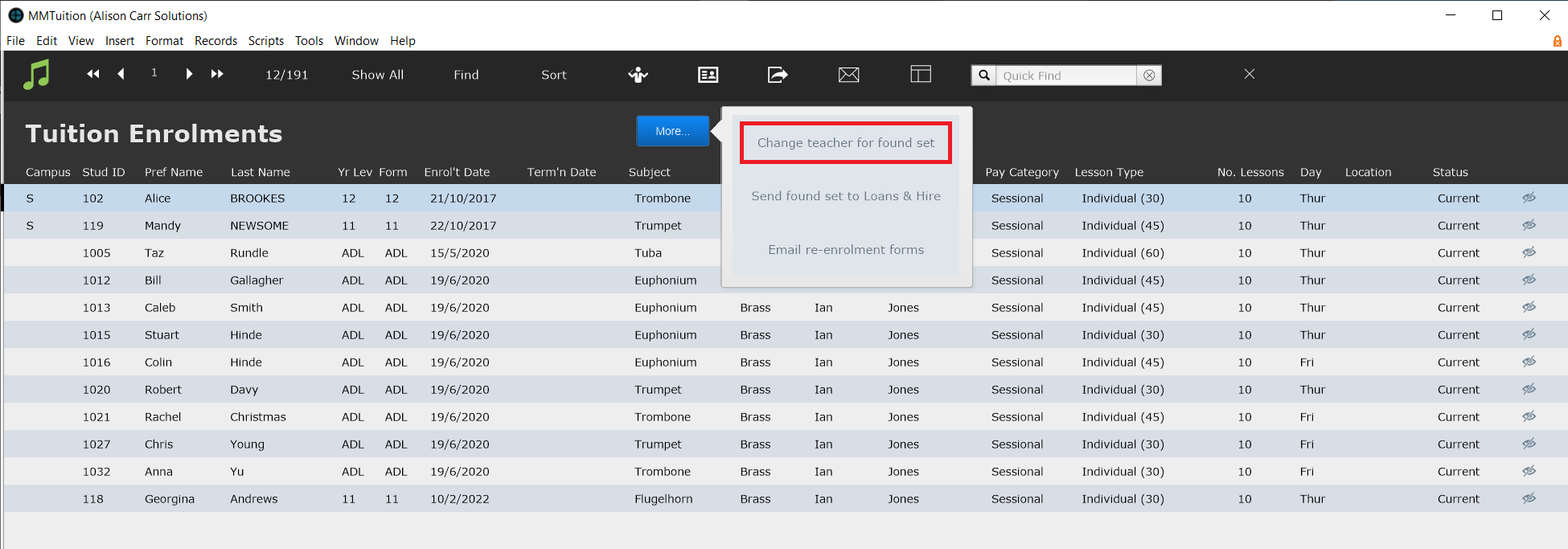
This will change the teacher for the found set of tuition enrolments permanently.
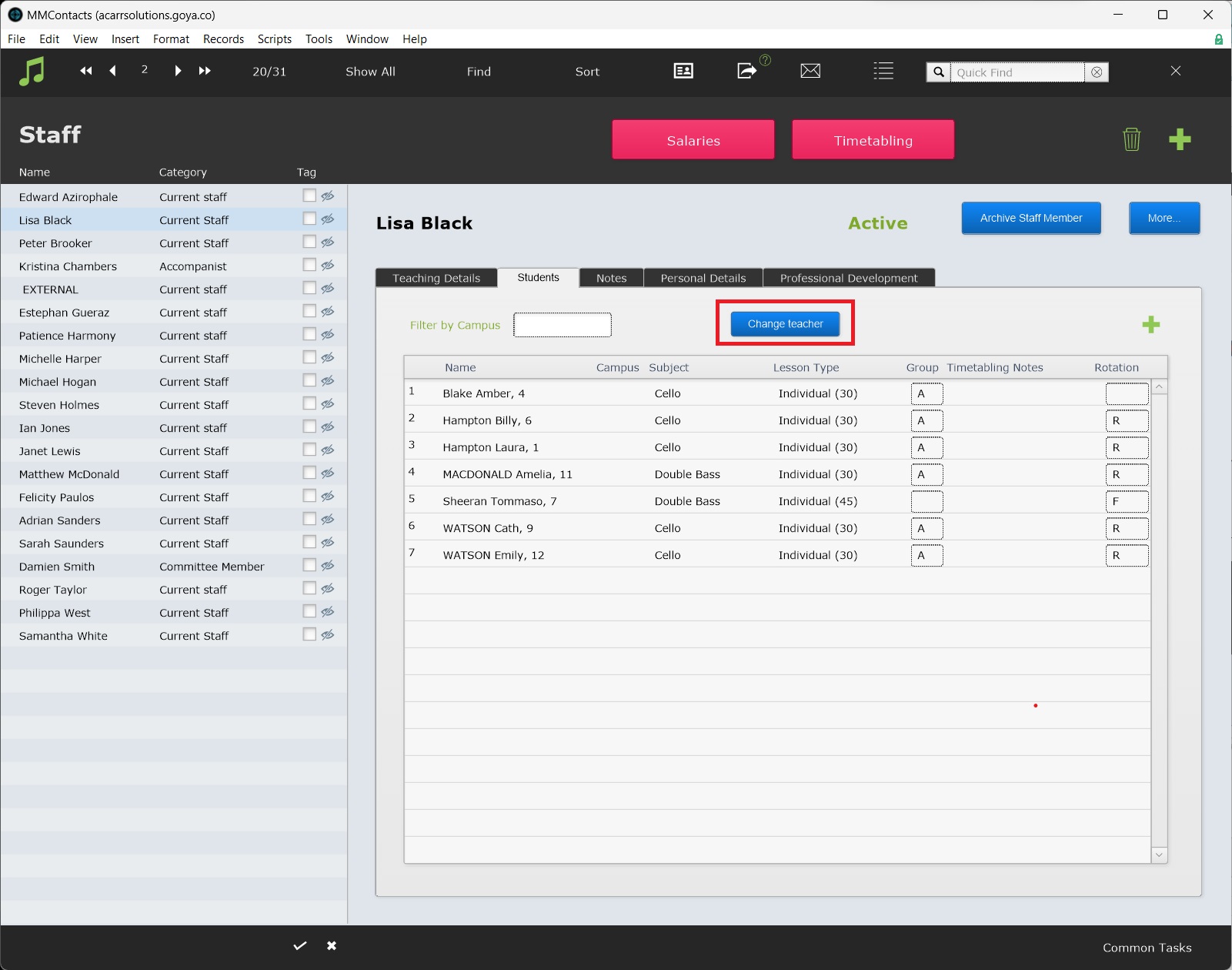
Alternatively, navigate to Staff (Home Menu > People > Staff), find the relevant teacher, then go to the Students Tab. Select Change Teacher to change the teacher for all the students of this teacher.
If this process is being used for a teacher permanently finishing at your institution, see Archive Teacher and Reassign Students & Ensembles for more information.