This article is no longer updated.
Please go to our new Intercom knowledge base to ensure you're seeing the most recent version.
The link above takes you directly to the equivalent article on Intercom.
For teachers that must submit an invoice to the school in order to be paid, the salaries module can produce one as an alternative to a pay advice slip. This invoice can be printed or emailed to the teacher.
Output
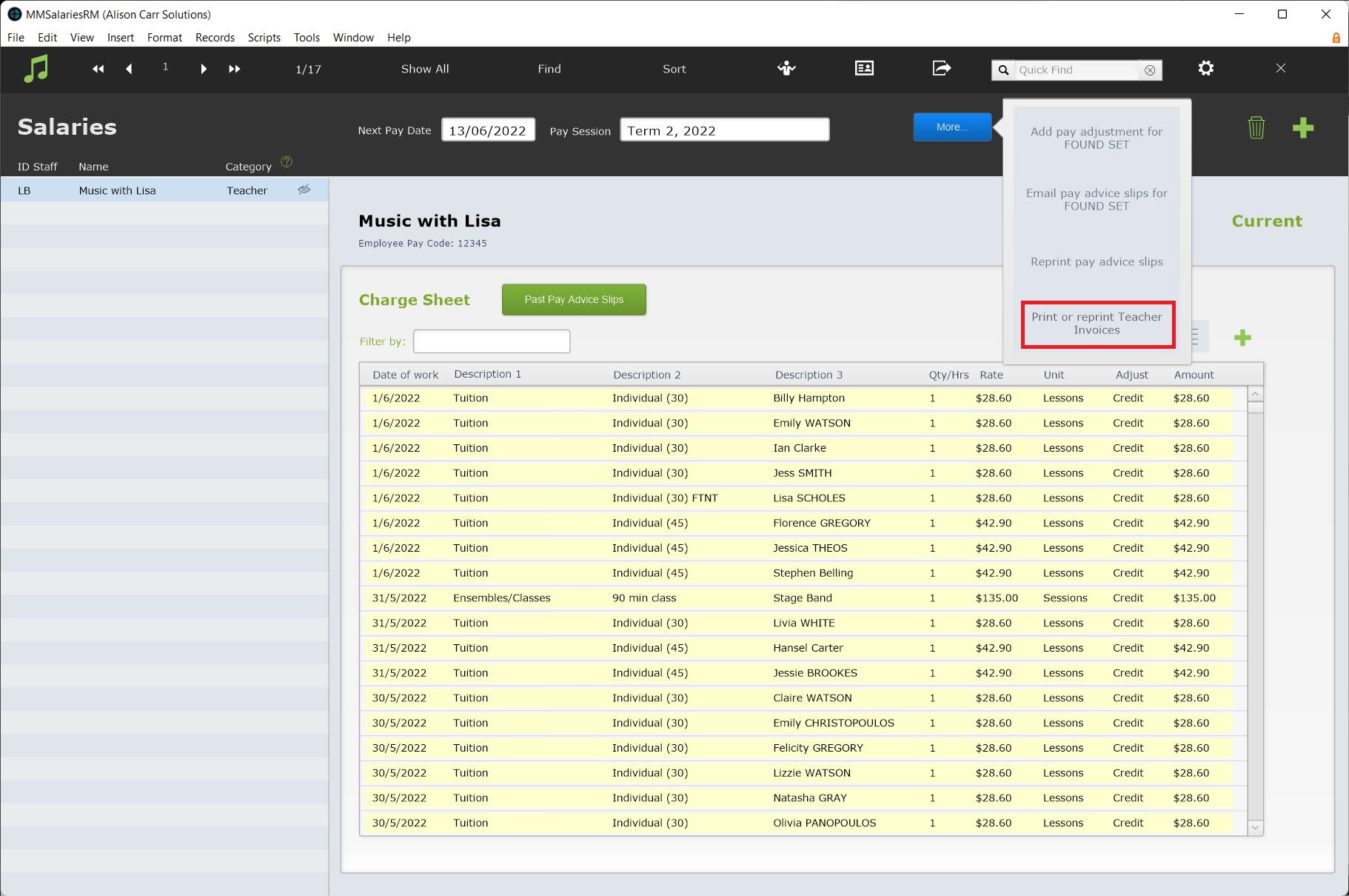
To produce an invoice for a teacher to go, Office Admin > Salaries > Pay Slips & Charge Sheets > More > Print or Reprint Teacher Invoices.
Setup
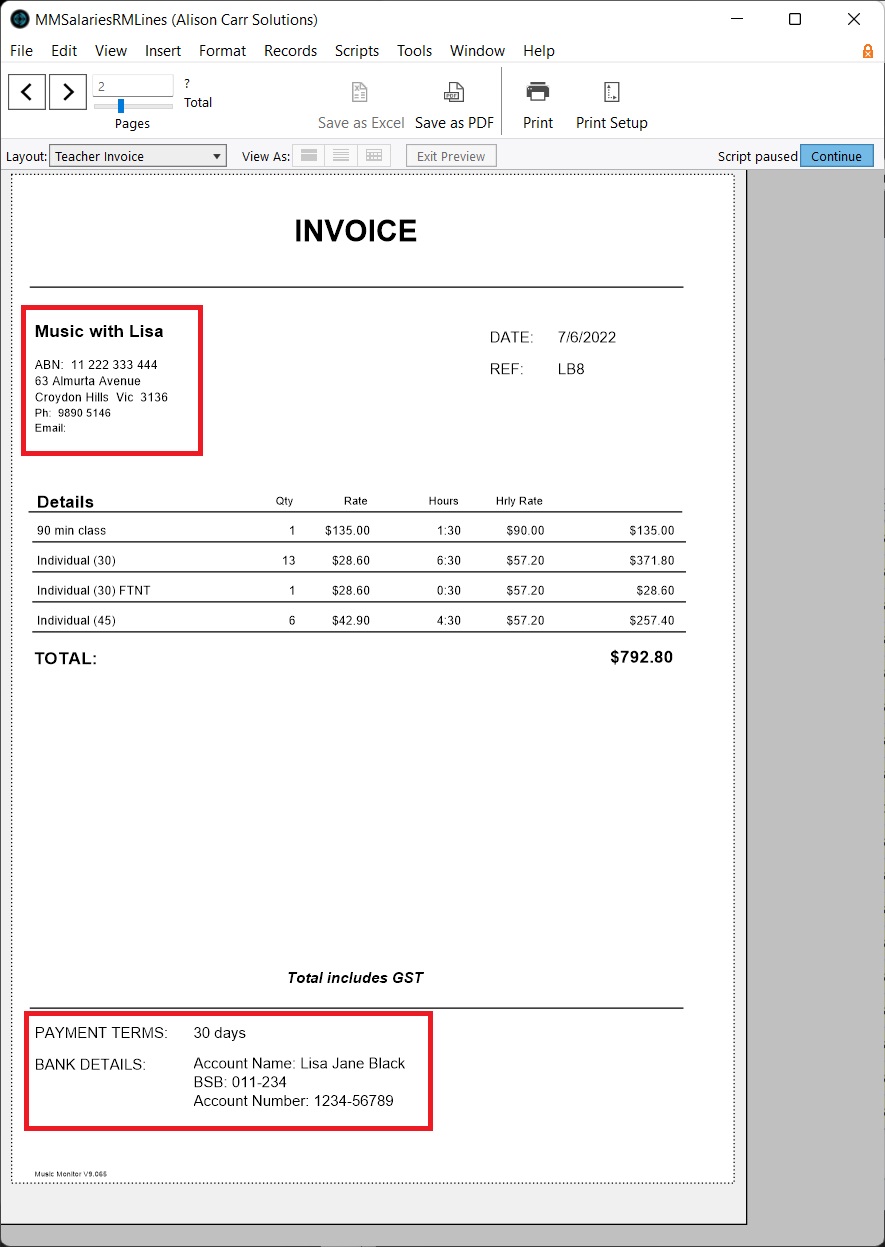
There are a number of details that will only appear on the invoice if inputted properly in the teacher's details in the Staff file. This includes the teacher's business name, registration for GST status, pay term, bank details, address, phone and email.
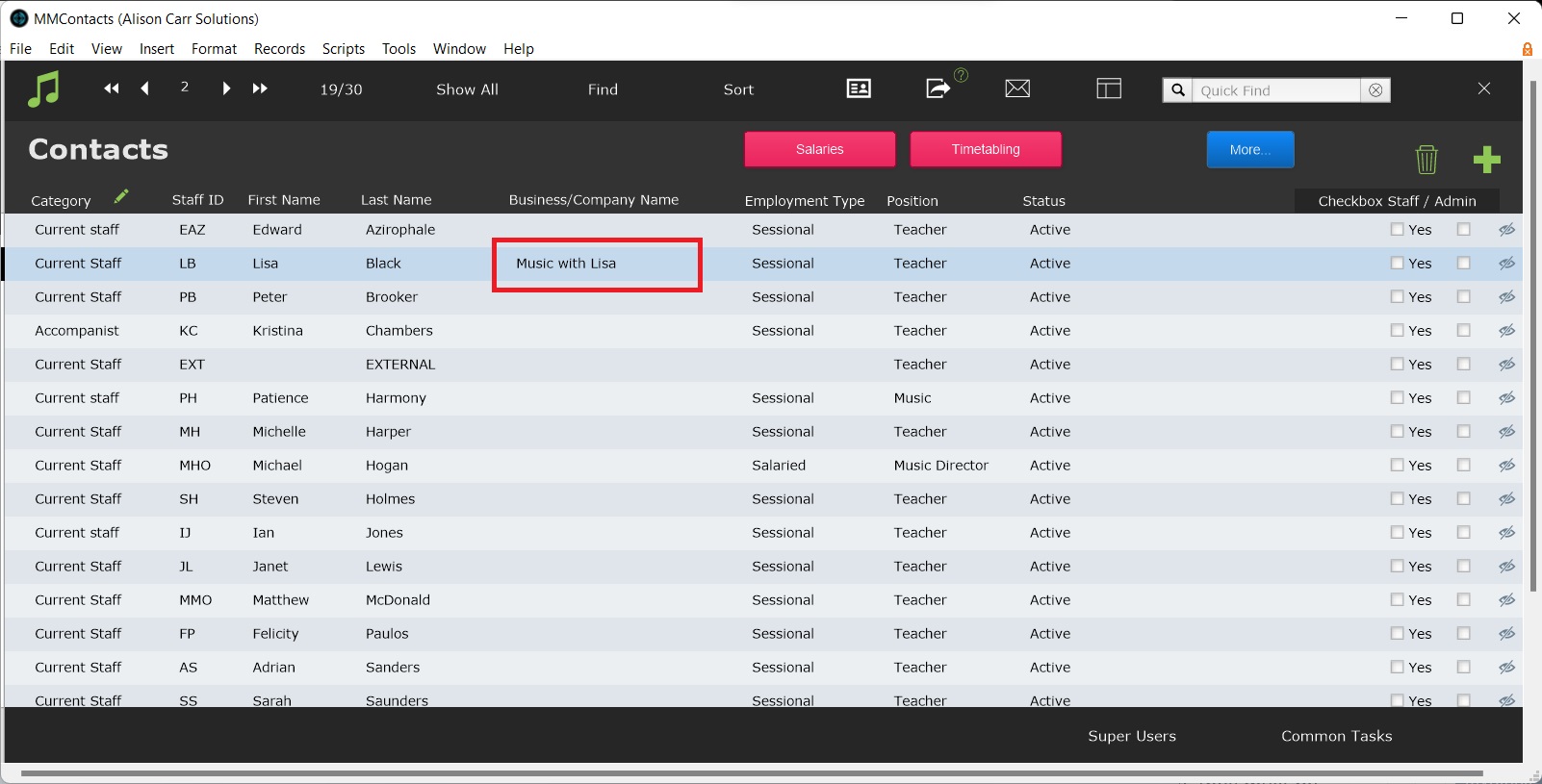
The Business Name field can be found and edited on the Staff List View. This field must be filled, as the teacher's name does not appear on the invoice. The Business Name may be the same as the teacher's name.
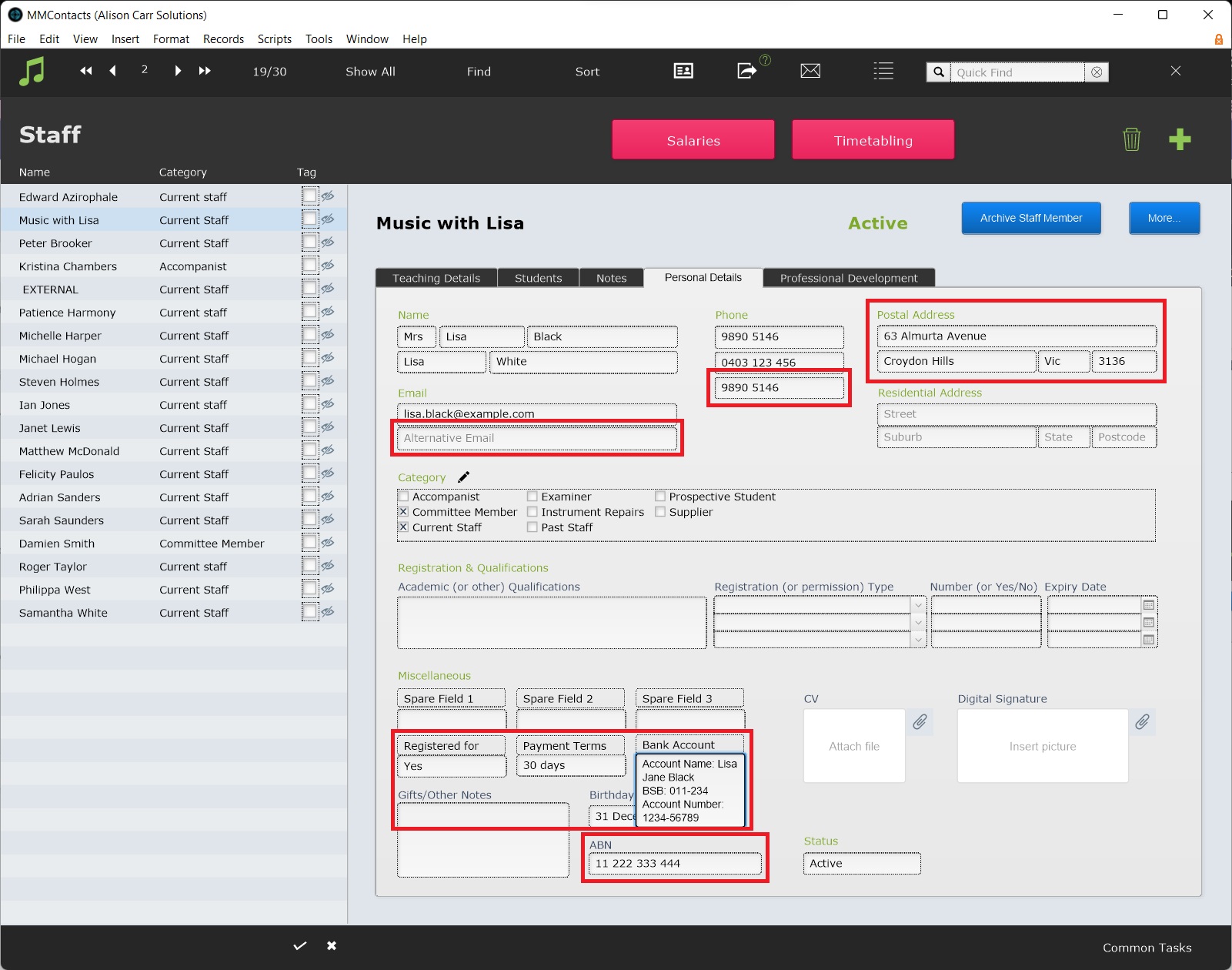
The teacher's GST status, payment terms, and bank details must be inputted into
Spare Field 4
Spare Field 5
Spare Field 6
on the Personal Details tab. These fields must first be renamed to Registered for GST?, Payment Terms, and Bank Account. Then those details can be filled.
Contact details are also used on the invoice:
Postal Address
Work Phone
Alternative Email.
Finally, ABN is also used on the invoice.
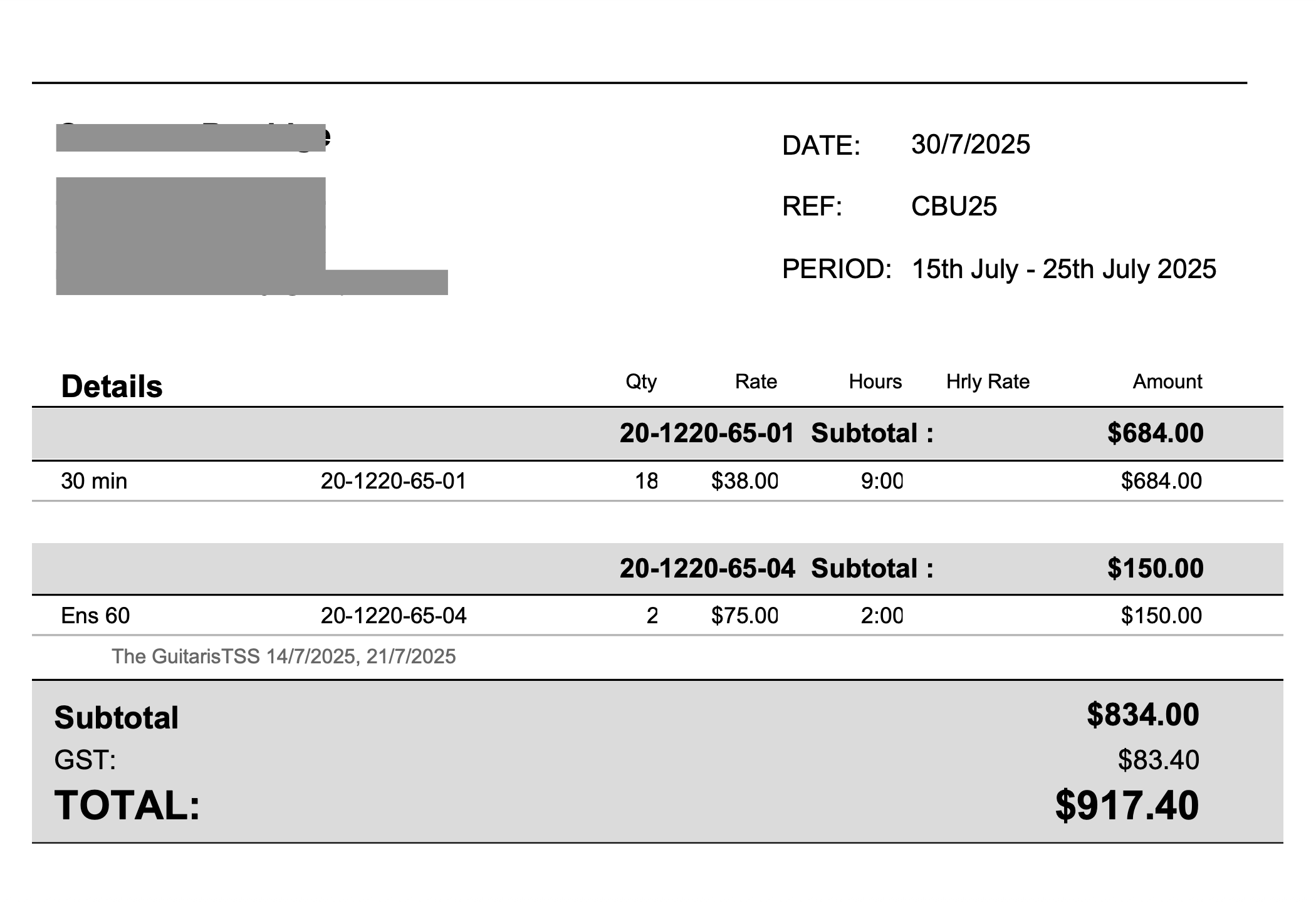
These details will then be used on the teacher invoice.
Note: V9.253 (August 2025) introduced a change to how the GST is displayed on Teacher Invoices. The GST is now itemised and added to the Total. i.e. Invoices for GST-registered teachers will have a Total 10% higher than non-GST registered teachers.