

This article is no longer updated.
Please go to our new Intercom knowledge base to ensure you're seeing the most recent version.
The link above takes you directly to the equivalent article on Intercom.
This report pulls information from the marked Tuition rolls and summarises by Campus, Subject, Teacher and Lesson Type. It displays total enrolments, lessons, teaching hours and fees.
It is dependent on the rolls having been set up and marked in Music Monitor.
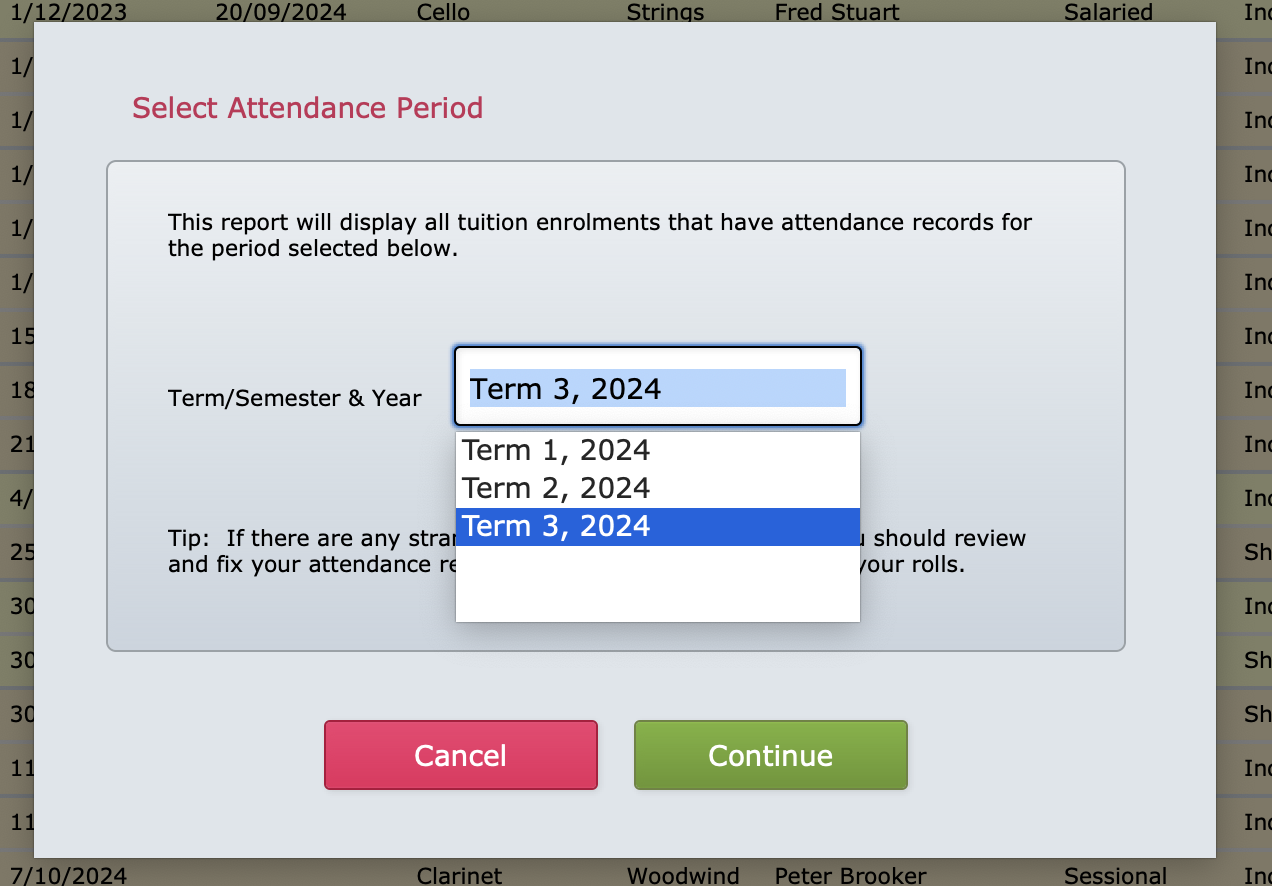
To run this report, go to Common Tasks > Quick Reports > Tuition enrolments by Term and Year.
Select the Term and Year then select Continue.
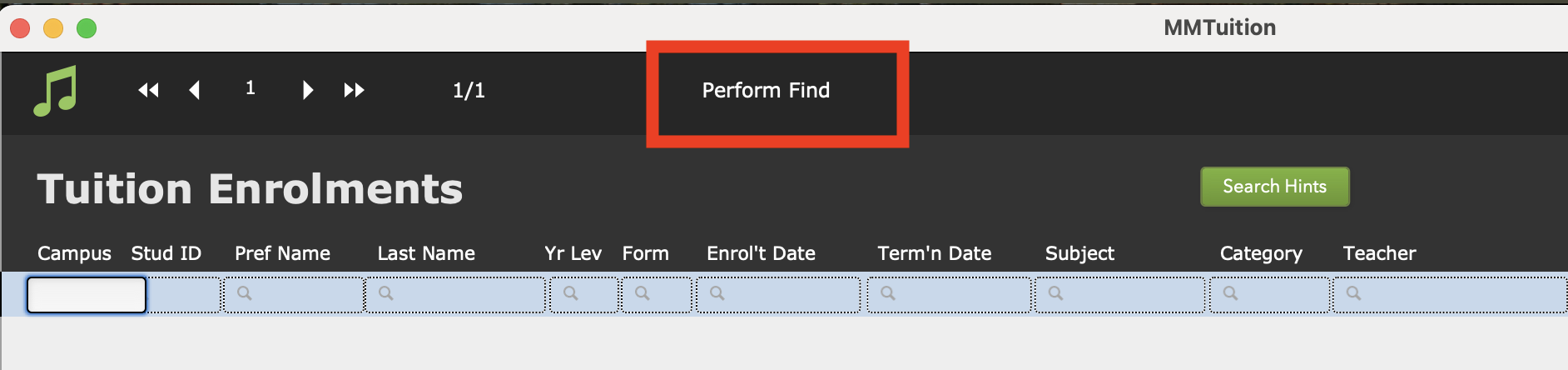
You can further refine your search if you so choose. Select Perform Find to continue.
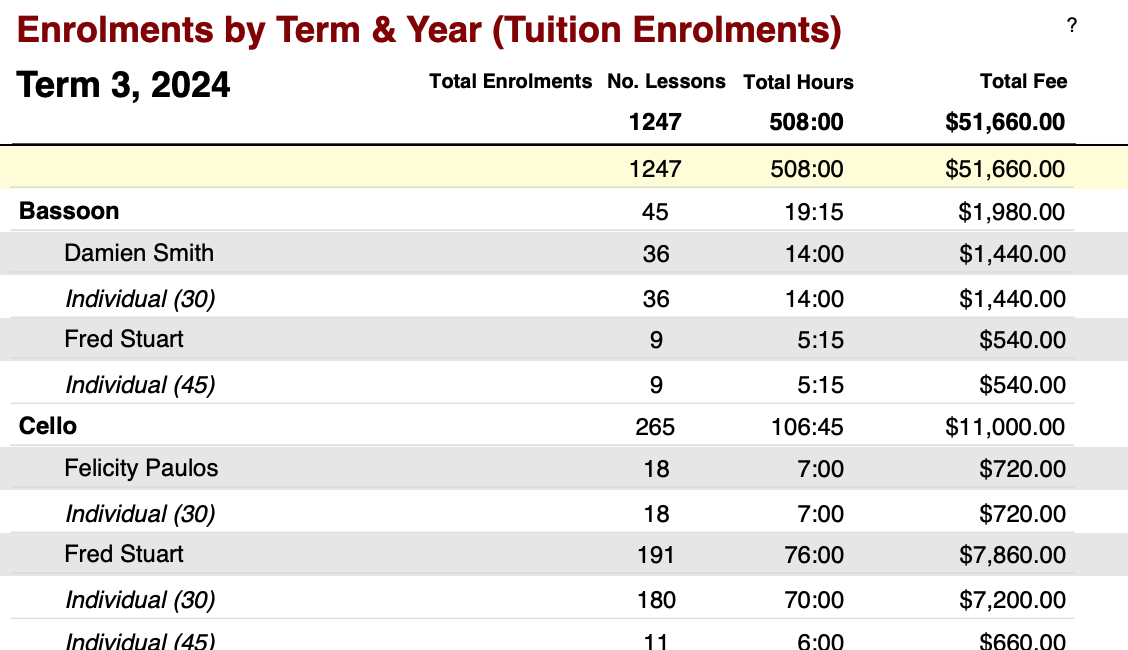
Your report is returned showing number of students, No of lessons, Total Hours and Total Fees. It is sorted by Campus, Subject, Teacher Full Name and Lesson Type.
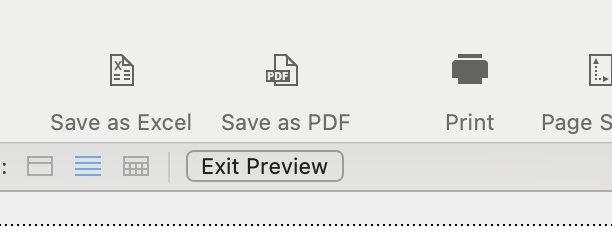
If the report as displayed is what you want, you can print or save.
Select Preview in the toolbar at the top, and then select the Save as PDF icon or the Print icon.
If instead you wish to view the report differently, you can select the Change Sort Order button in the top right.
You can remove fields from the sort order and move fields to a different place in the sort order.
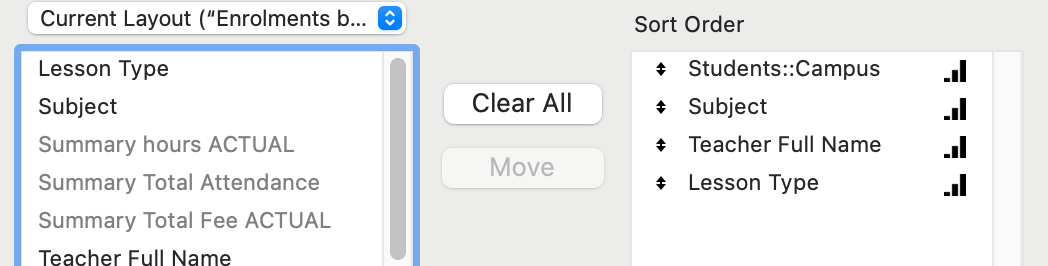
eg. You could REMOVE Campus and School, you could MOVE Teacher to above Subject. Then your report would sort by Teacher first, then Subject, then Lesson Type.
You can also export the report to excel by selecting the green Export to Excel button.
Choose a location to save the file and enter a name for the file. Don't forget to specify the file type (excel worksheet) and tick the box to automatically open after saving.
In the next window you can name your worksheet if desired.
In the next window you can specify the fields to export. A default export order has been saved. It's probably easier to use this default order and then delete the unnecessary columns from the exported spreadsheet. Select Export.
See also a related article on Tuition Enrolments for a Specific Year.