

This article is no longer updated.
Please go to our new Intercom knowledge base to ensure you're seeing the most recent version.
The link above takes you directly to the equivalent article on Intercom.
The Debtor Report is a flexible report on amounts billed, amounts paid and totals for any time period and summarised by almost any field. To run the Debtor Report, go to Common Tasks > Financial Reports > Debtor Report.
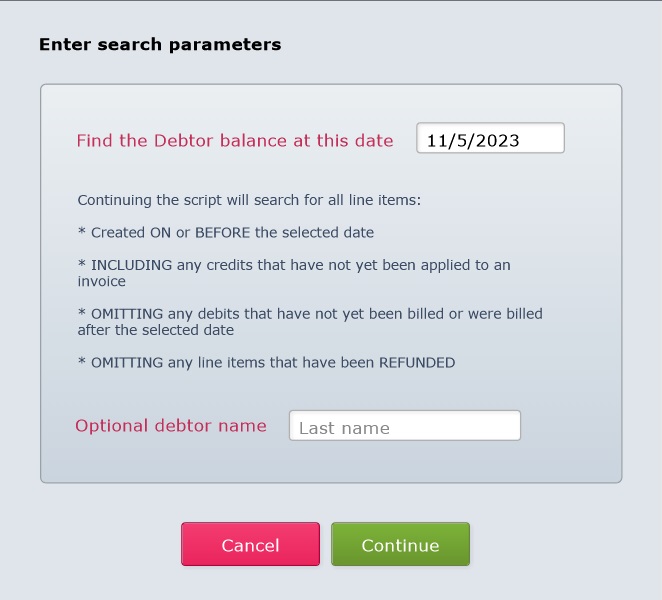
The script will ask for a date and, optionally, a specific debtor.
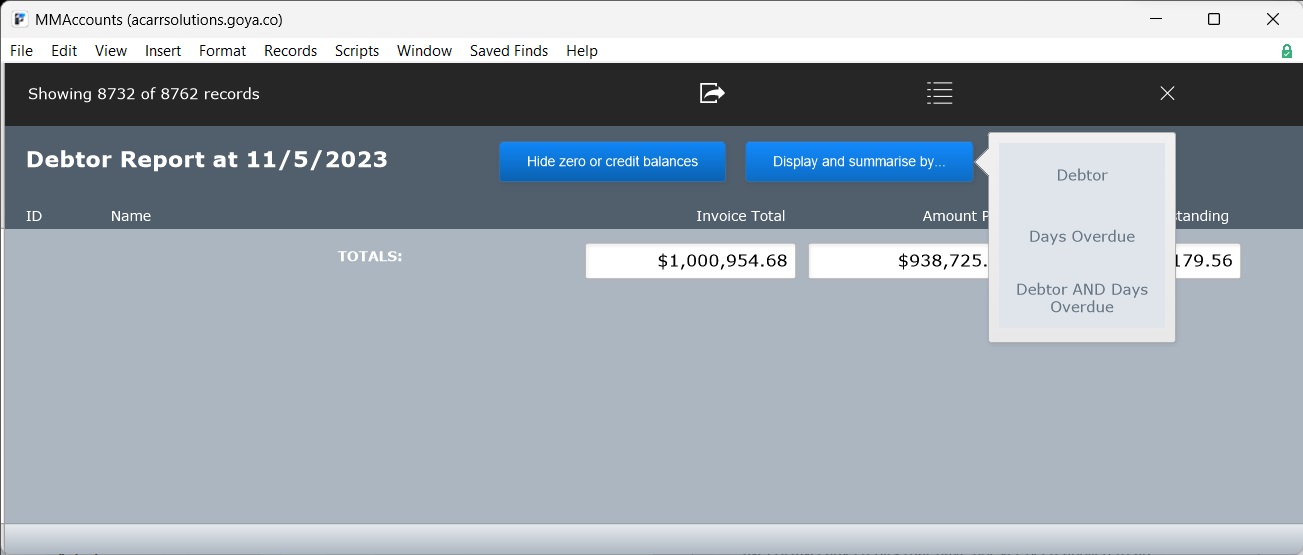
The report will open initially showing only totals. Detail can be added with the options under Display and Summarise By.
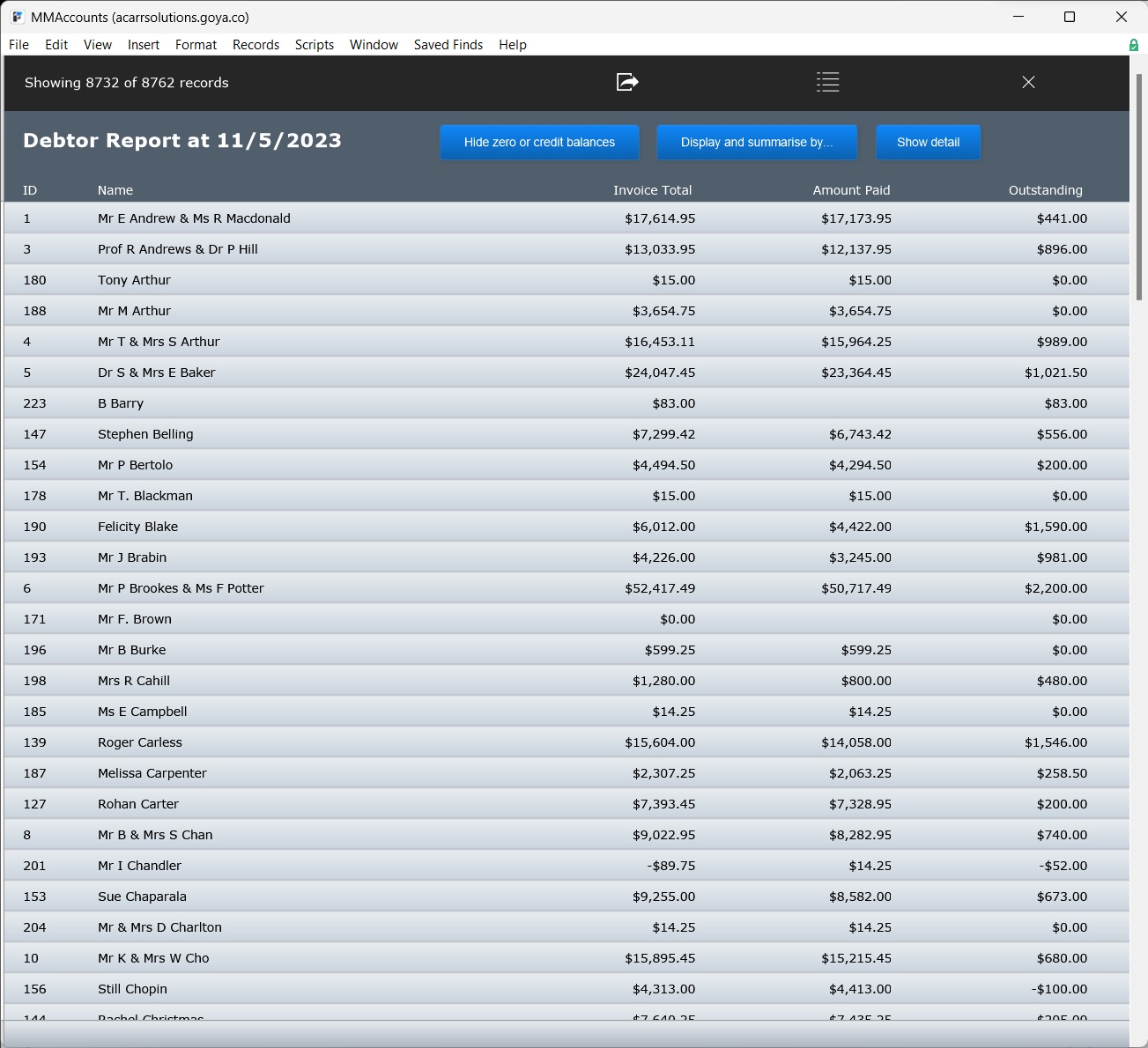
When summarised by "Debtor" the report looks like this:
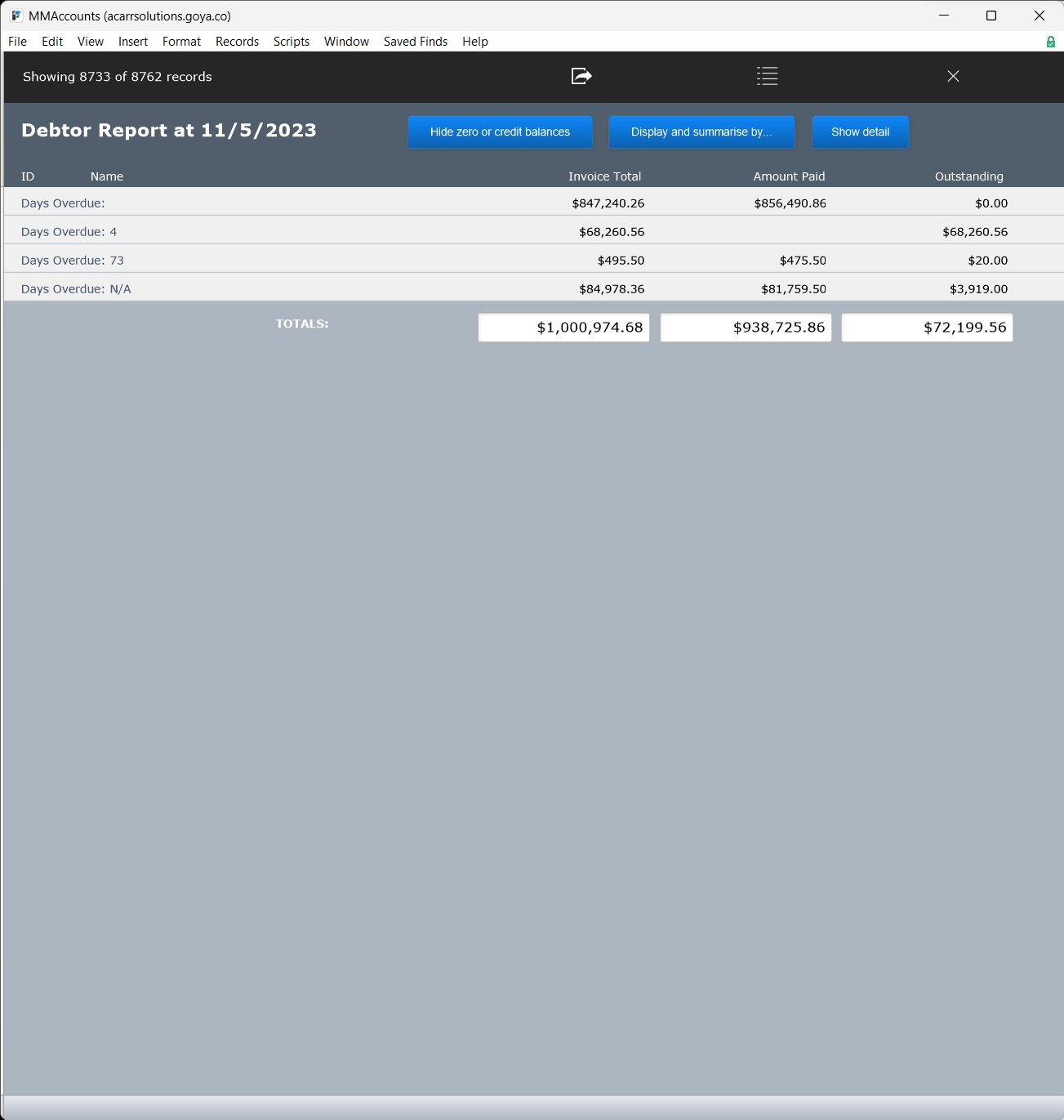
When summarised by "Days Overdue" the report looks like this:
When summarised by "Debtor and Days Overdue" the report looks like this:
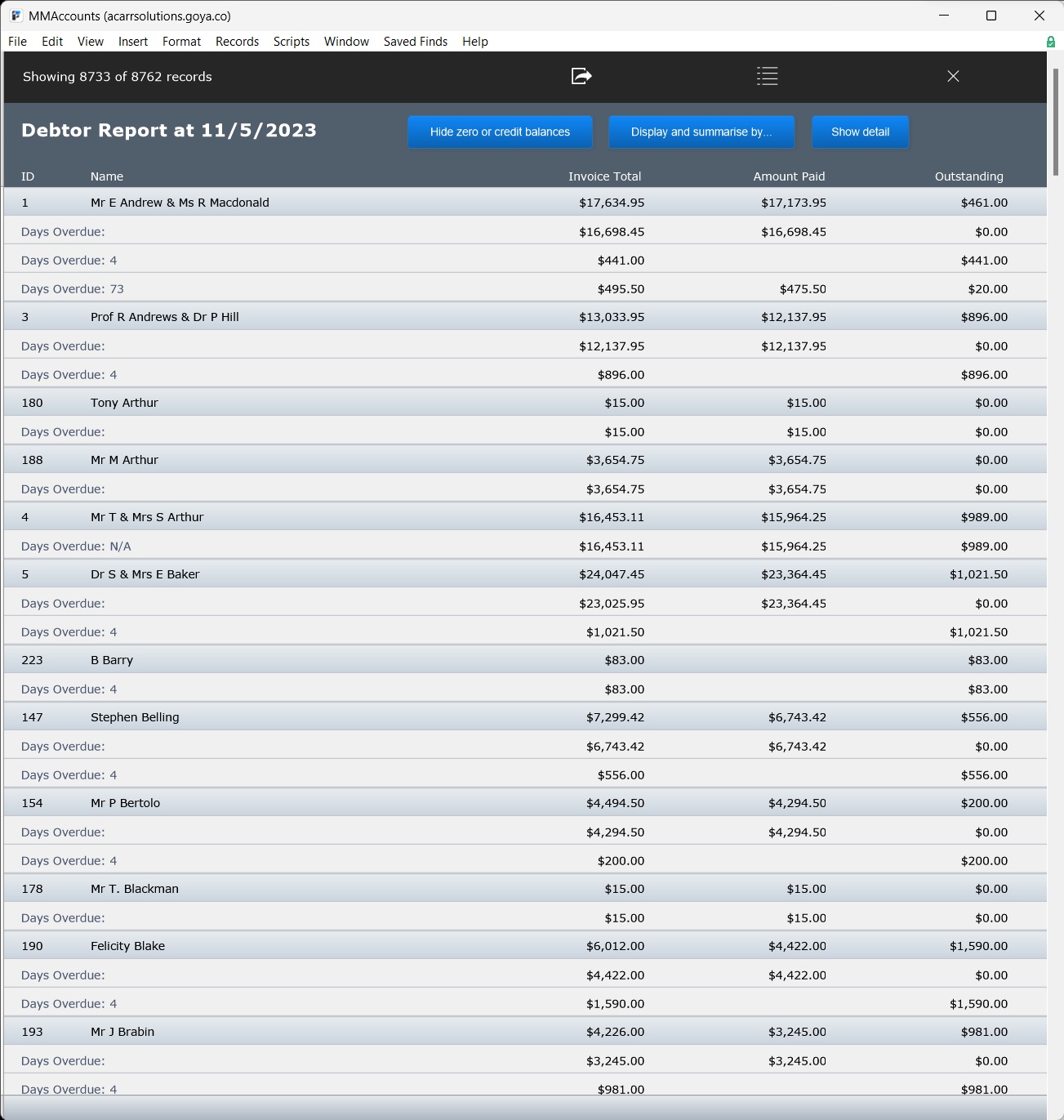
When Show Detail is selected in any summary:
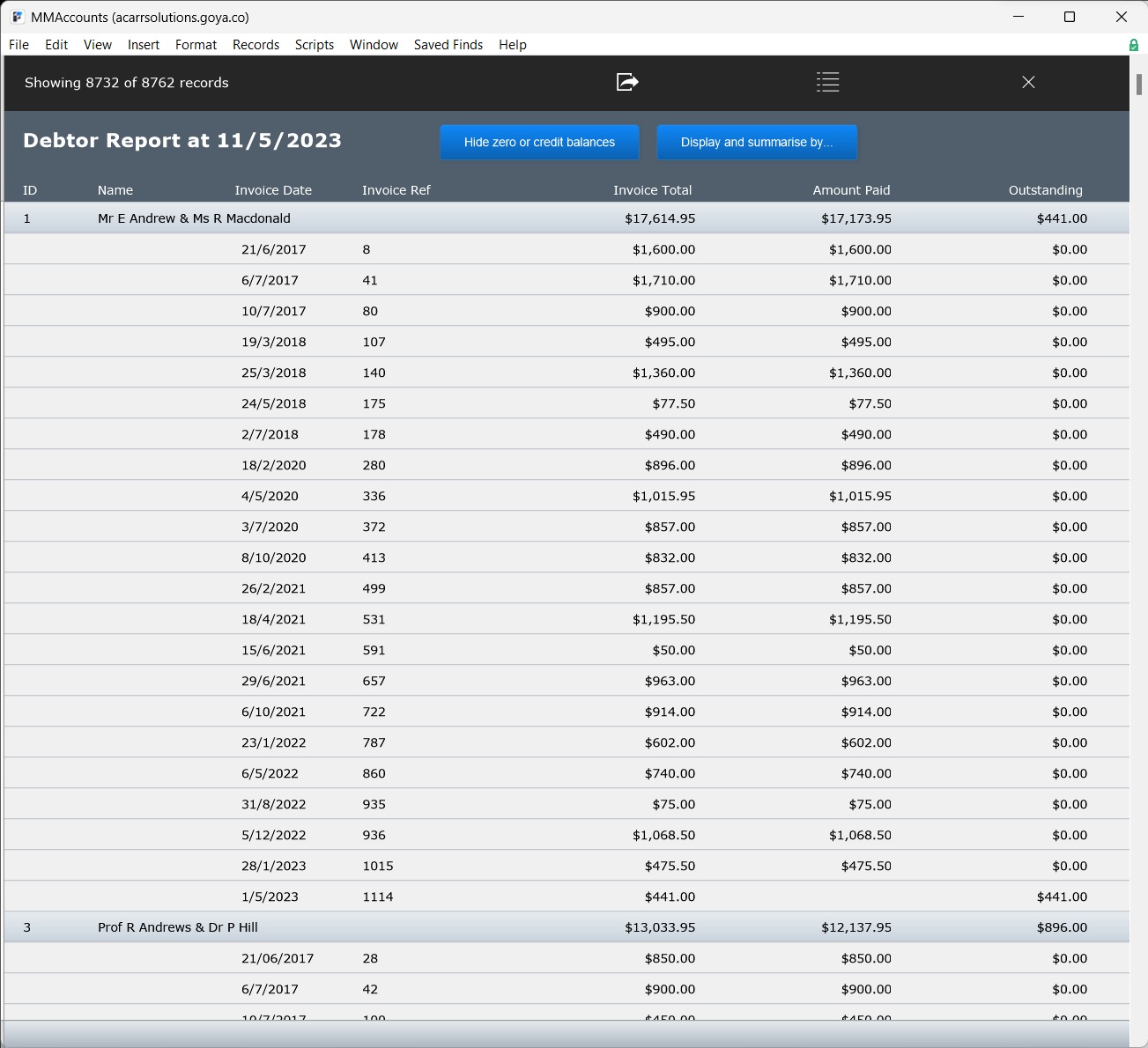
Hide Zero or Credit Balances will hide summary groups with zero or credit balances. This option is not available for reports generated for past dates.
The green edit buttons show the related invoice. The envelope icon opens a new email to the debtor. The debtor’s name shows the related debtor’s Debtor Form View. The report can be saved as excel using the ‘Export to Excel’ button.