

This article is no longer updated.
Please go to our new Intercom knowledge base to ensure you're seeing the most recent version.
The link above takes you directly to the equivalent article on Intercom.
If you create weekly attendance rolls twice for the same week, the records on the roll will be duplicated. Improvements in the script to generate the rolls now show when the last roll was created for, and predict which week you want to set up. So this error is less common. But it can happen.
But a script also makes fixing it very quick and easy!
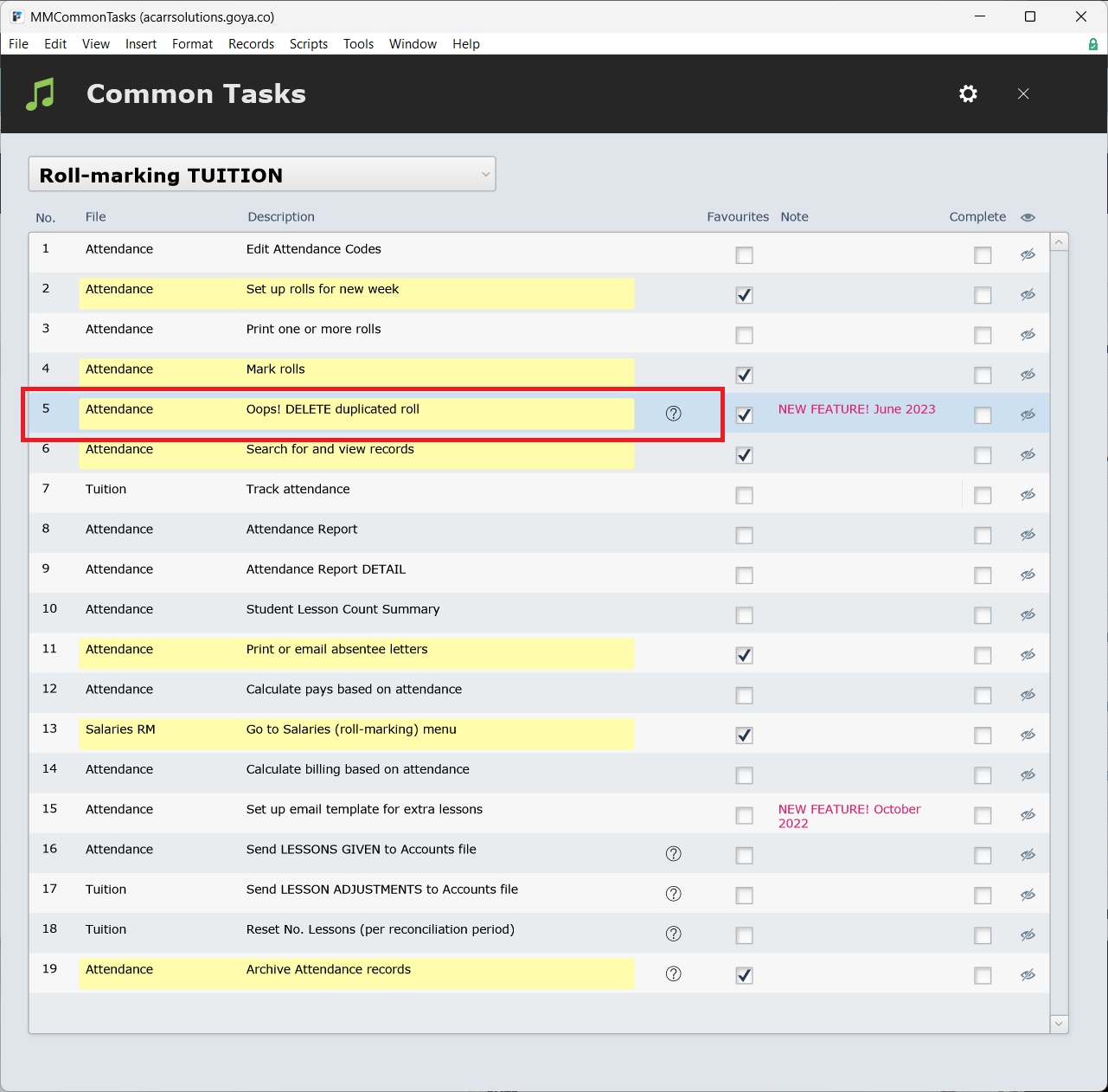
To correct the roll, select Office Admin > Roll-Marking Tuition > Oops! Delete Duplicated Roll and follow the prompts.
The script asks you to specify the Week Commencing date of the roll that was duplicated. It then sorts the roll records so that any that have already been marked are at the top, and then removes the duplicate (unmarked) copy of each roll record. If a roll record has been marked, it will not be deleted.