

This article is no longer updated.
Please go to our new Intercom knowledge base to ensure you're seeing the most recent version.
The link above takes you directly to the equivalent article on Intercom.
If you want to connect using a phone or tablet that is not an iPad or iPhone, you will need to Use FileMaker WebDirect.
FileMaker Go - for iOS Devices
Go to the App Store and find Claris FileMaker Go - the most recent version.
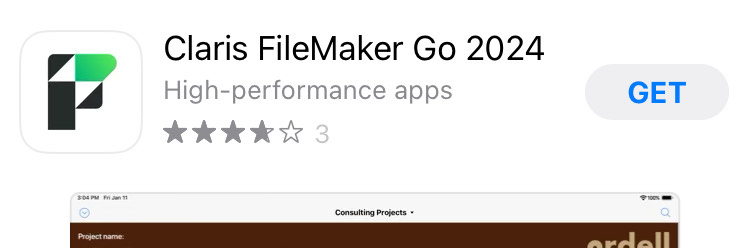
Get the app and open it. On the bottom you will see these icons.

Select Hosts, then you will see this screen.
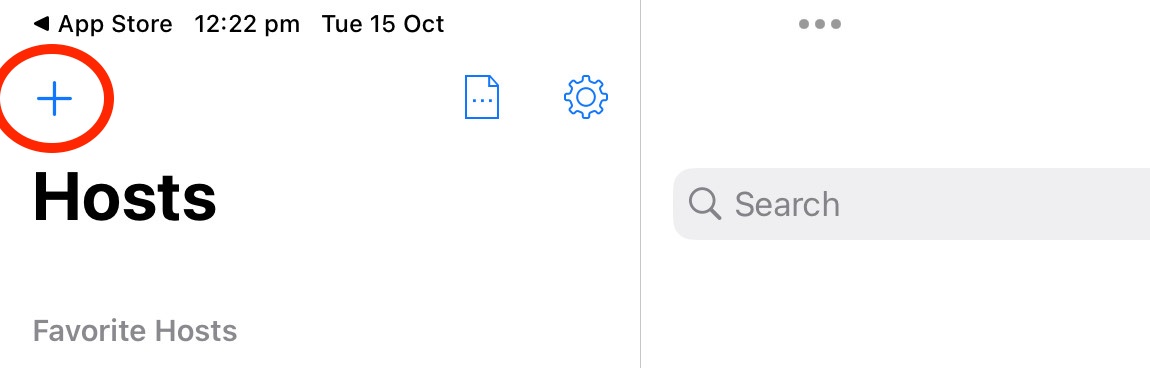
Add a host using the + button, and then you will see this screen.
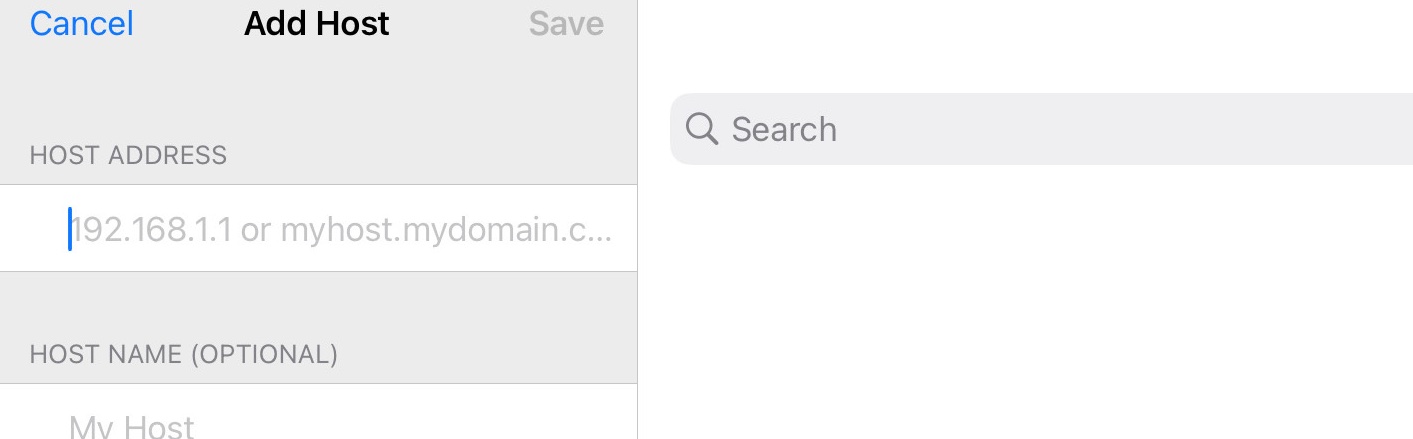
You will need to get the Host Address from your IT department or from us.
Now when you open FileMaker Go, you should see the Music Monitor icon, which will be what you need to select.

You can then log in with the username and password set by the music administrator or your IT department.
FileMaker Go is suitable for teaching staff to mark rolls and view or contact students, but will not provide all the functions needed for administration staff.