

This article is no longer updated.
Please go to our new Intercom knowledge base to ensure you're seeing the most recent version.
The link above takes you directly to the equivalent article on Intercom.
The list shows:
Debtor ID
Debtor name
Date Paid
Invoice Number and
Amount Paid
To run this report, go to Common Tasks > Financial Reports (or Billing) > Payment List.
You can also navigate to it via Home > Accounts > Reports : Payment List.
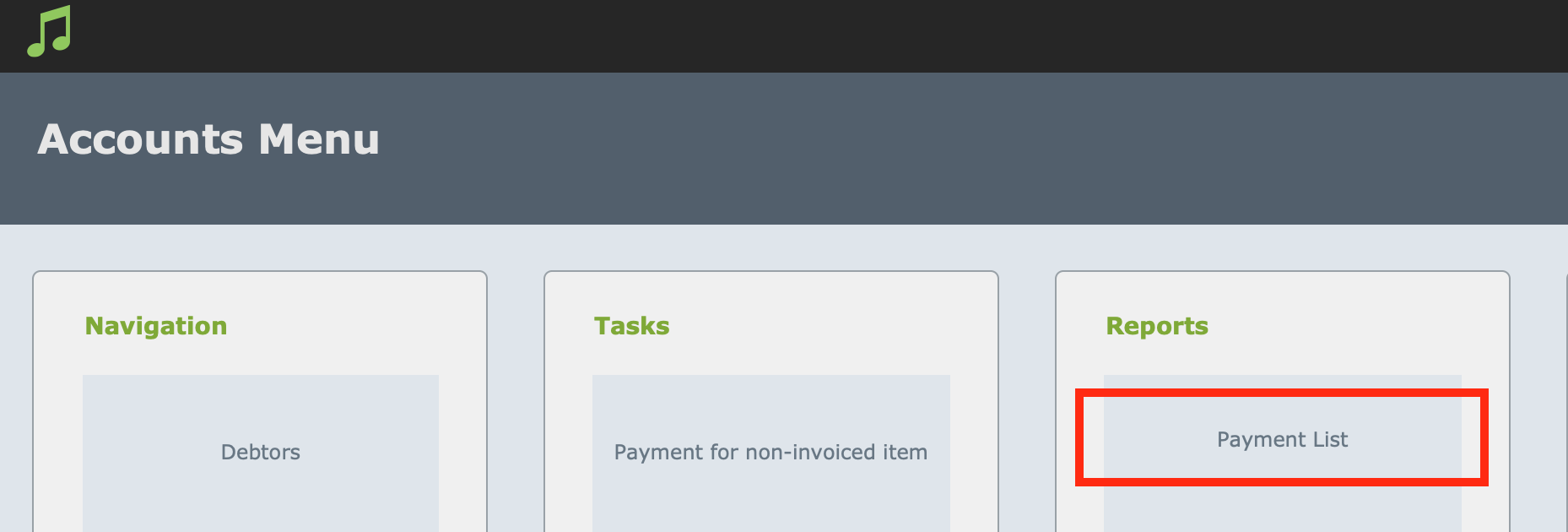
When you select this button, you will be taken to a screen to enter search criteria.
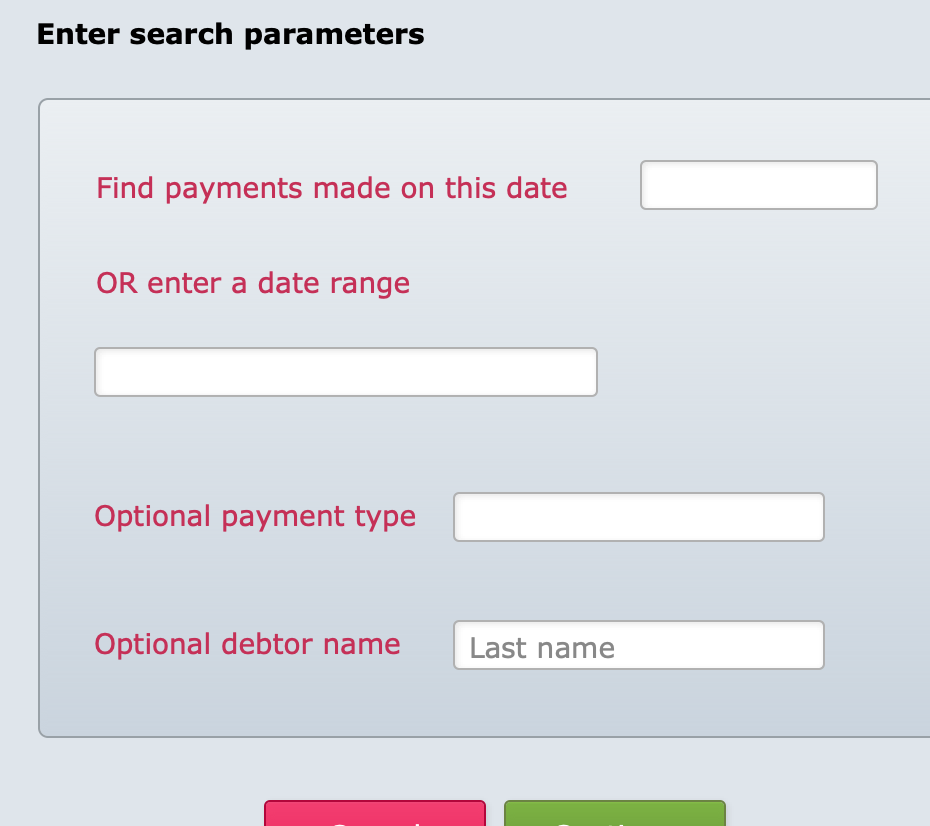
If you select Continue without entering any criteria, ALL payments will be displayed, however you can change the search criteria to narrow the report. For example:
If you would like to show only payments made TODAY, enter today's date (or the symbol // ).
If you would like a particular date range, enter the first date followed by three dots, then the last date (eg. 14/3/2015...21/3/2015).
If you are after all the payments for a particular MONTH (eg. March), you can simply enter 03/2015. Or if you wish to display all payments for a particular YEAR, enter 2015 in the Payment Date field.
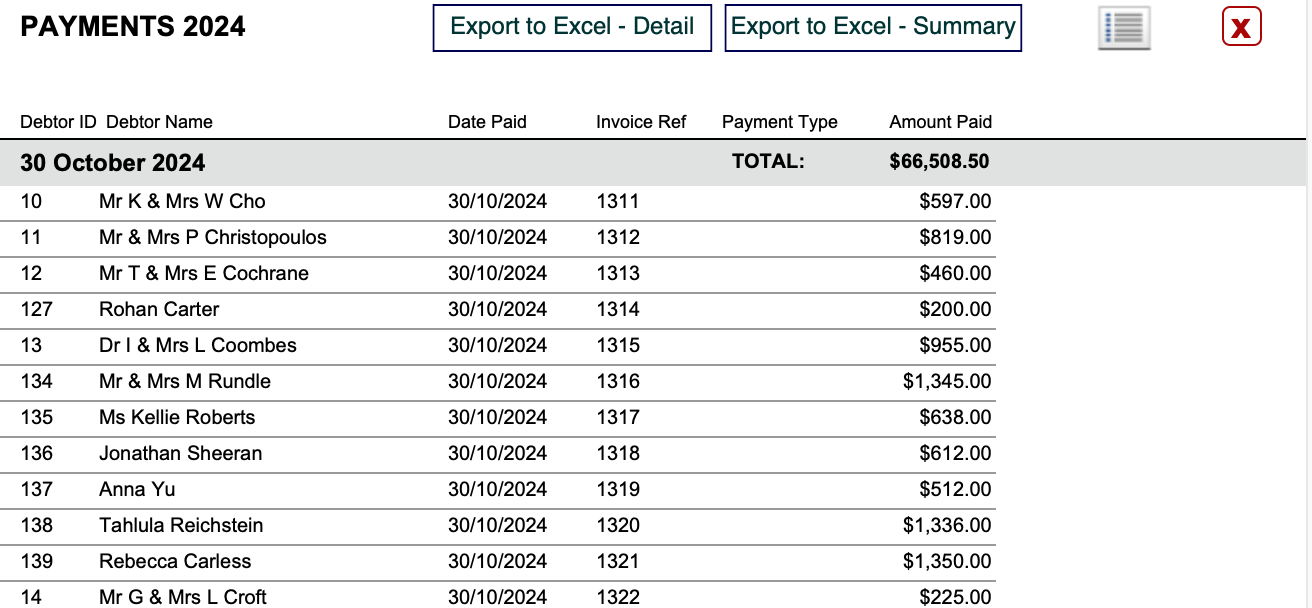
You can export to Excel using the buttons at the top of the report.
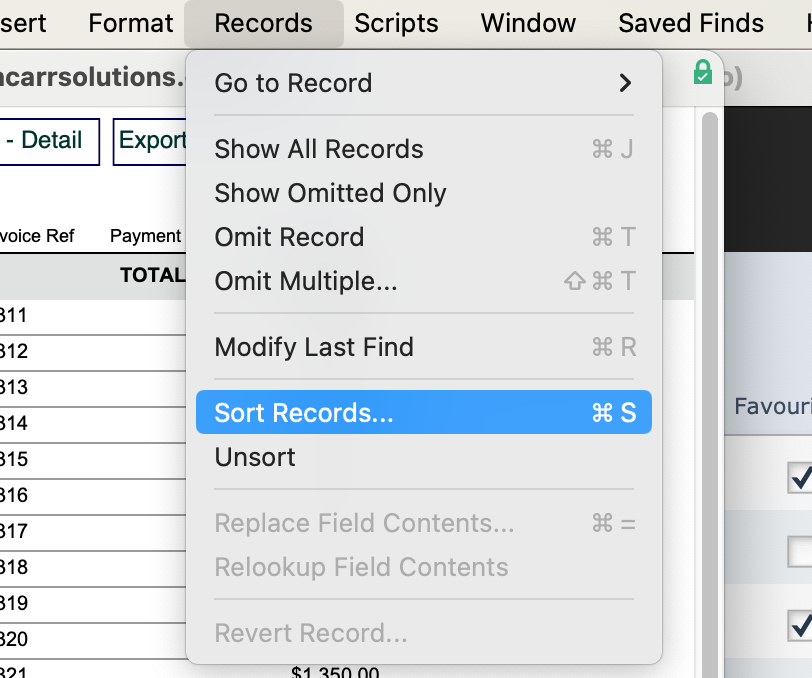
If you want to change the sort order, select Records > Sort Records... and choose new fields or field order.
To view these payment records in List View, select the List View button in the top right.