

This article is no longer updated.
Please go to our new Intercom knowledge base to ensure you're seeing the most recent version.
The link above takes you directly to the equivalent article on Intercom.
Ensembles must have at least one ensemble member enrolled in order for a roll to be created.
Ensemble rolls can be set up from Home > Office Admin > Roll Marking Ensembles > Set up rolls for term or semester.
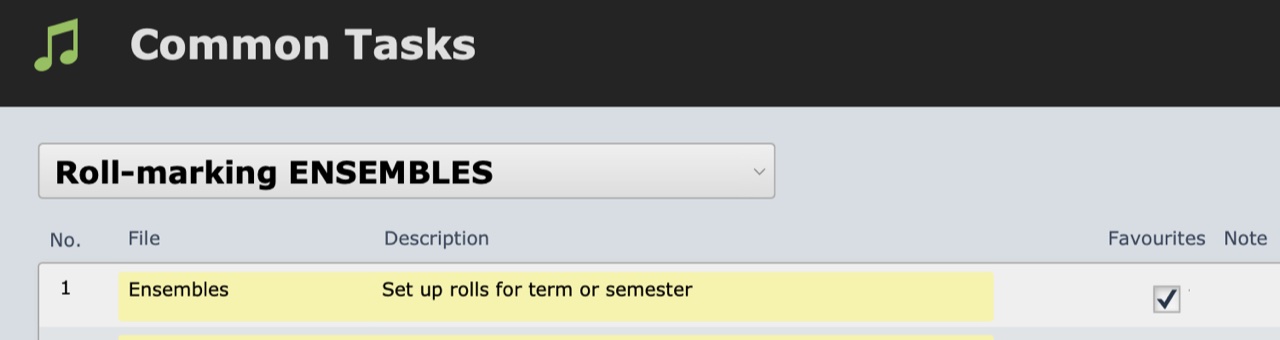
You can also find the script at Common Tasks > Roll-marking ENSEMBLES > Set up rolls for term or semester.
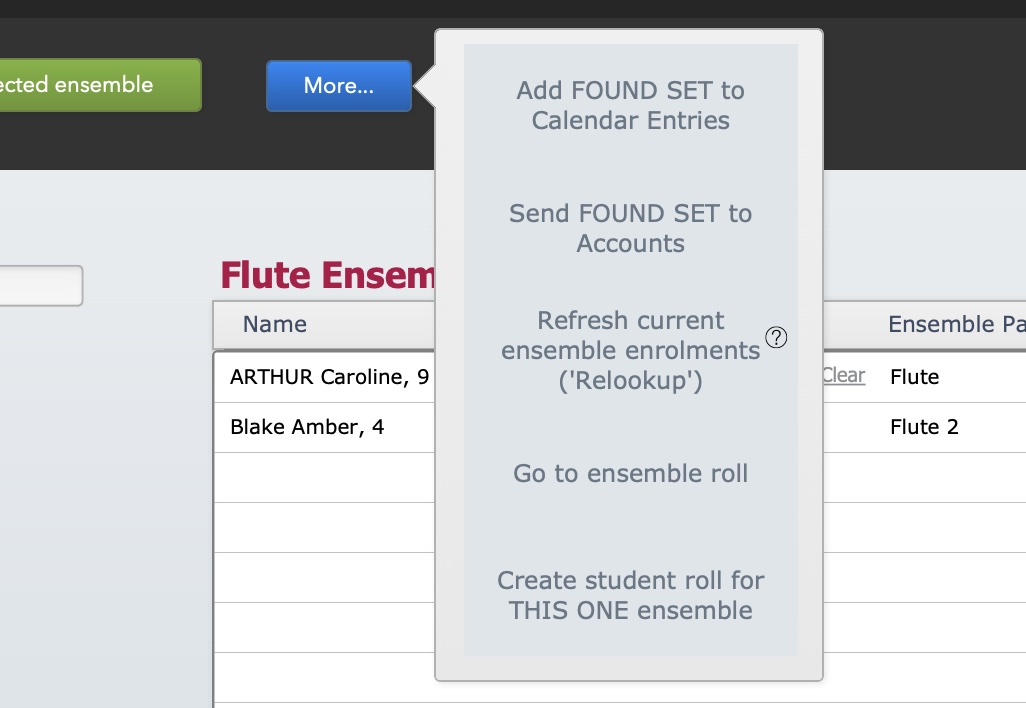
They can also be set up from Home > Set Up Files > Ensembles. Select an ensemble to view detail (or select the green + button to create a new ensemble). The More… button has a number of options including Create student roll for THIS ONE ensemble.
*New in 2025!* From v9.235, you can also set up ensemble rolls for a found set of ensembles.

*New in 2025!* From v9.260, if you're setting up new ensemble rolls for all ensembles, Music Monitor will stop you if you still have current rolls that have not reached their Archive Date.
Below is a video that shows you the process.
Settings
To ensure everything is set up correctly, we recommend you also read this article on Attendance Settings.