

This article is no longer updated.
Please go to our new Intercom knowledge base to ensure you're seeing the most recent version.
The link above takes you directly to the equivalent article on Intercom.
Update notes: Since this video was made, a few things have changed (see below).
To edit the room, day or time, click the pencil at the end of the row and an editing window will open. It is no longer possible to edit the details directly on the Schedule.

There are more options available in the More... button!
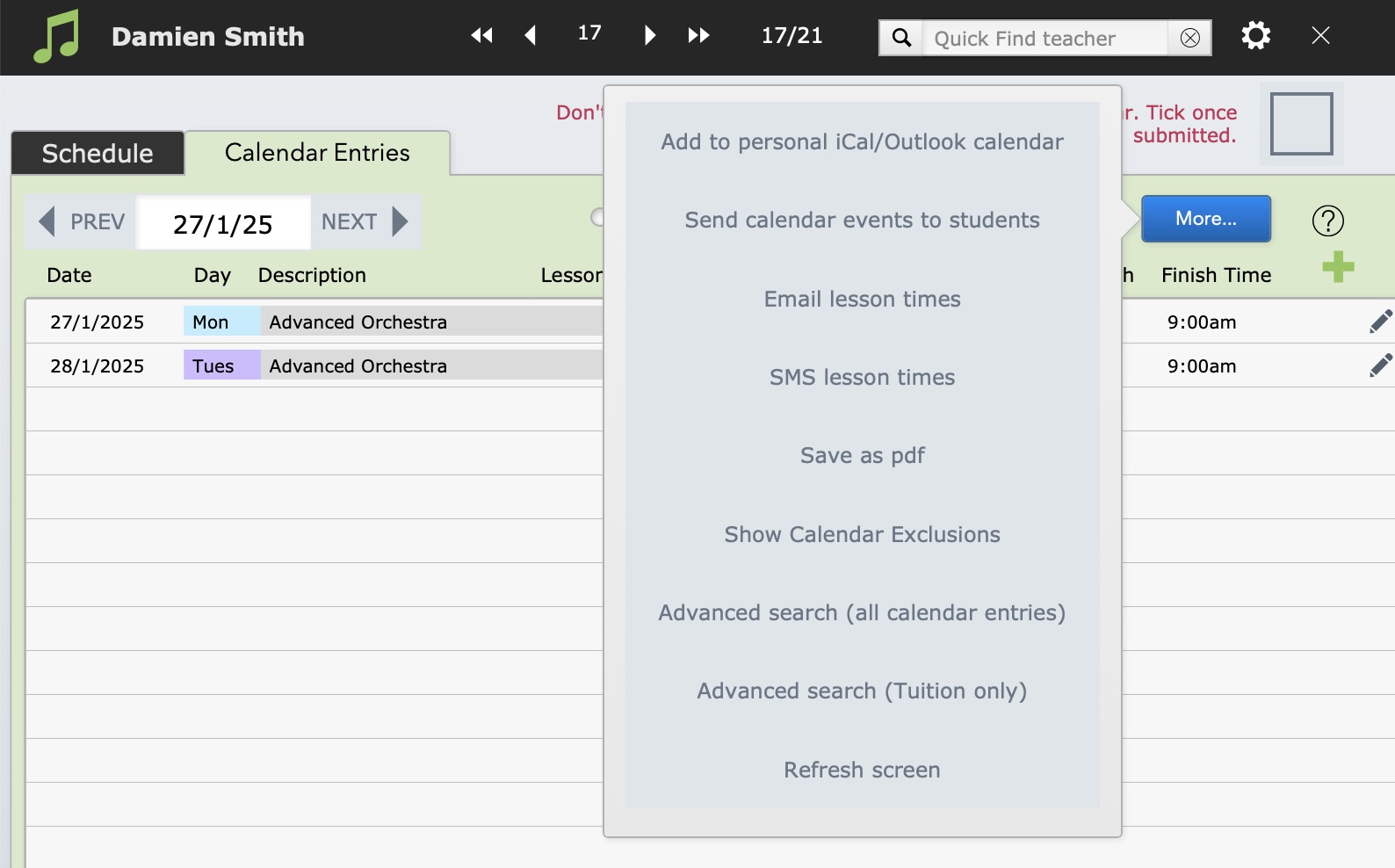
If accessing from a web browser (rather than the FileMaker Pro or FileMaker Go app), use the Refresh button to update the information displayed in the portal, especially when moving to a 'Next' or 'Prev' date.

The options at the top of the Term Timetable look different now but all the features mentioned in the video (and more) are still available.
