This article is no longer updated.
Please go to our new Intercom knowledge base to ensure you're seeing the most recent version.
The link above takes you directly to the equivalent article on Intercom.
Navigate to Staff & Contacts
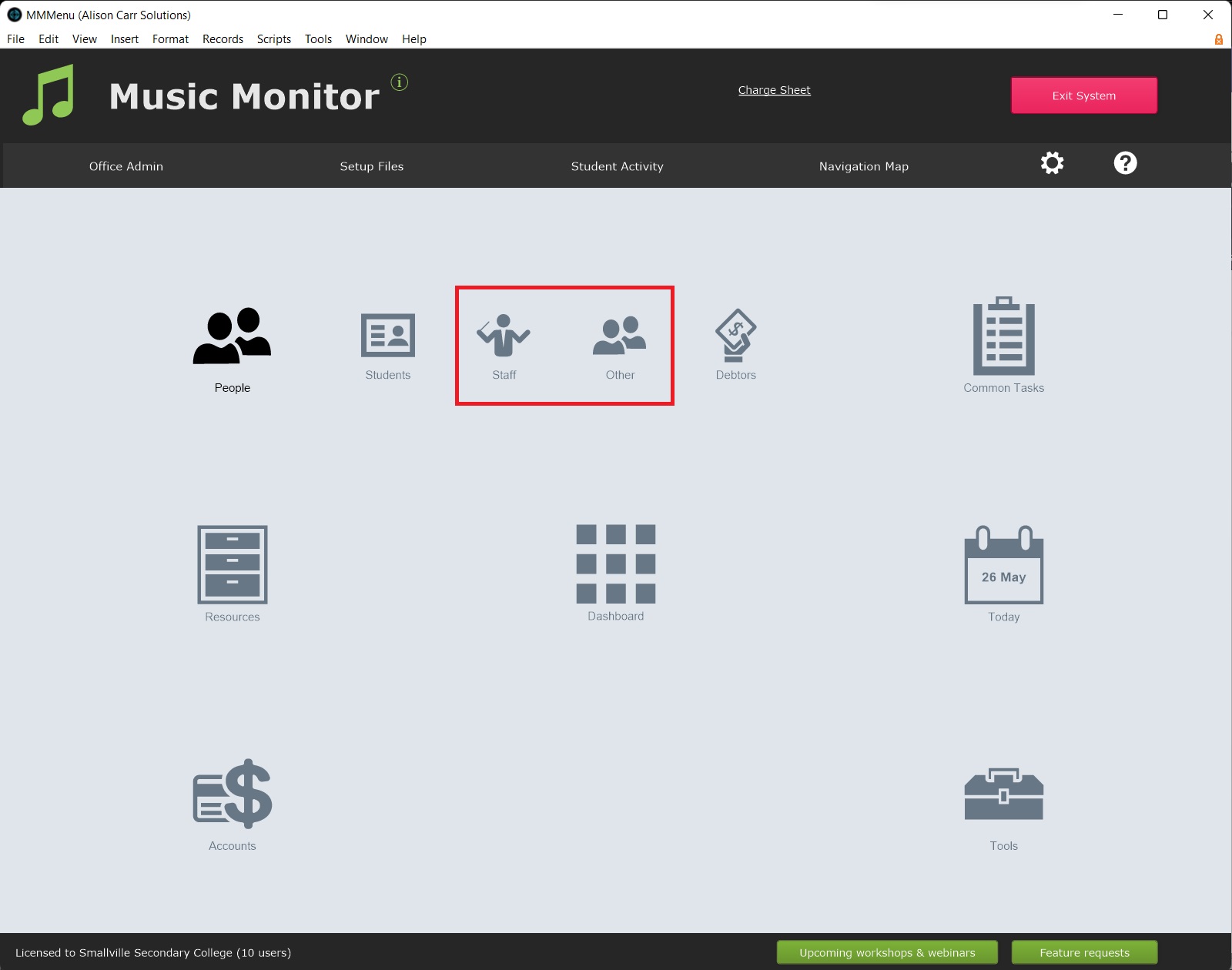
The Contacts File hosts staff and other contact records. You can navigate to the Contacts File by selecting People > Staff or People > Other depending on whether you would like to view staff records or other contact records.
Add a New Staff Member or Contact
A new record staff or other contact record can be created when viewing either staff or other contacts using New Record (the green plus button).
For more information see Add Teacher Procedure Checklist.
Delete a Staff Member or Contact
Staff, especially teachers, should not be deleted from the Contacts File. Instead, either:
Select Archive Staff Member if the staff member is unlikely to return to work. For more information see Archive Teacher and Reassign Students & Ensembles.
Manually set the staff member's Status to 'Inactive' if the staff member is likely to return to work in the future.
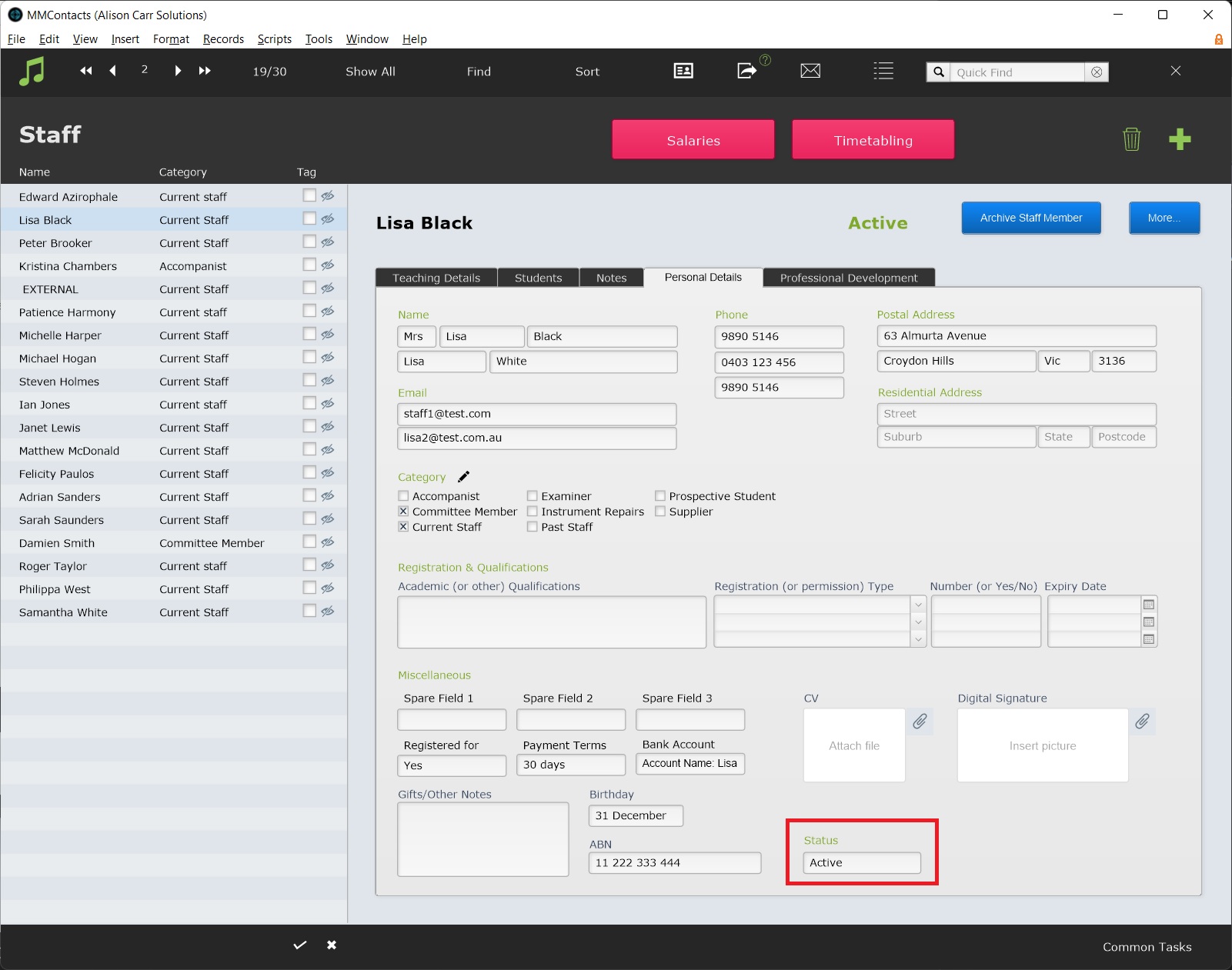
Contacts can be safely deleted when no longer in use. To do so, select Delete Record (the bin icon).
Teaching Preferences & Load
At the bottom of the Teaching Details tab are a set of fields for loads and teaching preference notes.
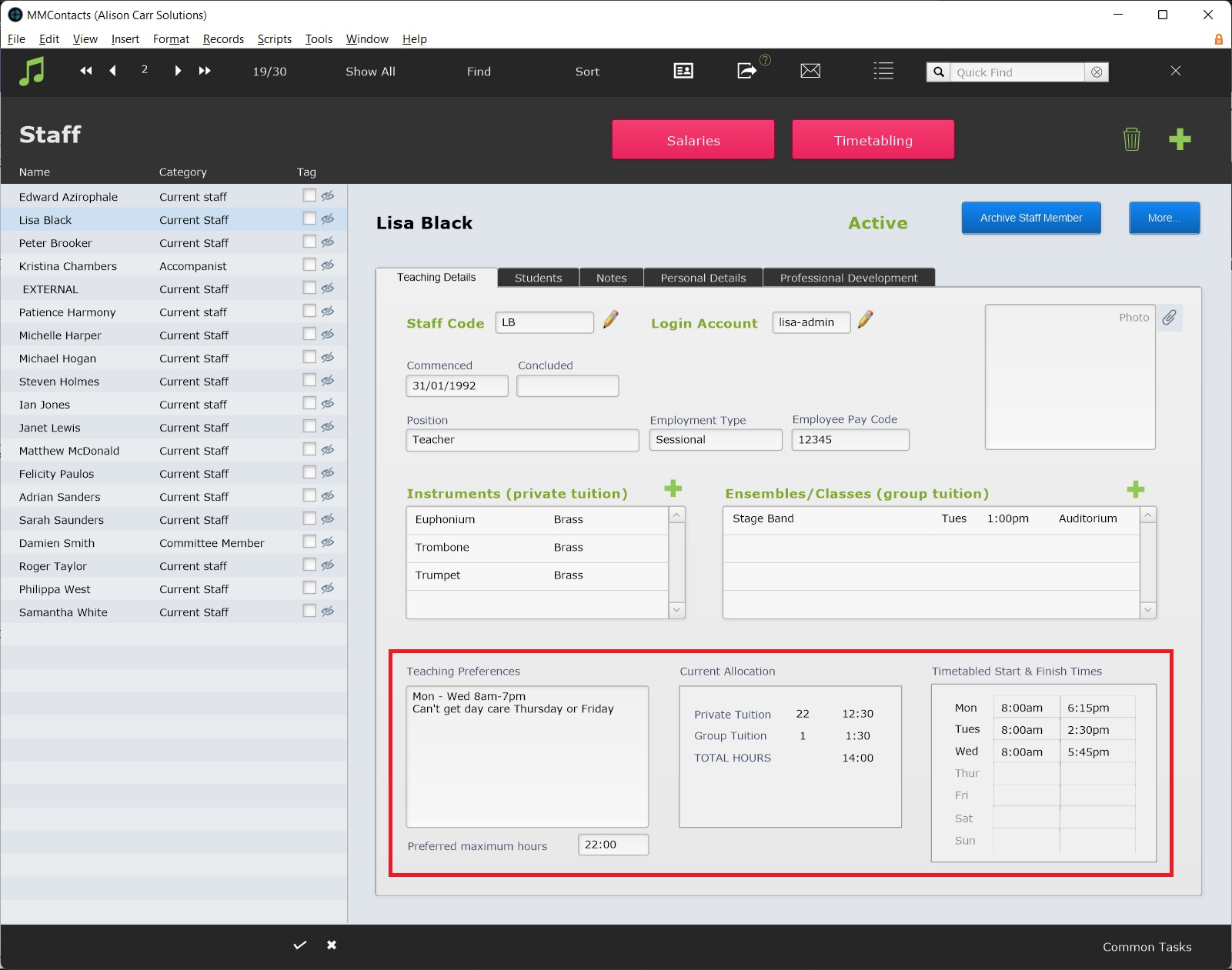
Teaching Preferences is a note field for recording teaching preferences. Preferred Maximum Hours is for recording the teacher's preferred maximum hours.
Current Allocation and Timetabled Start & Finish Times auto calculate based on enrollments and scheduling respectively.
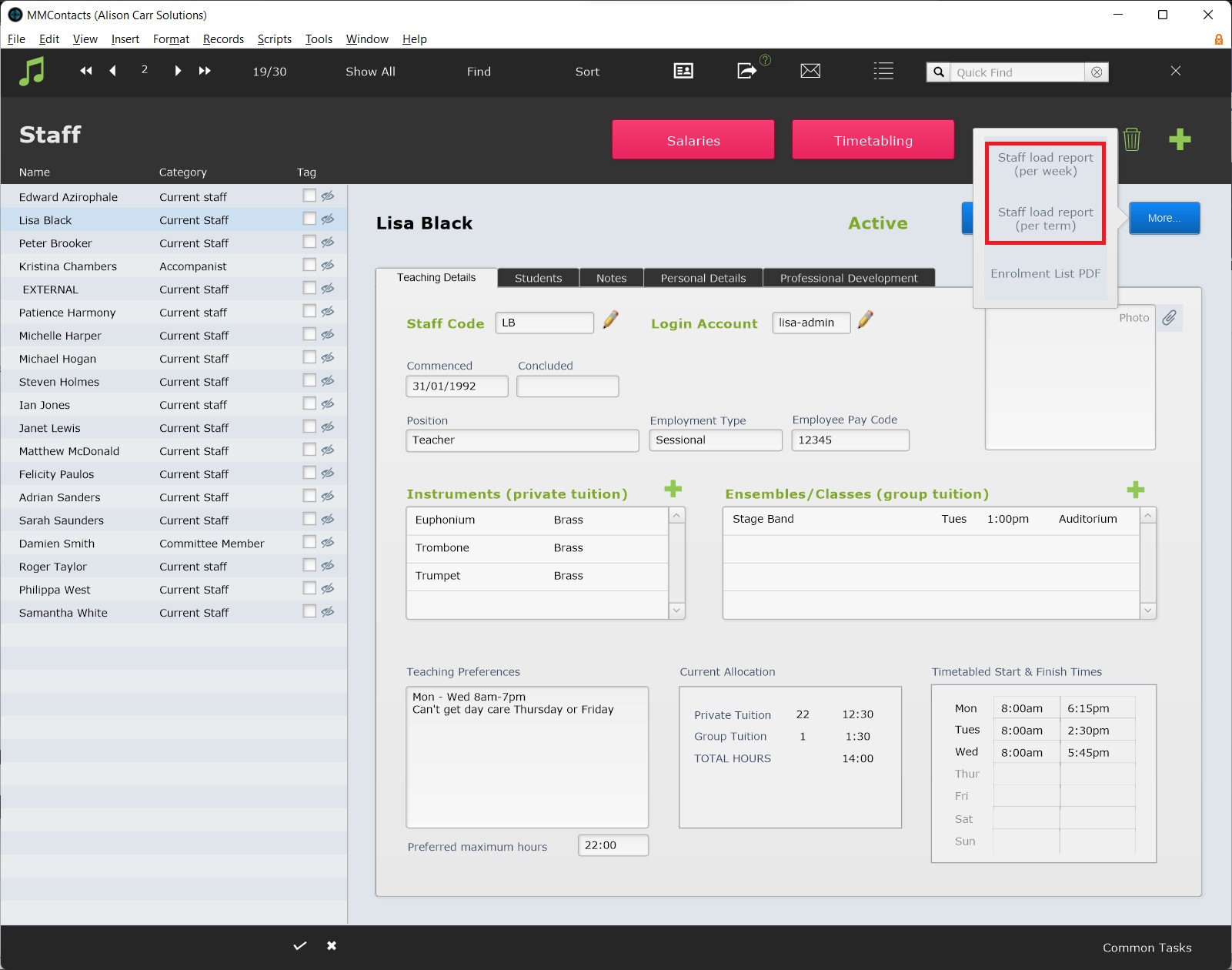
There are also two staff load reports available under More.
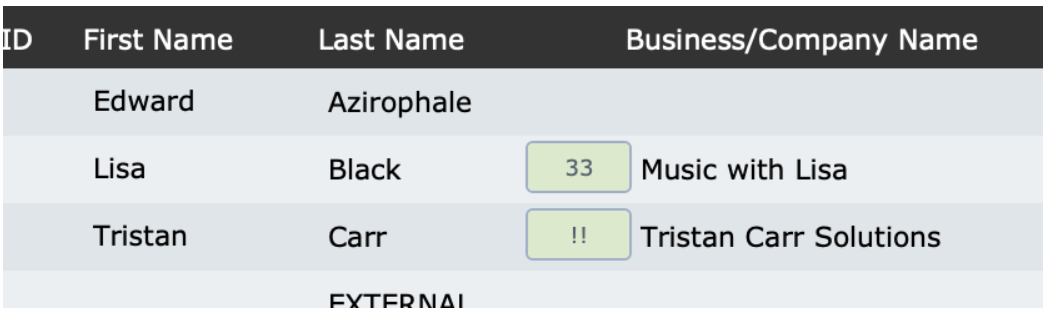
*New in 2025!* From v9.241, you will see a notification in the Staff list when a staff member has a Date Commenced 9 years ago or longer. The purpose is to alert you to staff coming up to eligibility for Long Service Leave.
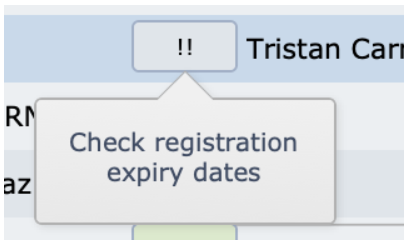
If you use the Personal Details tab to enter information about registrations with expiry dates, you will also see an alert when an expiry date comes up in the next 30 days.