This article is no longer updated.
Please go to our new Intercom knowledge base to ensure you're seeing the most recent version.
The link above takes you directly to the equivalent article on Intercom.
As at mid-2025, most but not quite all calendar functions are available in the new view, so administrators still have access to both views.
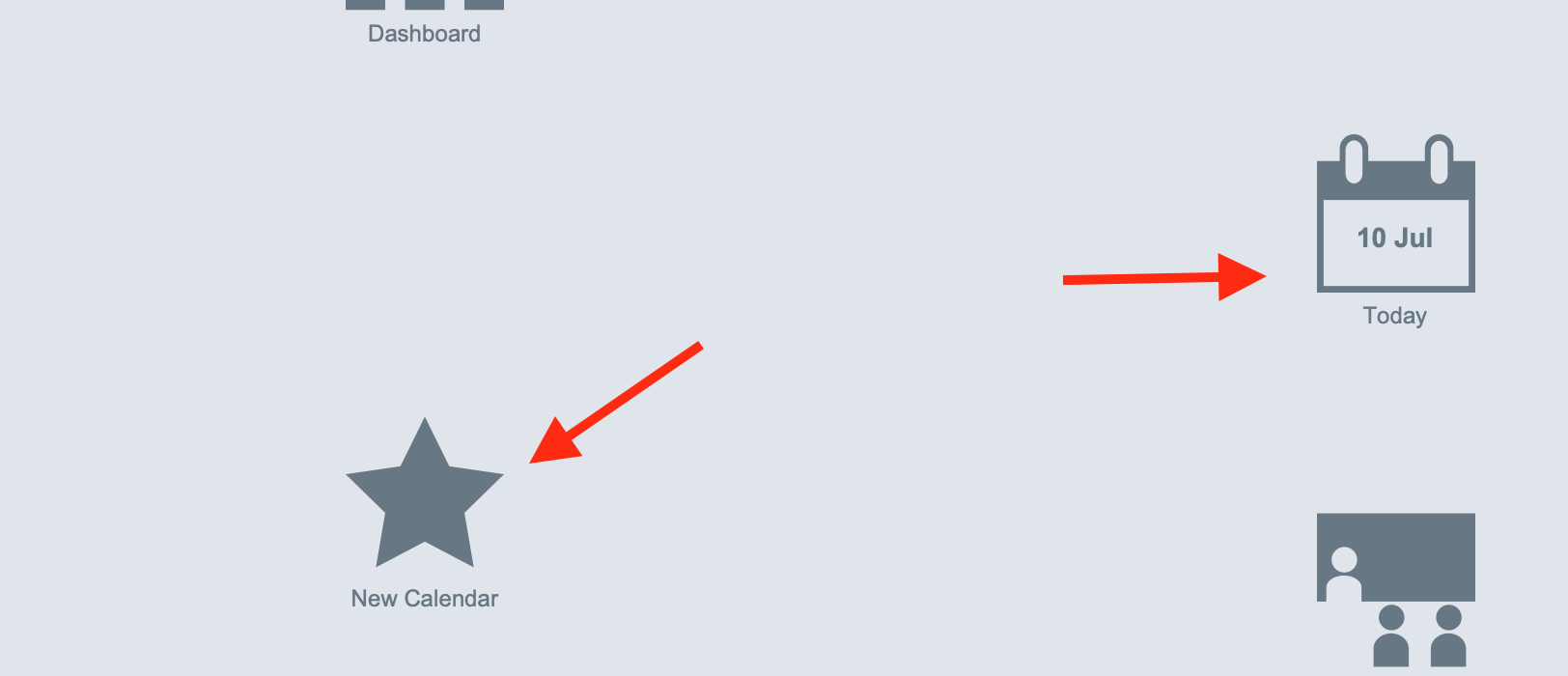
All teacher functions are available in the new view, though, so in Teacher View the calendar icon opens the New Calendar.
It looks like this:
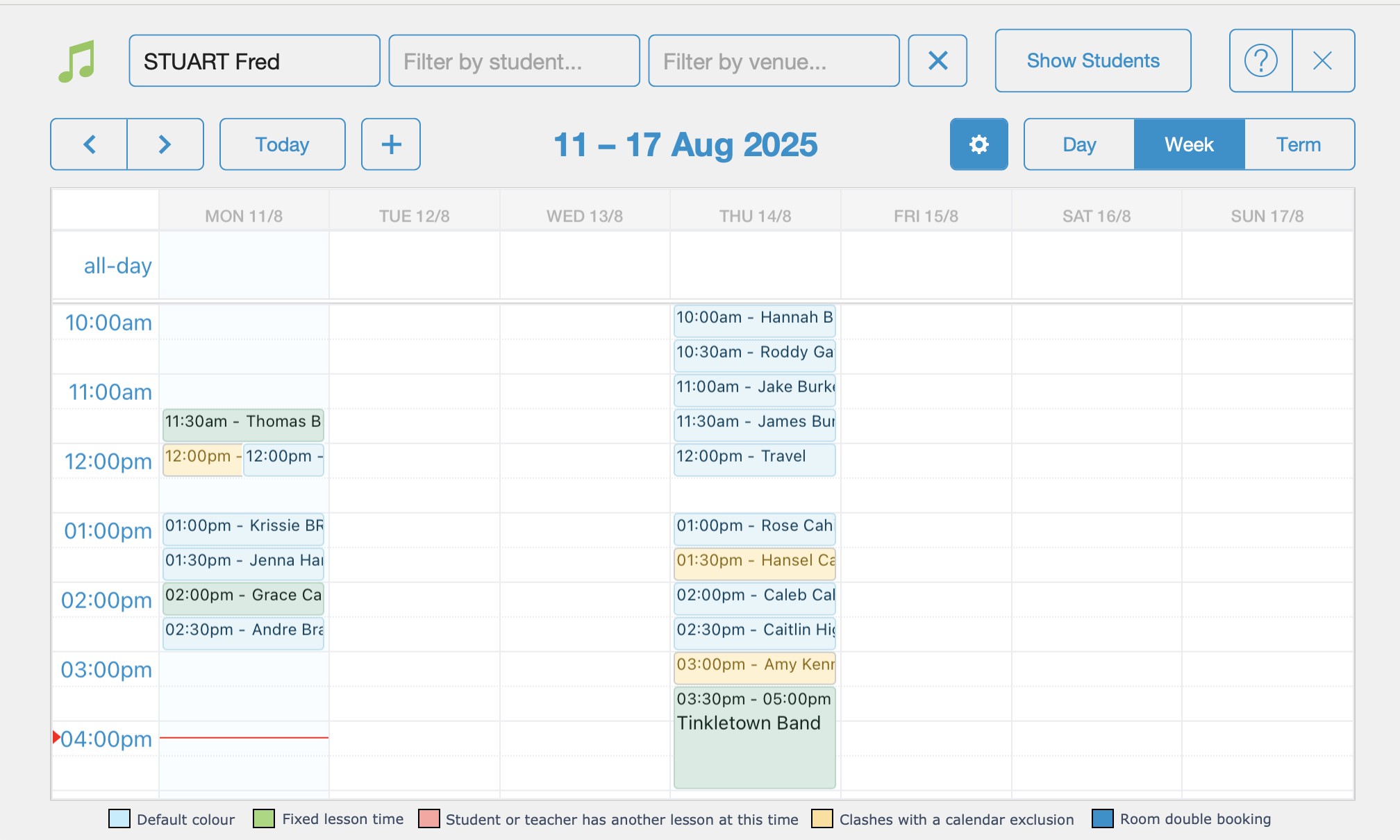
The main advantages of this over other calendar views are:
It is set out in a timetable grid, so gaps, later start times, and so on are easily visible.
You can drag and drop to change the time of a calendar entry.
Other Notes:
Entries are colour coded. See the key at the bottom of the calendar.

If you hover the mouse over an entry that is indicating a clash, a tooltip will display the description of the entry/exclusion it clashes with.
You can filter your view by Teacher, Student, or Venue.
Teachers cannot view other teachers' schedules
If you add one type of filter, it will clear any other type of filter you had in place
You can create a new calendar entry just by clicking on an empty timeslot in the calendar.
The + button will also create a new calendar entry. Just edit the details as needed.
The Show Students button will open a card window showing a list of the students related to the calendar entries you're currently viewing.
You can use this to make a calendar booking. Select the Copy button for the relevant student, then select the timeslot on the calendar where you want the booking to be and select the Paste button in that calendar entry window.